Categories
Canva

Canva Fonts List: Top Best Fonts to Have In Your List

Choosing the right look for your creative projects is a big step. The fonts you pick can change how people see your work.

At Designers Choice, we help you make smart decisions for your designs. This article is your helpful Canva font guide. We will show you a big Canva font list to help you find the perfect fonts for any design project.

Whether you are planning to create a lookbook in Canva for your fashion line or making something for social media, the right font makes all the difference. This blog post will give you the Canva font inspiration you need for your next design.

How to Choose the Right Font For Your Brand?

How to Choose the Right Font For Your Brand?

Picking the right font is key to building a strong brand identity. The font you use sends a message to your target audience before they even read a single word. A good font choice helps people remember you and trust your brand.

For the best results, think about what you want your brand to feel like.

Is it serious and professional? Or is it fun and friendly? Your font choice should match this feeling. If you plan to sell canva templates on etsy or create digital products, establishing a consistent look is vital.

It should also be easy to read on screens and in print.

A consistent font helps your small business look polished and reliable across all materials, from your website to your business cards.

What Is A Serif Font?

A serif font is a type of font that has small lines, or “feet,” attached to the ends of the letters.

Think of a classic font like Times New Roman. These little lines make the text easier to read in long blocks, like in a book or a newspaper.

When formatting these blocks of text, knowing how to indent in Canva can help keep your paragraphs looking neat and professional.

Serif fonts often feel traditional, classic, and trustworthy. They are a great choice for brands that want to show experience and reliability.

For example, a law firm or a university might use serif fonts. Some elegant fonts are serif fonts, which give them a very refined feel.

A beautiful Canva Pro font like Le Jour Serif is a perfect example of how these fonts can add a touch of class.

They work well for both headings and body text.

What Is A Sans-Serif Font?

A sans-serif font is a font that does not have the small “feet” that serif fonts have. The letters are clean and simple. “Sans” means “without” in French. These fonts have a modern style and look very clean on screens, which makes them very popular for web design and mobile apps.

Many tech companies and modern brands use sans-serif fonts to appear fresh and current. They are excellent for headings because they are clear and easy to see. They are also great for social media graphics because they catch the eye quickly.

Many of the best Canva fonts are sans-serif because they are so useful for many different creative projects.

What Is A Bold Font?

A bold font is a thicker and heavier version of a regular font. It is not a separate font style like serif or sans-serif but a weight. You use a bold font to make certain words or phrases stand out. It helps to guide the reader’s eye to the most important information.

Bold fonts are perfect for titles, headlines, and subheadings.

If you want to make your bold text even more dynamic, you can learn how to outline text in Canva or how to add a shadow in Canva to give it extra depth and dimension.

They add emphasis and create a clear structure in your text. Using a bold font can make your design more dynamic and easier to scan. It’s a simple but powerful tool in any designer’s kit, helping to make key messages pop on everything from posters to digital products.

A List of the Best Canva Fonts in 2026

Best Canva Fonts

Canva offers thousands of font options, which can feel like a lot to choose from.

To help you, we’ve made a fonts list with some of our top picks for different needs. This list includes both the free version of Canva options and some premium fonts you can get with a Canva Pro plan.

If you have a custom typeface that isn’t on this list, you might check if you can upload fonts to canva to keep your branding consistent. Getting a free trial or looking into how to get canva pro for free is a good way to test out the extra fonts and features. Many users wonder, is canva pro worth it?

If you need exclusive assets, it usually is. You should check how much Canva Pro costs to see if it fits your current budget.

You can spot a Canva Pro font by the little crown icon next to its name.

Best Canva Fonts For Instagram Posts

Best Canva Fonts For Instagram Posts

For Instagram, you need fonts that are eye-catching and easy to read on a small screen. Your social media posts have to stand out in a busy feed. Aesthetic fonts with a unique style are very popular. You can use them to create beautiful quotes, announcements, or shoppable posts.

When designing these posts, knowing how to flip an image in canva or how to fade an image on canva can help you layer text over photos perfectly. Don’t forget to use specific Canva Elements Keywords to find illustrations that match your font choice.

  • Black Mango: This is a thick, stylish script font that gives a handmade personal touch to your designs. It is a great choice for fashion or lifestyle brands that want a distinct look.
  • Catchy Mager: A fun and modern font that feels both friendly and cool. It is great for creating bold headlines on your social media graphics.
  • The Seasons: A beautiful serif font that looks high-end. It works well for luxury brands or anyone wanting a touch of elegance in their feed.
  • Gimlet: This is a sharp display font that grabs attention. It’s perfect for making a strong statement or announcing a sale.
  • BDScript: If you’re looking for one of the best free cursive fonts, this is a solid option. It’s a clean and readable script that is not too fancy.

Best Canva Fonts For A Resume

Best Canva Fonts For A Resume

When you are creating a resume, clarity is the most important thing. You want a font that is professional and easy for a hiring manager to read. You should avoid overly decorative or hard-to-read cursive fonts. A clean serif or sans-serif font is usually the best font for the job.

Before exporting, you should check does canva have spell check to ensure your document is error-free.

Also, knowing how to add a clickable link in Canva PDF is useful so recruiters can easily click through to your portfolio or LinkedIn profile.

  • Lato: This is a friendly and warm sans-serif font that is very easy to read. It’s a popular choice for body text because it remains clear even at small sizes.
  • Merriweather: A reliable serif font that was designed for screens. It is pleasant to read for long periods and gives your resume a professional, established feel.
  • Montserrat: A modern sans-serif font with a clean, geometric look. It’s very versatile and works well for both headings and main text. It is a personal favorite for many designers.
  • Garamond: A classic serif font that shows elegance and professionalism. It is a safe and respected choice that has been trusted for centuries.
  • Open Sans: A very neutral and readable sans-serif font. It is a workhorse font that is a great choice for any professional document.

Best Canva Fonts For Teachers

Best Canva Fonts For Teachers

Teachers need fonts that are clear, friendly, and sometimes playful for creating classroom materials. The goal is to make learning fun and easy. Whether it’s for worksheets, presentations, or classroom decorations, the right font can make a big difference.

If you are making a presentation, knowing how to put a timer in Canva can be great for managing classroom activities. You can also use tools to highlight text in Canva to emphasize key learning points.

For seasonal activities, don’t forget to look for Christmas fonts on Canva to add some holiday cheer.

  • Schoolbell: As the name suggests, this font looks like neat handwriting on a chalkboard. It’s a playful font that’s perfect for elementary school materials.
  • Lexend: This font was specifically designed to improve reading speed and comfort. It’s an excellent choice for any text-heavy documents to help students read more easily.
  • KG Primary Penmanship: A font that looks like the handwriting students learn to write. It is perfect for worksheets and practice sheets.
  • Chewy: A chunky and friendly font that is bold and fun. It’s great for titles on posters or presentations to grab students’ attention.
  • Quicksand: A rounded sans-serif font that is modern and easy to read. It’s clean enough for older students but still has a soft and approachable feel.

Best Canva Fonts For Posters

Best Canva Fonts For Posters

When designing a poster, your main goal is to get attention from a distance. You need a bold display font that is easy to read quickly.

The best Canva fonts for posters are often thick, have a strong personality, and make a big impact.

When working with images on posters, you might need to cut out an image in Canva or slice in Canva to create cool collage effects. If an image isn’t working, it is easy to learn how to replace an image in Canva without losing your layout. You can also add interactivity; just keep in mind that people often ask do Canva QR codes expire before printing a large batch.

  • League Spartan: A bold, modern, and strong sans-serif font. It is perfect for headlines that need to be seen from across the room.
  • Anton: A very heavy and impactful sans-serif font. It is a rework of a classic advertising typeface, so it is designed to grab attention.
  • Bebas Neue: A popular, tall, and narrow sans-serif font that is great for making strong statements in a tight space. It is one of the best free Canva fonts for posters.
  • Lobster: A bold and friendly script font. It has a retro feel that is very popular and gives a lot of personality to any design.
  • Archivio Black: An extremely bold sans-serif font. It is a great choice when you need your message to shout. It is excellent for event posters or big announcements.

Best Canva Fonts For Wedding Invitations

Best Canva Fonts For Wedding Invitations

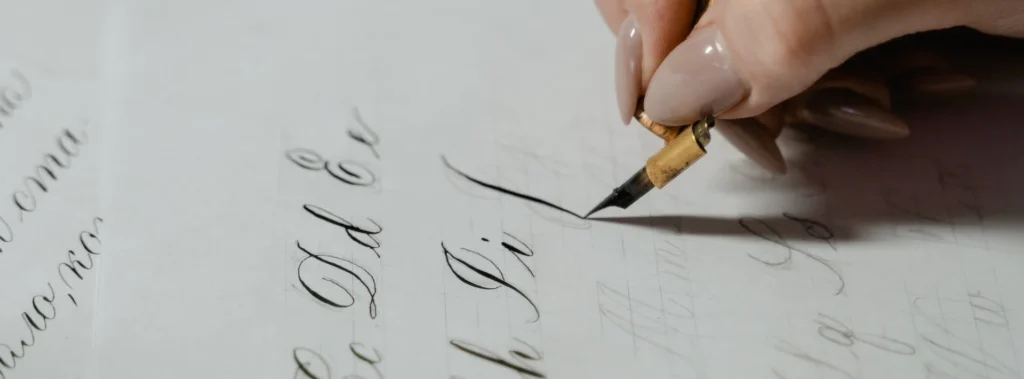
Wedding invitations call for elegant fonts that set a romantic and special tone. This is where script fonts and beautiful cursive fonts shine.

You want a font that feels personal and beautiful.

To make the layout unique, you might want to curve text in Canva around a design element or flip text in Canva for a stylistic mirror effect.

Learning how to wrap text in Canva around images can also give your invitation a professional, custom-made feel.

  • Safira March: A lovely modern script font that is both elegant and easy to read. It has a graceful flow that is perfect for names and headlines on wedding invitations.
  • Dream Avenue: This is a delicate and sophisticated script font that looks like beautiful handwriting. It adds a wonderful personal touch.
  • Tan Aegean: A unique serif font with a mix of classic and modern vibes. It’s one of the best luxury fonts for a formal wedding.
  • Brown Sugar: A warm and inviting script font. It’s a bit more casual than other script fonts but still has a beautiful, handcrafted feel.
  • Le Jour Serif: This is a classy and refined serif font. It pairs wonderfully with a script font and is perfect for the finer details and body text on your invitation.

How to Use the Canva Font Library Effectively?

How to Use the Canva Font Library Effectively?

Canva has a huge library of Canva fonts, and finding the right one can be a fun part of your design process.

To find the perfect fonts quickly, use the search bar in the text tool.

You can type in a style like “cursive” or “bold.” You can also filter by categories like “handwriting” or “corporate.”

If you know the name of a font, you can type it in directly. Many fonts you might know from Google Fonts are also available in Canva.

The free version of Canva offers hundreds of great font options. However, if you are looking for even more variety, a Canva Pro plan unlocks thousands of premium fonts. These are marked with a small crown icon.

A Canva Pro plan gives you access to these extra fonts and other powerful tools like the Canva Background Remover and unlimited stock photos.

If you are designing something like a brochure, make sure you know how to landscape in Canva to get the orientation right.

If you are not sure about committing, you can always start with a free trial of Canva Pro to see if it is right for you and your creative projects.

Typography Trends in 2026

Typography Trends

Font trends are always changing, but in 2026, we are seeing a few key styles take the lead. Keeping up with these trends can make your designs feel fresh and current.

  • Chunky Serifs: Bold serif fonts with a retro 70s vibe are very popular. They feel both nostalgic and confident, making them a great choice for logos and headlines.
  • Minimalist Sans-Serifs: Clean, simple, and geometric sans-serif fonts continue to be a top choice. These minimal fonts are used everywhere from web design to product packaging for their clean and modern feel.
  • Expressive Display Fonts: Fonts with a lot of personality are in demand. A unique display font can give your project a distinct look and help it stand out.
  • Humanist Scripts: We are seeing more script fonts that feel natural and handwritten, but are still very readable. These are great for adding a personal touch to digital products or greeting cards.
  • Mixing Styles: Combining different font styles, like a bold serif with a light sans-serif, is a popular way to create interesting and dynamic designs. It is all about finding the right balance.

FAQ’s:

What Are the Most Popular Fonts on Canva?

Some of the most popular fonts on Canva are popular for a reason: they are versatile and look great.

Fonts like Montserrat, Lato, and Bebas Neue are used a lot because they are clean, readable, and work for almost any project.

For serif fonts, Merriweather and Playfair Display are extremely popular choices. Among script fonts, Lobster and Pacifico are fan favorites.

Many people find a personal favorite and stick with it, but it’s always good to try new font options from the font list.

Can I Use Canva Fonts For Commercial Projects?

Yes, for the most part, you can use Canva fonts for commercial projects.

This means you can use them for your small business branding, marketing materials, and products you sell. This applies to both the free fonts and the Canva Pro fonts (if you have a Pro subscription).

Many users also ask if I can sell Canva designs on Etsy; generally, yes, as long as you follow the guidelines. However, you cannot trademark a logo that uses a Canva font because you do not have exclusive rights to it.

It is always a good idea to check that Canva images are copyright-free and verify Canva’s latest licensing terms on their website to be sure, especially if you plan to use a font from an outside source like Creative Market.

How Often Does Canva Add New Fonts?

Canva adds new design elements, including fonts, to its library very regularly. They are always working to expand their font list to give users more choices. This means that you can often find new and trendy aesthetic fonts and other styles to try in your designs.

Following the Canva blog or their social channels is a good way to stay updated on new additions. This growing library of premium fonts and free options is one of the best things about the platform.

What Are the Best Canva Font Combinations?

Pairing fonts is an art, but there is a simple rule to get you started: opposites attract.

Try pairing a serif heading with a sans-serif body text, or vice versa. For example, use the bold and elegant Playfair Display for a title and the clean and simple Lato for the paragraph below it. You can also pair a decorative display font with a very simple, neutral font.

The key is to create contrast while making sure the two fonts complement each other. Look at color palettes and social media templates in Canva for inspiration on great font pairings. This Canva font guide is just a starting point.

Conclusion

The fonts you choose are a vital part of your design. They help set the tone, deliver your message, and define your brand identity. With this Canva fonts list, we hope you feel ready to pick the best font for your next design.

Whether you need a free Canva font for a quick project or are using a Canva Pro font for professional work, there are endless possibilities. Think about your message and your target audience, and do not be afraid to experiment with different font options.

From book covers to business cards and social media graphics, the perfect fonts are waiting for you in Canva.

Categories
Canva Fonts

Best Christmas Fonts On Canva For Ultimate Holiday Fun (2026)

The holiday season is a wonderful time of the year, full of joy and celebration. It is a special time of year when we connect with family and friends. A big part of the fun is creating beautiful holiday designs for greeting cards, social media posts, and party invitations. The right font can add a touch of holiday magic to your work. Finding the perfect font can make your designs feel extra special and full of festive cheer.

If you use Canva, you are in luck. There are many amazing Canva fonts just for the Christmas season.

At Designers Choice, we put together this guide to help you find the best Christmas fonts on Canva for all your creative projects.

We will show you some of our favorite holiday fonts and give you ideas on how to use them to spread the holiday spirit.

Why Do Christmas Fonts Matter For Your Holiday Designs?

Why Do Christmas Fonts Matter For Your Holiday Designs?

Choosing the right font is very important for your Christmas designs. A font is more than just letters; it helps create a feeling or a holiday mood.

The perfect Christmas font can instantly make your design look festive and capture the spirit of Christmas.

Think about a Christmas card. A playful font can make it feel fun and happy, while an elegant script font can give it a more traditional look.

The right font helps tell your story. For holiday cards, it sets the tone before someone even reads the message. For social media graphics, a good font can stop people from scrolling and make them look at your post.

It helps your festive designs stand out during a busy time of the year.

Using a good Christmas font makes your work look professional and well-planned. It shows you care about the small details, which adds to the overall holiday cheer of your graphic design work.

Top 25 Christmas Fonts On Canva

Christmas Fonts On Canva

Here are some of the best Canva fonts to bring your holiday projects to life. We have included a mix of script fonts, serif fonts, and fun display fonts that are perfect for this special time of year.

Lobster

Lobster

Lobster is a very popular bold script font that you will see everywhere during the holiday season. It is one of the best Christmas fonts because its thick, rounded letters are full of life and easy to read. This makes it a perfect choice for big headlines on your Christmas designs.

Imagine a bright red “Merry Christmas” written in Lobster on the front of a Christmas card! It immediately grabs your attention and fills you with holiday cheer. Because it is so bold and friendly, it is a great choice for creating festive social media graphics that need to stand out. This Canva Christmas font is a go-to for many designers for their holiday projects because it brings so much festive cheer to any graphic design.

Brixton

Brixton

Brixton is a special kind of display font that gives your work a wonderful vintage feel. It looks like something from an old-timey sign or poster, which can add a lot of warmth to your holiday designs.

This font family has different weights, so you can use a light version for text and a bold one for titles. Using this font is like adding a touch of vintage magic to your creative projects.

It is an excellent choice for making holiday cards that feel classic and cozy. You can use Brixton to create a traditional look for your party invitations or product packaging, helping to capture the spirit of Christmas in a very unique way during this wonderful time of the year.

Dokdo

Dokdo

Dokdo is a really cool and unique brush font with a style that is hard to miss. The letters look like they were painted with a thick brush, giving them a bold and artistic modern look. This makes Dokdo a fantastic font pair with a simpler serif font for balance.

If you want your Christmas designs to look modern and a bit edgy, this is the perfect font for you. It almost has the playful feel of a Mumbai sticker, making it a great addition for anyone wanting a unique design.

This Canva font is perfect for creating eye-catching social media posts or posters that need to pop with energy and festive cheer, making it a standout among other holiday fonts.

Moonlight

Moonlight

Moonlight is a beautiful and delicate handwritten script font. It flows across the page with lovely thin lines, making it feel very personal and elegant. Using this font is like writing a note by hand, which makes it a perfect choice for adding a warm message to your greeting cards.

Imagine it on your gift tags; it adds a touch of class and shows you care.

As one of the best script fonts on Canva, Moonlight brings a soft and gentle holiday mood to your work.

It is an excellent choice for wishing someone a happy holiday season or for adding a graceful signature to your festive graphics.

It truly helps capture the quiet holiday magic of the Christmas season.

Limelight

Limelight

Limelight is a bold display font that brings the glamour of old Hollywood to your Christmas designs. It’s an Art Deco-style font with strong, clean lines that feel both fancy and fun.

Limelight is designed to be the star of the show, making it the right font for headlines on party invitations or announcements for a holiday event.

It helps create a festive and celebratory atmosphere right away.

For any graphic design that needs a bit of drama and style, Limelight is a great choice. It’s one of those Canva Christmas fonts that can make your festive designs look like a poster for a classic holiday movie, adding a special sparkle to this time of the year.

Engagement

Engagement

Engagement is a truly elegant handwritten script font that looks like beautiful, flowing handwriting.

It’s one of the most romantic and sophisticated script fonts you can find, making it a perfect pairing for formal holiday cards.

The way the letters connect adds a touch of grace to any message, especially a “Merry Christmas” greeting.

This font is a great addition to your list of favorite holiday fonts because it can make any design feel more special and heartfelt. It’s a wonderful font for wedding invitations, but it also brings the right amount of formal holiday spirit to your creative projects during this special time of year.

Sunday

Sunday

Sunday is a friendly and casual handwritten font that feels like a warm hug.

The letters are simple and a little imperfect, which gives it a very down-to-earth and approachable feel. This makes it a perfect choice for creating a cozy and handmade Christmas look on your designs.

Use this Canva font for writing a friendly message on your social media posts or for creating charming gift tags.

Sunday is a great choice when you want your holiday designs to feel personal and not too formal.

It helps spread holiday cheer in a simple, sweet way, making it one of the most loved playful fonts for any laid-back holiday project.

Fascinate

Fascinate

Fascinate is a decorative display font that definitely lives up to its name. It has a unique and eye-catching style with interesting shapes that make you look twice. This makes it one of the best Canva fonts for creating a unique design that stands out from the crowd.

If you are tired of the same old holiday fonts, Fascinate offers a fresh and exciting alternative.

It is perfect for a headline on a poster for a holiday market or for a social media graphic announcing a special event.

Its bold style ensures your message gets noticed, adding a bit of flair and festive cheer to your graphic design work this Christmas season.

Berkshire Swash

Berkshire Swash

Berkshire Swash is a beautiful and bold script font that feels both classic and friendly. The letters have a lovely “swash,” which means they have little curls and flourishes that add a decorative touch.

This font has a wonderful traditional look, making it an excellent choice for the front of the perfect Christmas card. It’s easy to read but still has enough personality to make your designs feel special. It’s a versatile Christmas font that works well for headlines, logos, and even short bits of text, bringing a strong sense of holiday spirit to any project you use it on.

It’s a reliable and beautiful font for spreading the spirit of Christmas.

Blacker Sans Display

Blacker Sans Display

Not every Christmas font has to be a script or decorative font.

Sometimes, you need a strong, simple font to balance your design, and Blacker Sans Display is perfect for that.

It is a serif font, which means the letters have small lines at the ends, giving it a classic and readable quality. This serif typeface is a great font pair for a more elaborate handwritten script.

You can use Blacker Sans for the body text of your holiday cards or for details on your party invitations. Its clean and modern look makes it a versatile choice for any holiday project where clarity is important, proving that simple Canva fonts are a great addition to your design toolkit.

Bright Sight Script

Bright Sight Script

Bright Sight Script is a modern brush font that is bursting with energy and personality.

The letters look like they were painted with quick, confident strokes, giving your designs a dynamic and joyful feel.

This makes it one of the best Christmas fonts for creating lively social media graphics or for a fun headline on a Christmas card.

As a bold script, it’s designed to capture attention and spread festive cheer. It’s a perfect font for any project that needs a handmade, artistic touch. This Canva Christmas font is a great way to add a modern and exciting vibe to your festive designs and share the holiday magic online.

Badhorse Script

Badhorse Script

Badhorse Script is a handwritten script with a cool, rustic texture. The letters have a slightly rough and worn look, which gives them a great vintage feel.

This font is perfect for creating a cozy, cabin-in-the-woods holiday vibe.

It’s an excellent choice for designs that need a touch of authenticity, like labels for homemade gifts or signs for a Christmas craft fair.

When you create font pairings with Badhorse Script and a simple serif font, you get a balanced and professional Christmas look. It’s a great addition to your collection of holiday fonts, especially for projects that need a strong, masculine, yet festive touch during this time of year.

Give You Glory

Give You Glory

Give You Glory is a simple and sweet handwritten font.

The letters are thin and a bit quirky, making it look like someone quickly jotted down a personal note. This free font is available on Canva and is a wonderful choice for adding a personal touch to your holiday designs.

Use it to write names on gift tags or to add a heartfelt message inside your holiday cards. Its humble and authentic handwritten style makes your designs feel genuine and full of warmth.

It’s one of those playful fonts that isn’t loud but speaks volumes, making it the perfect font for conveying a simple and sincere holiday mood.

Higuen Elegant Serif

Higuen Elegant Serif

Higuen Elegant Serif is a beautiful and sophisticated serif typeface.

It has a clean, classic feel with a touch of modern style, making it incredibly versatile for all sorts of holiday projects.

This serif font is a great choice for more formal Christmas designs, like corporate holiday cards or elegant party invitations.

The letters are well-balanced and easy to read, which is important for any graphic design.

Higuen provides a polished and professional traditional look without feeling stiff or old-fashioned.

It’s a perfect pairing with a delicate script font and is a true workhorse among best Canva fonts for creating classy festive designs.

Nickainley

Nickainley

Nickainley is a classic and very popular handwritten script font that has been a favorite for a long time.

It is a free font, which makes it an amazing resource for all your creative projects. The letters are smooth and have a monoline style, meaning the lines have the same thickness throughout.

This gives it a clean and balanced look.

Nickainley is a great choice for everything from greeting cards and social media posts to logos and product packaging. Its timeless appeal and readability make it a reliable perfect font for adding a touch of handwritten elegance to your Christmas designs this wonderful time of the year.

Kage

Kage

Kage is a powerful and modern font with a bold, blocky style. As a strong display font, it’s made to grab attention and make a statement. The letters are thick and have sharp, clean lines, giving it a very contemporary feel.

Kage is the right font for creating impactful headlines for your social media graphics or posters announcing a big holiday sale.

If you need to manipulate the text’s appearance, knowing how to curve text in Canva can add an extra layer of visual interest to your Kage headlines. Because it is so bold, it creates a great font pair with a much lighter or thinner font for balance.

If you want your festive graphics to feel strong, confident, and up-to-date, Kage is an excellent choice to bring a modern look to the holiday season.

Quilin

Quilin

Quilin is a very stylish serif font that feels both modern and timeless.

It’s a fantastic choice for designers who want a sophisticated Christmas look that isn’t boring.

The letters have a unique shape with a nice contrast between thick and thin strokes, making it visually interesting and easy to read.

Quilin is a great addition to your font library because it works well for both headlines and body text.

Use it to create elegant Christmas cards or for your blog’s festive graphics.

It is one of the best Christmas fonts for when you need a reliable and classy serif typeface that adds a touch of holiday magic to your work.

Stars & Love

Stars & Love

Stars & Love is one of the most fun and playful fonts you can find on Canva. As its name suggests, this cute handwritten font often includes little stars and other doodles right in the letters, which instantly makes any design feel happy and whimsical.

This makes it the perfect font for designing the perfect Christmas card for children or for creating fun invitations for a kids’ holiday party.

It fills your design with a joyful holiday mood and is sure to bring a smile to anyone’s face.

For any holiday project that needs a dose of pure, simple fun, Stars & Love is an excellent choice that embodies the joyful spirit of Christmas.

Grand Hotel

Grand Hotel

Inspired by the lettering on classic signs from the 1930s, Grand Hotel is a lovely script font that feels warm and inviting.

It has a smooth, connected flow that gives your designs a bit of a vintage feel and a touch of vintage charm.

This free font is a fantastic choice for creating a nostalgic Christmas look on your holiday cards or party invitations.

It reminds people of a cozy, old-fashioned Christmas, full of warmth and holiday cheer. Grand Hotel is one of the best canva fonts for creating a welcoming and friendly vibe, making it perfect for sharing the happy holiday spirit during this special time of year.

Great Vibes

Great Vibes

Great Vibes is a truly beautiful and elegant handwritten script font.

The letters are flowing and connected, with dramatic loops and swirls that make it look very fancy. This is the perfect font for when you want your Christmas designs to feel luxurious and special.

Use Great Vibes for the main greeting on a formal Christmas card or for an elegant menu for a holiday dinner party.

Its graceful handwritten style makes it an excellent choice for creating a classic and sophisticated Christmas look.

You might also want to learn how to add a shadow in Canva to make this already grand script pop even more.

This is one of those Canva fonts that brings instant holiday magic and elegance to any creative project you’re working on.

Rundeck Texture

Rundeck Texture

Rundeck Texture is a cool brush font that has a rough, textured look, as if it were painted onto a rustic piece of wood.

This texture gives it a lot of character and a handmade feel, making it a great choice for designs that need a bit of grit and personality.

It is a fantastic font for creating standout social media graphics or for designing product packaging for artisanal holiday goods.

The bold and rugged style of Rundeck Texture helps your festive designs feel authentic and unique.

It is a great addition to your collection of bold styles for the Christmas season, especially for projects with an outdoorsy or rustic theme.

Milestone Script

Milestone Script

Milestone Script is a beautiful handwritten font that has a charming vintage feel.

It looks like the elegant handwriting you might find on an old postcard or letter from a long time ago. This Canva Christmas font is perfect for adding a touch of nostalgia and history to your holiday designs.

It’s a perfect pairing with a simple serif font to create a balanced design.

Use Milestone Script to create greeting cards or gift tags that feel like they have a story to tell.

It’s a wonderful way to bring a touch of vintage warmth to your creative projects and celebrate the spirit of Christmas with a classic style.

Grimpt Brush

Grimpt Brush

Grimpt Brush is a powerful and energetic brush font. The letters are thick, textured, and look like they were painted with passion.

This bold script is designed to be noticed, making it a perfect choice for strong headlines on your Christmas designs.

If you want your social media posts to shout “Merry Christmas” with festive cheer, Grimpt Brush is the right font for the job.

Its raw energy makes it a great fit for modern and edgy holiday projects. It’s one of the best Canva fonts for adding a huge dose of personality and making sure your message doesn’t get lost during the busy holiday season.

Pirata One

Pirata One

Pirata One is a very unique display font with a sharp, blackletter style.

It has a historic, almost gothic feel, which might not be a traditional Christmas font, but it can be used to create a very memorable and unique design. Think of a “Christmas at the Castle” themed party or a design inspired by old storybooks. It’s one of those bold styles that can give your holiday designs a dramatic and fantastical feel.

Pirata One is an excellent choice if you want to break away from the typical playful fonts and script fonts and create something that truly stands out and captures a different kind of holiday magic.

Kindred Youth

Kindred Youth

Kindred Youth is a modern and bouncy handwritten script font that is full of joy and energy.

The letters dance along the baseline, giving it a playful and youthful feel that perfectly captures the excitement of the holiday season.

This perfect font is a great choice for creating fun and happy Christmas Canva fonts designs, like cheerful greeting cards or lively social media posts. It has a clean, smooth style that feels both personal and stylish.

Kindred Youth is a wonderful way to spread the holiday spirit and bring a smile to people’s faces, making it one of the best playful fonts for this wonderful time of the year.

Creative Ideas For Using Your Favorite Christmas Fonts

Creative Ideas For Using Your Favorite Christmas Fonts

Now that you have seen some of the best Christmas fonts on Canva, let’s talk about how to use them.

Here are a few ideas to get you started on your holiday projects.

Designing Festive Holiday Greeting Cards

Making your own holiday cards is a great way to send personal wishes.

Use an elegant handwritten script like Great Vibes or a bold script like Lobster for the main message, like “Merry Christmas.” For the smaller text inside the card, choose a simple and readable serif font.

You may need to learn how to indent in Canva to properly format the body of the message for a polished look.

A good font pair makes the card easy to read and beautiful to look at. This helps you create the perfect Christmas card to send to loved ones.

Creating Eye-Catching Social Media Graphics

During the holiday season, social media is full of festive posts.

To make your content stand out, you need strong graphic design. Use a bold display font like Kage or a fun brush font like Grimpt Brush to announce a holiday sale or share a festive message.

These Canva fonts are designed to be seen. Pair them with festive colors and images to create social media graphics that spread holiday cheer.

If your design includes images, you can use the Canva Background Remover feature to ensure your text is the main focus.

Making Custom Christmas Gift Tags and Labels

Personalized gift tags make your presents feel extra special.

Use a simple handwritten font like Give You Glory or Sunday to write names on gift tags. This adds a warm, personal touch.

If you have a small business, a unique font on your product packaging can create a memorable Christmas look and feel.

If you’re designing labels, you might want to know how to slice in Canva to create unique shapes or dividers.

Crafting Printable Holiday Decorations

You can use Canva to create your own holiday decorations.

Design and print a “Merry Christmas” banner using a big display font like Limelight. You can also make small signs with festive quotes using playful fonts like Stars & Love.

To add emphasis to your quotes, explore how to highlight text in Canva.

These creative projects are a fun way to add a personal touch of holiday magic to your home for this wonderful time of the year.

FAQ’s:

Are Canva’s Christmas Fonts Free For Commercial Use?

Many Canva Christmas fonts are free for both personal and commercial use. These are often called a free font.

However, some of the best Canva fonts are only available with a Canva Pro subscription. Fonts marked with a small crown icon require Canva Pro.

Always check the licensing information for each font if you plan to use it for business purposes. Understanding how much Canva Pro costs and whether Canva Pro is worth it can help you decide if the subscription is right for you. Some blogs, including ours, may use affiliate links.

If you sign up for Canva Pro through one of our links, we may earn a commission, which helps us create more content for you.

Can I Upload My Own Christmas Fonts to Canva?

Yes, you can upload your own fonts to Canva, but you need a Canva Pro account to do this. This is a great feature if you have purchased a specific Christmas font you love or have your own unique font. Once uploaded, you can use it in all your designs just like any other Canva font.

For a detailed guide, see you can upload fonts to Canva.

How Do I Find and Use Christmas-Themed Fonts in Canva?

Finding holiday fonts in Canva is easy. Open your design, add a text box, and click on the font name in the top toolbar. A font menu will appear.

In the search bar at the top of the menu, type in words like “Christmas,” “holiday,” “festive,” “script,” or “handwritten.” Canva will show you all the fonts that match your search, making it simple to find the perfect one for the Christmas season.

How Do I Pair Christmas Fonts Effectively In A Design?

Good font pairings are key to a great design. A simple rule is to pair a decorative font with a simple font.

For example, use a fancy bold script or a unique display font for your headline.

Then, use a clean serif typeface or a simple sans-serif font for the rest of your text. This creates a balanced look that is both stylish and easy to read.

You can also learn how to outline text in Canva to add even more visual distinction between your main and secondary fonts.

A perfect pairing makes your Christmas look professional and polished.

Conclusion

The Christmas season is a fantastic time to get creative and spread joy through your designs.

With so many wonderful Christmas fonts on Canva, you have everything you need to bring your holiday spirit to life.

Whether you are making Christmas cards, festive graphics for social media, or custom gift tags, the perfect font is waiting for you.

The right Christmas font can turn a simple project into something truly special. We hope this guide helps you find the best Christmas fonts for all your holiday designs this time of the year.

Have fun creating, and have a very Merry Christmas!

Categories
Canva

Canva Elements Keywords List: Boost Your Design Game FAST

Here at Designers Choice, we love using a good graphic design tool to bring ideas to life. Canva is a favorite for many people, from students to professionals running an online business. It’s great for making everything from homework covers to beautiful social media graphics.

If you’re creating a professional portfolio, you might even want to learn how to create a lookbook in Canva to showcase your work.

One of the best parts of Canva is its giant library of pictures and shapes.

But with so many choices in Canva’s endless options, how do you find the perfect one? The secret is using the right Canva elements keywords.

This blog post is your guide to becoming a master at finding the best Canva elements for any project. Using the right search words will save you countless hours and take your Canva creations to the next level.

Whether you are designing for print or need to know how to add a clickable link in Canva PDF for digital files, these keywords are the foundation.

What Are Canva Elements Keywords and Why Are They Important?

What Are Canva Elements Keywords and Why Are They Important?

Think of Canva as a huge treasure chest.

Inside, you’ll find a goldmine of design assets. To find the treasure you want, you need a map. Canva keywords are that map. They are the words you type into the search bar to find exactly what you need.

Understanding Canva’s Element Library

When you open a project in Canva, you see a menu on the side. One of the buttons says “Elements.” This is the elements tab.

Clicking it opens up the elements section, which is like a giant digital library. This library is filled with millions of graphic elements: shapes, stickers, photos, and videos. There are simple geometric shapes, detailed drawings, and realistic stock photos.

Once you find the perfect photo, knowing how to replace an image in Canva with your chosen element is essential for a smooth workflow.

Your job is to find the right elements in this huge collection. The selection of elements is amazing, but you need a way to sort through it.

The Role of Keywords in Element Searches

Keywords are the words that tell Canva what you are looking for.

When you type “sun” into the elements search bar, Canva shows you all the pictures it has that are tagged with the word “sun.”

These search words are called elements keywords. Using the right keywords is the most important skill for finding the perfect elements quickly. It’s the difference between finding the exact image you have in your head in seconds or spending a long time scrolling.

Benefits of Using Specific Keywords

Using general words is okay, but using specific keywords is much better.

If you just type “flower,” you will get thousands of results.

But if you type “blue hand-drawn flower,” you will get a much smaller, better list of pictures to choose from. This helps you work faster and makes your graphic design work look more professional.

It ensures all your design elements fit your style. Finding the right Canva element keywords is a skill that will make you a much better designer.

How to Effectively Search For Canva Elements Keywords?

How to Effectively Search For Canva Elements Keywords?

Searching for Canva elements is a skill you can learn.

With a few simple tricks, you can find amazing graphics for your social media posts and other projects.

Starting With Broad and Simple Terms

The easiest way to start is with simple words.

If you need a picture of a dog, just type “dog.” This gives you a starting point. From there, you can see what kinds of dog pictures are available. You might see cartoon dogs, photos of dogs, and drawings of dogs.

This can give you ideas for more specific words to use next.

If the orientation isn’t quite right for your layout, learning how to flip an image in Canva can quickly fix the composition.

Using Brand Codes and Creator Names (e.g., brand:BRANDCODE)

Did you know that many artists who add their work to Canva have special codes? These are called brand codes.

If you find a specific element you really like, you can often find its creator’s code. To do this, click the three dots on the element.

You might see a name and a code that looks like “brand:BRANDCODE“.

If you type this code into the search bar, you will see all the canva elements made by that artist. This is a great way to find many graphics that have a similar style. Following your favorite Canva creators is like having a best friend who makes art just for you.

Combining Keywords For More Precise Results

To really get good results, start mixing your keywords. Don’t just search for “arrow.” Search for “wavy red arrow” or “dotted line arrow.”

This helps Canva narrow down the options and show you the perfect canva elements. You can combine words for colors, styles, and objects.

For example, “minimalist pink circle” will give you much different results than just “circle.”

Using bold colors in your search terms, like “bright yellow,” can also help.

Using Canva’s “Magic Recommendations”

Canva has a very helpful tool called Magic Recommendations. When you add an element to your design, Canva will automatically show you a box with similar elements. This is a fantastic way to find more graphics that match the one you already like. If you find a piece of line art you love, the magic recommendations might show you more from the same set or by the same artist, helping you find new keywords to use later.

Top Canva Elements Keywords For Every Design Need

Here is a helpful list of canva keywords to get you started. Try these out to find some of the best canva elements keywords for your designs.

Keywords For Abstract Shapes and Lines

Abstract elements are great for adding a modern feel to your design. They aren’t pictures of one specific thing, but they add style and interest. You can even learn how to slice in Canva to customize these shapes further.

Try searching for these:

  • boho abstract
  • blob
  • gradient shapes
  • scribble
  • shapes
  • geometric shapes
  • abstract pattern
  • organic shapes
  • line art

Keywords For Organic and Hand-Drawn Illustrations

If you want your design to feel personal and handmade, hand-drawn illustrations are perfect. These cute elements add a lot of charm.

Try these keywords:

  • hand-drawn
  • doodle
  • illustration
  • charcoal
  • sketch
  • organic
  • botanical line drawing
  • rustic
  • imperfect

Keywords For Minimalist and Modern Graphics

Minimalist designs are simple, clean, and professional. They use simple lines and shapes to look classy.

If you want this look for your web design or posts, try these terms:

  • minimalist
  • clean
  • monoline
  • simple line
  • modern
  • thin line
  • basic shape

Keywords For Animated Stickers and Dynamic Elements

Animated, or moving, elements can make your social media content pop. They grab attention and make your designs more fun.

For video projects utilizing these stickers, you might also need to know how to put a timer in Canva to manage your clip duration.

Search for these to find moving graphics:

  • animated
  • sticker
  • moving
  • sparkle
  • blinking
  • glowing
  • arrow sticker
  • reaction

Keywords For Backgrounds and Textures

A good background can change the whole feel of your design. Whether you want something simple or full of texture, there are keywords for that.

Sometimes, you may want to learn how to fade an image on Canva
So the background doesn’t overpower your content, or how to landscape in Canva if you need to change the page orientation.

Try these:

  • paper texture
  • gradient background
  • wood texture
  • pattern
  • wallpaper
  • marble
  • fabric texture
  • glitter background

Advanced Tips For Mastering Your Canva Element Search

Advanced Tips For Mastering Your Canva Element Search

Once you know the basics, you can try some of these more advanced tricks to find even better design elements.

Searching For Monoline and Duo-Tone Graphics

Monoline graphics are made with a single line that has the same thickness all the way through. They look very clean and modern.

Duo-tone graphics use only two colors. You can search for “monoline” or “duotone” along with other keywords (like “monoline flower”) to find these specific styles. Matching the right elements is just as important as creating good Canva font pairings.

Speaking of typography, checking a comprehensive Canva fonts list or knowing how to upload fonts to Canva can give you even more options.

Finding Cutouts and Photo-Realistic Elements

Sometimes you need a picture of a real object or person without the background. These are often called cutouts.

Try searching for words like “cutout,” “isolated,” or “person walking cutout.” This is a great way to find high-quality images that look like professional stock photos you can place anywhere in your design.

This is where the Canva Background Remover tool shines, or you can learn how to cut out an image in Canva manually.

Perfecting Your Text Layout

Don’t forget to polish your text to match your elements.

Mastering typography involves knowing how to curve text in Canva, how to outline text in Canva, or even how to wrap text in Canva around your new illustrations. Simple tweaks like knowing how to indent in Canva or how to highlight text in Canva make a big difference.

If you make a mistake, it helps to know does Canva has spell check. You can also get creative and learn how to flip text in Canva or how to add a shadow in Canva for depth.

Using Negative Keywords to Refine Searches

This is a very powerful trick. You can tell Canva what you don’t want to see by adding a minus sign () before a word.

For example, if you want pictures of flowers but you don’t want any red ones, you can search for “flower -red“. This removes all the red flowers from your search results, helping you find what you need faster.

Saving Your Favorite Elements and Creators

When you find canva elements or canva creators that you love, don’t lose them! You can save your favorite canva elements by clicking the star icon.

This adds them to a special “Starred” folder so you can use them again easily. You can also follow creators to see their new work.

Over time, you can build your own personal Canva archive of your favorite graphics, which is a key part of an efficient workflow for any graphic design project. This is much better than trying to remember your favorite Canva elements keywords every time. If you are creating digital products, this efficiency is key when learning how to sell Canva templates on Etsy.

FAQ’s:

Can I Find Free Canva Elements Using keywords?

Yes, absolutely! Canva has millions of free elements that anyone can use, even on the free plan.

When you search in the elements tab, you can use the filter button to select “Free.” This will hide all the premium elements, which are marked with a small crown and require a Canva Pro subscription.

You can use the free elements for personal or commercial use, but always check the license for each one. Many people start with a free trial, but if you are on the fence, you might wonder if Canva Pro is worth it
or ask how much Canva Pro costs exactly. There are even ways to learn how to get Canva Pro for free legally to test it out.

How Do I Find Elements From A Specific Canva Creator?

The best way is to use their unique brand codes. If you find an element you like, click the three dots on it and look for the creator’s name.

Often, you can click their name to see more of their work.

If you find their brand code, type it into the search bar (e.g., brand:12345) to see their entire collection.

This helps you get a similar style across all your Canva creations. Also, if you are designing marketing materials, you might be curious: Do Canva QR codes expire?

It is always good to check the functionality of the elements you use.

What Are the Best Canva Keywords For Aesthetic Designs?

To find beautiful, trendy, and aesthetic elements, you should use keywords that describe a mood or feeling. Some of the best keywords are: aesthetic, vintage, film grain, retro, delicate, dreamy, soft focus, moody, and ethereal.

Combining these with other terms, like “aesthetic flower” or “vintage paper,” will give you great results. You might also want to try festive options like Christmas fonts on Canva for seasonal aesthetic projects.

How Do Codes For Canva Elements Differ From Regular Keywords?

Regular canva keywords are general words that describe what an element is (e.g., “cat,” “circle,” “arrow”). Many different elements from many different creators can share the same keyword.

Brand codes, on the other hand, are unique codes assigned to specific Canva creators. When you search for a brand code, you only see elements from that one creator. It’s a direct way to find art from an artist you like.

What’s the Best Way to Discover New Element Keywords?

A great way to find new keywords is to look at the elements you already love.

Click on an element in your design, then click the “i” (info) button at the top. Canva will often show you the keywords associated with that specific element. You can also get ideas by looking at templates and seeing what graphic elements other content creators are using.

This is a smart move for your online business and overall content plan, almost like an SEO strategy for your designs.

Speaking of business, many users ask, “Can I sell Canva designs on Etsy?” or “Are Canva images copyright-free?”—always verify the licensing before you start selling.

What Tips Can I Use to Organize and Save My Favorite Canva Element Keywords?

Keeping a list is the best method. You can use a simple notebook or a document on your computer to write down your favorite Canva elements keywords. Organize them by style (e.g., “minimalist keywords,” “hand-drawn keywords”).

This way, when you start a new project, you can quickly look at your list and find the right keywords without having to remember them all. Some people also create a blank Canva design and fill it with their favorite Canva elements to use as a quick reference board.

Think of it as your own personal free Canva-type guide, but for elements.

Conclusion

Canva is an amazing tool that can help anyone create beautiful designs.

The key to unlocking its full power is learning the language of the elements tab. By mastering Canva elements keywords, you can stop searching and start creating. You can find the perfect elements every time, whether you’re making social media posts, flyers, or presentations.

It might seem like a lot to learn, but with a little practice, you’ll be finding incredible design elements in no time.

Finding that perfect Canva element can be so satisfying. It feels almost as relaxing as sitting back with a glass of wine. We hope this guide helps you make your best Canva creations yet.

Categories
Canva

How to Replace an Image in Canva in Under a Minute? (Easy Guide)

At Designers Choice, we believe that great design is built on flexibility and the power to make quick, effective changes.

Images are often the heart of a great Canva design, and knowing how to change them without disrupting your entire project is a fundamental skill.

Whether you’re updating a Canva template with a client’s photo, trying out new visual ideas, or simply correcting a mistake, the ability to replace an image seamlessly is essential.

This tutorial is designed to be your go-to guide.

We’ll walk you through the simple steps for how to replace an image in Canva, no matter if you’re on a computer, phone, or tablet.

Our goal is to give you the confidence to manage your visuals efficiently, so you can focus on what you do best: creating.

Understanding Image Replacement in Canva

Understanding Image Replacement in Canva

Before we jump into the “how-to,” let’s clarify what replacing an image in Canva involves and why it’s such a useful feature for any creator.

What Does Replacing an Image Mean in Canva?

When you replace an image in Canva, you are not just deleting an old image and adding a new one. Canva is smart about it.

The platform will automatically place your replacement image into the exact same position, size, and rotation as the original image. If you had applied any filters, cropping, or transparency effects to the existing image, Canva often tries to apply those same settings to the new image.

This is particularly useful when you’re trying to achieve a specific look, and it’s also helpful to know how to fade an image on Canva for more advanced transparency effects.

This saves you a lot of time and helps maintain the consistency of your layout. It’s a simple swap that keeps your design structure intact.

Reasons to Replace Images in Your Designs

You might need to replace images in your Canva design for many reasons. Here are a few common situations:

  • Updating Templates: You may start with one of Canva’s many templates but need to personalize it with your own image or a client’s branding photos.
  • A/B Testing: A designer might want to see which image performs better in a social media post or ad. Replacing images quickly allows for easy testing. This is a key step on how to create a lookbook in Canva to showcase your final products.
  • Brand Updates: If your brand has new photography, you can easily go into old templates and swap out the outdated pictures for the new ones.
  • Improving Quality: You might find a higher-resolution version of an existing image and want to swap it in for a sharper, more professional look.
  • Client Feedback: Clients often request changes. The replace function lets you quickly address feedback like, “Can we try a different photo here?” without having to redo the entire layout.

How To Replace an Image In Canva?

How To Replace an Image In Canva?

Canva offers a few straightforward methods to replace photos.

Let’s look at the most common ways to get this done on a PC, which is often the most direct approach for how to replace a photo in canva pc.

Method 1: The Drag-and-Drop Technique

This is the fastest and most intuitive method for many designers. It’s a simple, two-step process.

  • Locate Your Replacement Image: On the left-side panel of your Canva editor, go to the uploads tab. Here you will find every image you have added to Canva. If the new image you want to use isn’t there yet, you can upload files from your computer by clicking the “Upload files” button. You can also find a replacement image by using the search bar in the “Elements” or “Photos” tab to browse Canva’s library.
  • Drag and Hover: Once you’ve found your new image, click on it and hold, then drag it directly over the existing image in your Canva design. As you hover the new image over the old image, you will see a purple outline appear around the old image. This is your signal that Canva is ready to make the swap. Release your mouse button, and Canva will instantly replace the photo, fitting it into the same spot.

Once you’ve mastered replacement, you might want to try more advanced edits. For instance, learning how to slice in Canva can add a unique, dynamic effect to your visuals.

Method 2: Using the “Replace” Button

If you prefer using menus, this second option is just as effective. It gives you more control, and you can feel more precise.

  • Select the Image: Click once on the existing image you wish to change. When you select it, a toolbar will appear at the top of the Canva editor.
  • Click the “Replace” Button: On this top toolbar, look for the “Replace” button, usually located on the far left. Clicking it will open the object panel on the left side of your screen, the same one where you find photos and uploads.
  • Choose Your New Image: Now you can browse Canva’s library for a new photo or go to your uploads tab to select your own image. Simply click on the replacement image you want, and Canva will automatically place it into your design, replacing the one you had previously selected.

While you’re working with the top toolbar, you’ll see options for more than just images. It’s also where you can learn how to highlight text in Canva to make key messages stand out.

Method 3: Replacing A Background Image

Replacing a background image is slightly different. If an image is set as the background for the entire page, dragging and dropping a new one will usually work. However, sometimes you need to detach it first.

  • Access Background Options: Right-click on the background image. A menu will appear.
  • Detach the Image: From the menu, select “Detach image from background.” This will turn the background into a regular image object that you can move, resize, or delete.
  • Set the New Background: You can now delete that old image. Then, find your new image in the side panel, drag it onto your canvas, right-click on it, and select “Set image as background.” Your replacement image will now fill the entire page.

Once detached, you can manipulate the image just like any other element. This is a great time to learn how to flip an image in Canva or even change the entire page orientation by figuring out how to landscape in Canva.

How to Replace An Image In A Canva Frame Or Grid?

Frames and grids are special elements in Canva that act as placeholders for your photos, making it easy to create clean and organized layouts.

Swapping A Photo In A Single Frame

A frame in Canva is like a picture frame; it can be a circle, a letter shape, a phone screen, or any other shape. Replacing an image in a frame is very simple.

  • Find Your New Image: Go to your uploads or search in Canva’s library to find the photo you want to use.
  • Drag It Over the Frame: Just like the standard drag-and-drop method, drag your new image and hover it directly over the frame that contains the old image. The image will automatically “snap” into the shape of the frame, replacing the original image completely. You don’t need to worry about resizing or cropping; the frame handles it for you.

Frames are also great for combining with text effects.

After placing your image, you could add stylish text nearby and learn how to curve text in Canva to make your design pop.

Updating An Image Within A Multi-Image Grid

Grids allow you to create a collage-style layout with multiple images. Replacing a single photo within a grid is just as easy.

  • Identify the Image to Replace: In your grid, decide which of the photos you want to swap out.
  • Drag and Drop into the Specific Section: Find your replacement image in the side panel. Drag it and hover it over the specific box in the grid that contains the photo you want to replace. Be careful to hover over just that one section.
  • Release to Replace: When you release the mouse, the new image will pop into that section of the grid, leaving the other images untouched. This allows you to update complex layouts one photo at a time.

Pro Tips For Managing Your Images In Canva

Pro Tips For Managing Your Images In Canva

Knowing how to replace an image is great, but managing your visuals like a professional can make your workflow even smoother.

Keeping Your Filters and Edits After Replacing

One of the best things about Canva’s replace function is that it tries to preserve your edits.

If you adjusted the brightness, contrast, or saturation of the original image, or if you applied a filter, Canva will attempt to apply those same adjustments to the new image. This saves a ton of time, but always double-check the result.

Sometimes, a new image with different lighting or colors might need slight tweaks to look perfect with the old settings.

This is also a good opportunity to learn how to add shadow in Canva to give your new image more depth.

Organizing Your Uploads With Folders

If you work on many projects, your uploads tab can get very messy.

A key feature for Canva Pro users is the ability to create folders. You can organize your images by project, client, or date.

This way, when you need to find a specific replacement image, you can go directly to its folder instead of scrolling through hundreds of photos.

If you’re wondering about the investment, it’s worth exploring how much Canva Pro costs and even how to get Canva Pro for free to see if it fits your needs. Many designers find that for streamlined features like this, is Canva Pro worth it? It is an easy question to answer.

How to Undo an Image Replacement?

Made a mistake? No problem. If you replace an image and don’t like the result, you can undo it instantly.

Simply use the keyboard shortcut Ctrl+Z (or Cmd+Z on a Mac). You can also click the “Undo” arrow located in the top-left corner of the Canva toolbar. This will revert your Canva design back to the original image, giving you a chance to try again.

FAQ’s:

Is There A Replace Function In Canva?

Yes, absolutely. Canva has a built-in replace function. You can access it in two main ways: by dragging a new image over an existing image until it snaps into place, or by selecting the old image and clicking the “Replace” button that appears on the top toolbar.

It’s one of the many user-friendly features, similar to how simple it is to learn how to indent in Canva for text formatting.

Why Won’t my Image Replace the Old One in Canva?

There are a few common reasons this might happen.

First, the original image might be locked. If you see a small padlock icon, select the image and click the padlock on the top toolbar to unlock it.

Another reason could be that the image is part of a group of elements. You may need to “Ungroup” them first.

Finally, be sure you are hovering the new image directly on top of the old one until you see that purple highlight.

If you’re still struggling, you may need a more direct approach, and learning how to cut out an image in Canva can allow you to remove it manually.

Can I Replace Images on Canva Mobile and Desktop the Same Way?

The process is slightly different but achieves the same result.

On a desktop (PC), dragging and dropping is very common.

For how to replace an image in Canva mobile or on an iPad, it’s often easier to tap the existing image you want to replace. This will bring up a toolbar at the bottom of the screen.

Tap “Replace” on that toolbar, and you’ll be able to choose a new image from your uploads or Canva’s library.

This cross-platform functionality is great for other tasks too, like when you need to know how to add a clickable link in Canva PDF while on the go.

How Do I Use Magic Edit For Image Replacement in Canva?

Magic Edit is a powerful Canva Pro tool, but it’s not for replacing an entire image. Instead, it lets you replace parts of an image.

For example, you could use it to brush over a person’s hat in a photo and type “a blue hat” to change its color. It’s for making specific edits within an image, not for swapping the whole photo.

For text edits, you’ll want to use different tools to wrap text in Canva or even to flip text in Canva.

Where Can I Find the Replace Image Button on Canva For iPad?

If you are trying to figure out how to replace an image in Canva iPad, the process is very similar to the mobile one.

First, tap on the old image in your Canva design. A menu or toolbar will appear at the bottom of the screen. The “Replace” button will be right there, allowing you to choose your replacement image.

How Do I Detach an Image From the Background?

On a PC, right-click anywhere on the background image and select “Detach image from background” from the menu. On a mobile device or iPad, you can usually tap and hold on the background until a similar menu pops up with the option to detach it.

Are There Limitations For Replacing Images in Canva Free Vs. Pro?

The core function of replacing an image is available to all users, both Free and Canva Pro. The main difference lies in the assets you have access to.

Canva Pro users have a much larger collection of stock photos, graphics, and elements. A common question is, are Canva images copyright-free? The answer depends on the license, which is important to check.

Pro users can also use features like the Background Remover, organize their uploads into folders, and get answers to questions like Can you upload fonts to Canva (yes, with Pro!). If you plan to monetize your work, it’s also critical to know, Can I sell Canva designs on Etsy?

Conclusion

Mastering how to replace an image in Canva is a small skill that has a big impact on your design workflow.

Whether you prefer the speed of drag-and-drop or the precision of the “Replace” button, you now have the knowledge to update any Canva template or design with confidence.

This simple action empowers you to adapt your visuals, respond to feedback, and keep your creative projects fresh and professional.

As a final quality check, you may wonder, Does Canva have spell check? It does, helping you polish your final text.

And if you’re ready for the next step, you can learn how to sell Canva templates on Etsy and turn your design skills into a business.

Now, you can spend less time struggling with the tool and more time bringing your unique vision to life in every Canva design you create.

Categories
Canva

How to Flip an Image in Canva: Step-by-Step Guide to Rotate Pics

Designers Choice started from a love for design. It comes from many years of hands-on work.

This site is made to be the help every expert wants. It is a place where skill meets fresh ideas.

This platform looks at the usual problems that come with making ideas real. It helps with finding the right materials and keeping up with design trends. It has a mix of top products, new ideas, and trusted advice. All of this is for people who want the best.

Designers Choice wants to help you make your biggest dreams come true. You will be supported by a group that cares about creativity, skill, and quality. This guide will show you easy steps to flip and turn images or text in Canva. This is an important skill for any design task.

Understanding Image Flipping in Canva

Understanding Image Flipping in Canva

Before you start rearranging your design elements, it’s helpful to know what flipping an image actually does and how it’s different from rotating.

What Does Flipping an Image Mean?

Flipping an image means creating a mirror image of it, either horizontally or vertically.

  • Horizontal Flip: This turns the image left to right, as if you’re looking at it in a mirror. If a person in a photo is looking to the right, a horizontal flip will make them look to the left.
  • Vertical Flip: This turns the image upside down. The top part of the image moves to the bottom, and the bottom part moves to the top.

You can find these options in the Canva editor’s toolbar after selecting an image. Besides flipping, you might also need to know how to replace an image in Canva if you decide to use a different one entirely.

Differences Between Flipping and Rotating Images

While both actions change the orientation of an image, they work differently.

Flipping creates a mirror image without changing the image’s angle. Rotating, on the other hand, turns an object around a central point, like the hands of a clock. You can rotate an image 360 degrees to get the exact angle you need for your design layout. Similarly, you can change the entire page orientation if you need to understand how to landscape in Canva.

Why Flip an Image?

Why Flip an Image?

Flipping an image may look like a tiny change.

However, it can make a big difference in your design. It is a handy tool for bettering your layout. You can also use it to add a fun touch.

Enhancing Composition and Flow

Sometimes, an image does not fit well in your design.

For example, if a person in a photo looks out of the frame, it pulls attention away. This can distract the viewer from your main message.

Flipping the image sideways can help. It makes the person look toward the center of your design.

This guides the viewer’s eye to the important content. This small change can enhance your layout’s appearance and make it feel more professional.

Mastering this is just as important as knowing how to cut out an image in Canva to isolate subjects.

Creating A Mirror Effect For Creative Designs

Flipping an image can create cool effects. You can make a copy of the image and flip it. Then, place the flipped image next to the original.

This will give you a mirrored look that is very neat.

This method is great for making abstract patterns or fun photo collages. It is also used for unique graphics on social media.

For more complex designs, you might want to learn how to slice in Canva to create even more intricate patterns.

Flipping can add style and make a simple design more interesting.

This is a great technique when you want to create a lookbook in Canva or design other engaging visual assets. If you’re creating templates for others, you may wonder, “Can I sell Canva designs on Etsy?” The answer is yes, and unique effects can make your templates more appealing.

Step-by-Step: Flipping an Image in Canva

Step-by-Step: Flipping an Image in Canva

Whether you’re working on a computer or going with your phone, Canva makes flipping images straightforward.

How to Flip an Image on the Canva Website?

If you’re using Canva on your PC, you can flip an image in just a few clicks.

  • Select the Image: First, click on the image you want to flip in your Canva project. A blue bounding box will appear around it, showing that it’s selected.
  • Find the Flip Option: With the image selected, look at the top menu bar that appears above your canvas. Click on the “Flip” button.
  • Choose the Flip Direction: A dropdown menu will give you two options: “Flip horizontal” and “Flip vertical“. Click the one you need, and your image will instantly flip.

How to Flip an Image on the Canva Mobile App?

The process for flipping an image on the Canva mobile app for your iPhone or other mobile device is just as simple.

  • Select the Image: Tap on the image in your design to select it.
  • Find the Flip Option: A toolbar will appear at the bottom of the screen. You may need to swipe left on this toolbar to find the “Flip” option.
  • Choose the Flip Direction: Tap “Flip” to open the flipping menu. You can then choose “Flip horizontal” to flip it sideways or “Flip vertical” to flip it upside down.

You can also flip a picture directly on your iPhone’s photo app by tapping “Edit,” selecting the crop tool, and then using the flip icon in the top-left corner.

Advanced Flipping Techniques in Canva

Once you’ve mastered the basics of flipping, you can try some more advanced techniques to enhance your designs.

Creating A Reflection Effect

A popular design trick is to create a realistic reflection. Here’s how you can do it:

  • Duplicate Your Image: Select your image and duplicate it.
  • Flip the Copy: Select the duplicated image and use the “Flip vertical” option.
  • Position and Adjust: Move the flipped image directly below the original. To make it look like a real reflection, reduce its transparency. You can also learn how to fade an image on Canva for a smoother effect. For added depth, you might also want to explore how to add shadow in Canva.

What Elements Can Be Flipped in Canva?

In Canva, you’re not just limited to flipping photos. You can flip a variety of elements, including:

  • Illustrations and Graphics: Most of Canva’s library of graphics and shapes can be flipped. When using them, it’s wise to ask, “are Canva images copyright free?” to ensure you’re compliant.
  • Stickers: Animated and static stickers can also be flipped to fit your design.
  • Videos: You can even flip videos horizontally or vertically. For dynamic video content, you might also want to know how to put a timer in Canva.
  • Shapes with Gradients: While you can’t flip a basic shape directly, you can save it as a PNG with a transparent background, re-upload it, and then flip the new image.

How To Flip Text In Canva?

How To Flip Text In Canva?

Canva doesn’t have a direct button to flip a text box, but there’s a clever workaround. Learning how to flip text in Canva involves turning it into an image first.

  • Step 1: Add Text To The Canvas Using The Text Tab – First, add your text to the design. Go to the “Text” tab on the left-side panel, add a heading or paragraph, and type your message. Customize the font, size, and color as you like. While you’re at it, you can explore how to curve text in Canva or how to outline text in Canva for more style. If you want to use custom branding, you may ask, “Can you upload fonts to Canva?”
  • Step 2: Download The Text Project As A PNG – Once your text looks right, you need to save it as an image. Click the “Share” button and select “Download“. Choose “PNG” as the file type and, if you have Canva Pro, check the box for “Transparent background.” This Pro feature is a major benefit, but it’s worth asking, “Is Canva Pro worth it?” for your needs. Then, click the download button.
  • Step 3: Upload The Text Project Back Into Canva – After you download the text image, go to the “Uploads” tab in Canva and upload the PNG file you just saved. Once it’s uploaded, you can drag it onto your canvas.
  • Step 4: Click On The Flip Feature Above The Canvas And Select The Orientation – Now that your text is an image, you can flip it. Click on the uploaded text image, and the “Flip” option will appear in the top menu. You can now flip it horizontally or vertically, just like any other image. This method of flipping text allows for many creative possibilities in your layout.

How To Rotate Images & Text in Canva?

How To Rotate Images & Text in Canva?

Rotating elements in Canva is a straightforward process. You can do it manually for a custom angle or in set increments for more precision.

  • Step 1: Select the Element – First, click on the image or the text box you wish to rotate. When you select it, a blue bounding box will appear around the element, indicating it’s ready to be edited.
  • Step 2: Find the Rotation Handle – Look for the rotation handle, which appears as an icon with two circling arrows, located at the bottom of the bounding box.
  • Step 3: Click and Drag to Rotate – Click and hold the rotation handle. As you move your mouse, the element will begin rotating. Canva will display the angle in degrees as you turn it, allowing you to find the perfect orientation for your layout.
  • Step 4: Use the Shift Key for Precise Adjustments – For more controlled rotating, hold down the Shift key on your keyboard while you drag the rotation handle. This will lock the rotation to 15-degree increments, making it simple to set your element to common angles like 15, 30, 45, or 90 degrees. Release the mouse button and the Shift key when you are satisfied with the position.

FAQ’s:

How Do You Flip an Image Horizontally in Canva?

To flip an image horizontally, first select the image. On the Canva website, click the “Flip” button in the top menu and choose “Flip horizontal“. On the mobile app, find the “Flip” option in the bottom toolbar and tap “Flip horizontal“.

How Do You Flip an Image Vertically in Canva?

To flip an image vertically, select the image. On the website, click “Flip” from the top menu and select “Flip vertical“. On the mobile app, tap “Flip” in the bottom toolbar and choose “Flip vertical“.

Can You Use Keyboard Shortcuts to Flip an Image in Canva?

Canva does not have keyboard shortcuts for flipping images. There are no quick keys to make this change. You must use the “Flip” button instead. This button is found in the editor’s toolbar or top menu.

Conclusion

Flipping and rotating images and text in Canva is an important skill. You can fix the angle of a photo or make special visual effects.

For those creating marketing materials, knowing how to sell Canva templates on Etsy can turn your design skills into a business.

And if you’re creating documents, learning how to add a clickable link in Canva PDF is essential for interactivity.

There is no easy way to flip a text box, but the PNG method works well.

Following these steps will help enhance your designs. Master tools such as the shift key and bounding box for rotating objects effectively.

Applying these suggestions enables you to create more visually appealing and distinctive designs.

Categories
Canva

How to Put Timer in Canva: A Step-by-Step Guide

At Designers Choice, we are a team of design professionals dedicated to providing practical tools and knowledge.

We understand that creating a polished and effective project requires attention to every detail.

One small but powerful detail in a presentation or marketing graphic is a timer. A well-placed timer can manage time in a workshop, build excitement for a launch, or create a sense of urgency for a sale.

Many creators think adding a functional timer is complicated, but with the right guidance, it’s a straightforward process. This comprehensive tutorial is designed to give you the clear, step-by-step instructions you need.

In this blog post, we will show you exactly how to put a timer in Canva, turning a simple Canva design into a more dynamic and professional piece of content.

We are here to support your creative work with reliable and expert advice.

Why Use A Timer In Your Canva Presentation?

Why Use A Timer In Your Canva Presentation?

Adding a timer to your Canva design is an easy task.

It may seem small, but it has many benefits. A timer can help improve your content a lot. You can use it for different reasons.

For a formal talk, a workshop, or a social media post, it works well. The visual countdown gives a clear structure and helps keep attention on what matters most.

For instance, knowing how to wrap text in Canva properly ensures your text-based content is as polished as your new timer.

A timer on the screen is useful for professional talks. It helps both the speaker and the crowd. The timer keeps the talk on track.

It shows how much time is left for each part. This includes time for questions and answers. With a timer, no one needs to watch the clock.

The speaker can focus on sharing their ideas. For the audience, it creates clear goals. It helps them stay focused during long talks.

In schools or workshops, a countdown timer is a great tool. It helps to manage different activities. You can use it for group work, breaks, or solo tasks. When people see the time running out, they focus better on their work. They are more likely to stay on track and finish their tasks well.

A timer also gives a fair chance to everyone involved.

For marketing on social media or a blog, a countdown is a strong way to create buzz. Are you launching a new product? Are you starting a sale or hosting an event? A countdown timer in your ads or videos makes people excited and adds urgency.

It helps remind your audience of the upcoming event. This encourages them to mark their calendars or buy before time runs out.

This simple tool can make your marketing better and more memorable. A visual timer is useful and adds a touch of skill to any Canva design.

This can be especially powerful when you’re looking to monetize your creations, and understanding if you can sell Canva designs on Etsy is a great next step.

How to Put A Timer in Canva?

How to Put A Timer in Canva?

Adding a pre-made timer is the quickest way to get a countdown into your project. Canva offers a library of video clips that include timers of various lengths and styles. This part of our tutorial will walk you through finding and implementing one.

Accessing Canva and Opening Your Presentation

First, you need to log in to your Canva account.

Open your preferred web browser, go to the Canva website, and enter your login details. Once you are on your Canva dashboard, you can either start a new project or open an existing one.

If you are starting from scratch, click the “Create a design” button in the top-right corner and choose the format you need, such as “Presentation” or “Instagram Post.”

Knowing how to landscape in Canva can also be useful for different project orientations.

If you want to add a timer to a project you have already started, simply find it under the “Recent designs” section on your homepage and click to open it. Make sure the page or slide where you want the timer to appear is selected and visible on your screen.

Searching and Selecting Timer Elements

With your Canva design open, look at the editor panel on the left side of your screen. Click on the “Elements” tab.

This is where Canva stores its vast library of graphics, photos, shapes, and videos. Much like you’d search for an image, you can also learn how to replace an image in Canva if you find a better one later.

In the search bar at the top of the Elements panel, type in your search term. You can start with something general like “timer” or “countdown.”

After you press Enter, Canva will show you a mix of graphics, photos, and videos. To find animated timers, you will want to filter the results.

Click on the “Videos” tab just below the search bar.

Now, you will see only video elements related to your search. Scroll through the options to find a countdown timer that fits your needs.

You will see timers of different styles—digital, analog, simple numbers, and more. Some may have different background colors or animations.

While you’re at it, you might want to learn how to flip an image in Canva to get the perfect orientation for your design elements.

You might also find that some of the higher-quality or more unique options are marked with a crown icon.

This means they are available for Canva Pro users. If you’re wondering how much is Canva Pro, it’s worth checking out the benefits.

There are often ways to explore the premium features, and you can learn how to get Canva Pro for free through trials or special programs.

Many users find the investment worthwhile and agree that Is Canva Pro worth it is a question with a clear “yes” answer.

However, there are typically plenty of free options available as well.

Customizing the Timer to 10 Minutes

Let’s say you need a specific duration, like a 10-minute timer. You can make your search more specific to find what you need faster.

Instead of just searching for “timer,” try searching for “10 minute timer” or “10 minute countdown.”

Canva’s search is quite good at finding videos with a specific duration.

Once you find a 10-minute timer video you like, click on it to add it to your design. It will appear on your selected slide.

If you can’t find a video with the exact duration you need, you have a couple of options. You could find a longer video and trim it.

For example, if you find a 15-minute timer but only need 10 minutes of it, you can shorten the video. Click on the timer video in your design, and a video editing timeline will appear at the top of the editor.

You can drag the ends of the video clip to trim its duration. This is similar to how you might how to slice in Canva to edit graphics.

However, remember that this only cuts the video short; it doesn’t change the speed of the countdown.

You cannot turn a 5-minute timer into a 10-minute one this way. The best approach is to find a video that already has the correct duration.

Placing the Timer in Your Presentation

After you have added the timer video to your slide, the final step is to position it correctly. Click and drag the timer to move it around the page.

You can use the handles in the corners of the video to resize it, making it larger or smaller as needed.

Think about where the timer will be most visible without blocking any important information in your Canva design.

Common places include the top-right or bottom-right corner.

This keeps it out of the way but still easy for your audience to see. To make it stand out, you might want to learn how to add shadow in Canva to give it depth. Once you are happy with its size and position, you are all set.

How to Create A Custom Countdown Timer Video?

How to Create A Custom Countdown Timer Video?

Sometimes, the pre-made timers in Canva’s library don’t quite match your design’s style, or you need a specific duration you can’t find.

In these situations, you can create your own custom countdown timer video directly within Canva. This gives you complete creative control.

A key part of customization is fonts; if you’re wondering you can upload fonts to Canva, the answer is yes, which opens up many branding possibilities.

Here’s a simplified method to create a basic countdown:

  1. Start A New Video Project: Go to your Canva dashboard and create a new design. Choose the “Video” format. This sets up your project with a timeline, which is what you need.
  2. Design Your First Slide: This will be the first number in your countdown. Add a text box and type “10.” Style the font and color to match your brand. You can even learn how to curve text in Canva for a more dynamic look or how to highlight text in Canva to make the numbers pop.
  3. Duplicate and Edit: At the bottom of the editor, in the timeline view, right-click on your first page and select “Duplicate Page.” Now, on this second page, change the number in the text box from “10” to “9.”
  4. Repeat the Process: Continue until you reach “1.” You can also play with text effects and learn how to flip text in Canva or how to outline text in Canva for more visual interest.
  5. Set the Page Duration: By default, each page in a Canva video project is about five seconds long. You need each number to appear for only one second. Click on the first page in the timeline, and you will see a small clock icon at the top of it. Click this icon and set the duration to 1.0 seconds. You must do this for every page in your countdown.
  6. Download Your Custom Timer: Once every page is set to a 1-second duration, your custom timer is ready. Click the “Share” button in the top-right corner, then click “Download.” Make sure the file type is set to “MP4 Video” and that all pages are selected. Click “Download.”
  7. Upload and Use: Upload the downloaded MP4 to your original Canva design via the “Uploads” tab. Now you can add your custom timer to any page. This is also a useful skill when you want to know how to create a lookbook in Canva.

This method gives you a unique countdown timer that perfectly matches your branding.

It is an excellent skill to have for creating truly personalized content.

Utilizing Canva’s Timer Feature Effectively

Utilizing Canva’s Timer Feature Effectively

Simply adding a timer is one thing; using it effectively is another.

To make your countdown timer a truly valuable part of your Canva design, consider its placement, appearance, and interaction with other elements on the page.

Tips For Positioning the Timer For Maximum Visibility

The placement of your timer is key. It needs to be easily seen without distracting from the main content.

A common and effective strategy is to place the timer in one of the corners of the slide, such as the top-right or bottom-left.

This follows the natural way people scan a page and keeps the timer in their peripheral vision. Make sure there is enough contrast between the timer and the background.

If your background is busy or has similar colors to the timer, the countdown might be hard to read. You can solve this by placing a simple, solid-colored shape (like a circle or square) behind the timer to make it pop. Keep its size reasonable—large enough to be legible from a distance, but not so large that it dominates the design.

You can even learn how to fade an image on Canva to soften the background and make the timer more legible.

Customizing the Appearance of the Timer

If you are using a pre-made timer from Canva’s video library, your customization options are somewhat limited but still useful.

Select the timer video on your slide.

At the top of the editor, you will find a few options. You can adjust the transparency to make the timer more subtle, so it blends into the background. You can also use the “Edit video” button to apply filters or adjust settings like brightness and contrast.

If you created a custom timer, your options are nearly limitless because you built it from scratch.

You can use any font, color, or background you want. You could even add your logo or other branded graphics to the timer video itself.

For users with Canva Pro, you can use the Brand Kit to ensure your custom timer uses your exact brand colors and fonts, keeping all your visuals consistent.

Combining the Timer With Other Interactive Elements

A timer becomes even more powerful when used with other elements.

For example, in a marketing graphic for a social media post, you could place a call-to-action text next to your countdown.

Something like, “Sale ends when the clock hits zero!” creates a direct link between the timer and the desired action.

You can also pair your visual timer with audio.

In Canva, you can add a soundtrack to your design from the “Audio” tab. You could add a simple ticking sound that syncs with your countdown or some upbeat music to build excitement.

This multi-sensory approach can make your design more memorable.

Think of the timer not as a standalone object, but as one piece of a larger, interactive experience you are creating for your audience.

For other interactive features, consider exploring if Canva QR codes expire for longer campaigns or how to add a clickable link in Canva PDF for digital documents.

Troubleshooting Common Issues

Even with a user-friendly tool like Canva, you might occasionally run into some technical hiccups.

Here are solutions to some common problems you might face when working with a timer in your Canva design.

Timer Not Displaying Correctly

If the timer video looks blurry, pixelated, or simply won’t load on your slide, the issue is often related to your internet connection. Video elements require more bandwidth than static images.

First, check that your Wi-Fi is stable. If the connection is good, the problem might be with your web browser. Try refreshing the page. If that doesn’t work, clear your browser’s cache and cookies, as old data can sometimes interfere with Canva’s performance.

Timer Not Starting Or Stopping

A common point of confusion is how the timer plays. Most timers in Canva are video files.

This means they will only start playing when you are in “Present” mode or after you have downloaded the design as a video or GIF. The timer will not be animated while you are in the editor view. If your countdown video is not looping, check its format.

Standard MP4 videos will play once per slide. If you need it to loop continuously, you will need to find or create a GIF timer.

Timer Customization Issues

If you are trying to change the numbers or the speed of a pre-made timer video from Canva’s library, you will find that you can’t. These are finished video files, and their content is not editable.

You can trim the video’s duration or adjust its appearance (like colors and brightness), but you cannot alter the countdown itself. If you need a different duration or style, you must either search for a different video or follow the tutorial section above to create your own custom timer.

Timer Not Syncing With Other Elements

If you have a multi-slide presentation and want a single timer to run continuously across all of them, this is a feature that Canva does not currently support. Each slide is treated as a separate scene. When you switch slides, any video on the previous slide stops.

For a continuous countdown, you would need to create one long video of your entire presentation with the timer overlaid in a separate video editing tool. For most use cases, it’s more practical to have separate, shorter timers for different sections of your presentation.

General Performance Issues

If Canva is slow or your browser stops working when you add a timer, this might be due to your design. A design with many pages, large images, and several video parts can use a lot of your computer’s power. To help this, close any extra tabs and apps that you don’t need.

This will free up memory for your project. Using a faster and more stable internet connection can also help a lot.

Additional Help and Support

If you have tried these solutions and are still having trouble, the Canva Help Center is an excellent resource.

You can search their articles for more detailed technical guidance. As a team that values professional results, we believe in using all available resources, and Canva’s own support is a great place to turn for platform-specific issues.

Conclusion

Adding a timer or countdown to your projects is easy. It also makes them look more professional and useful. In this guide, we showed you how to add a timer. You can choose a ready-made timer from Canva’s library. You can also create your own timer from the start.

A timer is helpful whether you are giving a talk, creating buzz on social media, or planning an event. It is a useful tool for all types of creators.

At Designers Choice, our goal is to empower you with the practical skills needed to bring your creative ideas to life. We hope this guide has given you the confidence to use timers in your next Canva design.

By mastering small details like this, you can ensure your work is not only beautiful but also smart and effective.

Before you publish, it’s always wise to check on usage rights, and we have a guide on whether are Canva images are copyright-free.

Continue checking our blog for more tips and tutorials designed to support your professional journey, including how to indent in Canva for perfectly formatted text blocks.

Categories
Canva

Kittl vs Canva: Which Design Tool Is Better For You In 2025?

Choosing the right graphic design tool is an important choice for any business owner. It is also key for content creators and marketing workers. The market has many strong design platforms.

Two names that often come up are Canva and Kittl. Canva is a well-known leader, while Kittl is a newer option.

Both tools have many features to make design easier. However, they serve different needs. This article will compare Kittl and Canva in detail. It will look at their main design features and ease of use. We will also check their pricing plans and who should use each tool.

By showing what each platform does best, you can make a smart choice for your work. This analysis will help you find which tool fits your projects best. Whether you are making social media posts or detailed print designs, this guide will assist you.

Kittl Vs. Canva: Understanding the Contenders

Kittl Vs. Canva: Understanding the Contenders

To begin the Kittl vs Canva debate, it’s important to understand the fundamental purpose of each platform. While both are powerful graphic design tools, their core philosophies and target users are distinct.

What is Canva? An Overview of the Design Giant

What is Canva?

Canva is well-known in online design software. It started as a simple tool for making many types of visuals. Now, it is the favorite choice for millions of people. Its main strength is its ease of use and flexibility.

Canva helps users without much design skill to create great-looking graphics. These can be used for social media, talks, and ads.

The easy-to-use layout, huge selection of templates, and video editing features make it a great place for content creation.

It works well for both small businesses and big marketing teams. The site is built for speed and helps users create many types of content fast.

What is Kittl? The Challenger Focused on Advanced Typography

What is Kittl?

Kittl is a newer graphic design tool that has carved out a niche by focusing on areas where some users find Canva lacking. It is particularly celebrated for its powerful text editing tools and advanced text effects.

Kittl gives individual designers and content creators unparalleled control over typography, allowing for intricate warping, shading, and decoration that is difficult to achieve in other simplified design tools.

While it can be used for social media graphics, its true power is evident in creating unique t-shirt designs, logos, and labels, making it a favorite among those in the print-on-demand industry.

Core Feature Comparison: A Head-to-Head Battle

Core Feature Comparison

When comparing design platforms, the features are what truly set them apart.

Here’s a direct look at how Kittl and Canva stack up in key areas.

Interface and Ease of Use: Which is More Beginner-Friendly?

Canva is widely recognized for its exceptional ease of use. Its drag-and-drop editor and straightforward user interface mean that even complete beginners can start creating social media posts and other designs in minutes.

The platform minimizes the learning curve, making the design process feel accessible to everyone.

Kittl, while still user-friendly, presents a slightly steeper learning curve due to its advanced features. It uses an “artboard” system, similar to professional software like Adobe Illustrator, which allows for more flexibility but can feel more complex for newcomers.

A user with some design skills will appreciate the additional control, but a complete novice might find Canva’s approach more direct.

Design Templates: Canva’s Quantity Vs. Kittl’s Niche Quality

Canva boasts a vast library with millions of templates for nearly every imaginable purpose, from Instagram stories to business reports. This sheer volume of design options is a huge advantage for users who need to produce a high quantity of different types of content quickly.

Kittl offers fewer templates, but they are highly curated and often more artistic and detailed, especially for niches like apparel, logos, and posters.

If you’re looking for unique, high-quality starting points for print designs, Kittl’s selection is impressive. It prioritizes quality over quantity, providing inspiration for more specialized projects.

Text Editing & Typography: Where Kittl Shines

This is where the Kittl vs Canva comparison becomes most distinct.

Kittl is the clear winner for anyone serious about typography. It provides an extensive suite of tools for manipulating text, including advanced warping, transformation, and intricate text effects that are built directly into the workflow.

These capabilities allow a graphic designer to create truly custom and professional designs.

Canva offers basic text customization, but it lacks the sophisticated controls found in Kittl.

Creating complex advanced text effects in Canva often requires workarounds, whereas Kittl makes it a core part of its design experience.

Image Editing Capabilities: Filters, Effects, and Manipulation

Both design tools provide standard image editing features like cropping, flipping, and applying filters. Canva’s Magic Studio includes tools like Magic Erase, which can remove unwanted objects from photos, making it a powerful image generator and editor.

Kittl offers unique image manipulation features like blend modes and a library of textures that can be applied to designs and images, giving them an artistic feel. This allows for more nuanced and layered visual effects, which is a significant plus for creating original artwork.

AI-Powered Tools: Canva’s Magic Studio Vs. Kittl AI

AI is a major focus for both platforms. Canva’s Magic Studio is a comprehensive suite of AI tools, including Magic Write for generating text, Magic Design for creating templates from a prompt, and other features that automate the content creation process.

Kittl AI is primarily focused on its AI image generator, which creates images from text prompts. While powerful, its AI design capabilities are not as broad as the all-in-one suite offered by Canva’s Magic Studio.

Assets, Content Creation, and Use Cases

Assets, Content Creation, and Use Cases

Beyond core features, the available assets and intended use cases are critical in choosing between these design platforms.

Stock Asset Library: Photos, Illustrations, and Vectors

Both platforms offer large libraries of design elements, including stock photos, illustrations, and vector graphics. Canva’s library is generally larger, providing a massive selection for any project.

Kittl’s asset library is praised for its unique and high-quality illustrations, which often feel less generic than those found on other platforms.

For users looking to create standout print designs or branding, Kittl’s curated assets can be a significant advantage.

Print-on-Demand (POD): A Key Battleground

The Kittl vs Canva for print on demand debate is important one for many creators.

Kittl was built with POD in mind. It offers templates with preset dimensions for major POD suppliers like Printify and Printful, streamlining the design process for sellers. Its strength in vector graphics and advanced text effects makes it ideal for creating merchandise.

Canva can also be used for POD, but it requires more manual setup. However, Canva has its own integrated printing service that offers a much wider range of products, from t-shirts to banners, giving it an edge for those who want to print directly through the platform.

Product Mockups and Brand Kits

Both platforms allow users to create mockups to visualize their designs on products. They also offer brand kits, which are essential for maintaining brand consistency. Users can store logos, color palettes, and fonts to ensure all designs align with their brand guidelines.

Canva’s brand kits are considered more robust, especially for large teams, allowing for more elements and control.

Exclusive Features: Video Editing, Whiteboards, and Websites in Canva

Canva is more than just a graphic design tool. It has a video editing tool built in. There is also a digital whiteboard for ideas.

Plus, it includes a simple website builder. These features make Canva an all-in-one tool. This is helpful for marketing teams and business owners. They want to keep their work in one place on many platforms.

Kittl, on the other hand, focuses on static graphic design. It does not have these extra features.

Platform and Ecosystem

Platform and Ecosystem

A tool’s utility also depends on its accessibility, collaboration features, and ability to connect with other software.

Collaboration and Team Features

Both platforms support team collaboration. Users can share designs, leave comments, and work together in real time.

Canva’s team features are more developed, designed to support both small teams and large teams with advanced administrative controls and workflows. This makes it a better choice for corporate environments and marketing agencies.

Kittl’s collaboration features are effective for individual designers or small teams but are not as comprehensive as Canva’s.

Mobile Apps and Designing on the Go

Canva offers a fully-featured mobile app for both iOS and Android, allowing users to create and edit designs from anywhere. This is a massive advantage for creating quick social posts or making edits on the move.

Kittl is currently a desktop-only platform, which limits its flexibility for users who need mobile access.

Third-Party Apps and Integrations

Canva has a vast marketplace of third-party apps and integration options, connecting to popular social media schedulers, cloud storage, and productivity tools. This ecosystem enhances its power as a central design software for a business.

Kittl has fewer integrations, though it does connect with key services like Unsplash for stock photos.

Pricing Plans and Value For Money

Pricing Plans and Value For Money kittl vs canva

The cost is a key factor in the Kittl vs Canva pricing comparison. Both platforms offer a free plan and multiple paid tiers.

Free Plan Limitations and Offerings

Both platforms provide a generous free version.

Canva’s free plan includes thousands of templates and assets, making it highly functional for basic needs. Kittl’s free plan is also very capable but has a significant limitation: designs created on the free plan do not come with a commercial license and require attribution.

To use designs for commercial use without credit, a paid plan is necessary.

Paid Tiers: A Breakdown of Pro, Expert, and Team Plans

Canva Pro and Kittl Pro are competitively priced, typically costing around $10-$15 per month. Both unlock premium templates, more storage, and advanced tools. Canva Pro is known for its massive library of premium assets and powerful AI tools within Magic Studio.

Kittl offers an “Expert” plan that provides more AI credits and storage, while Canva has a “Teams” plan designed for collaborative work.

For a business owner or teams, Canva’s pricing structure is often more straightforward, while Kittl’s plans are tailored toward the needs of a professional graphic designer.

Which Tool Offers A Better Return On Investment?

The best return on investment depends on the user. A small business or a creator who makes a lot of social media posts will find great value in Canva. It has many features that help with content and marketing.

On the other hand, a designer who works on merchandise, logos, or print designs may benefit more from Kittl.

Kittl has special tools that help create better and unique products.

The Final Verdict: Which Should You Choose?

The Final Verdict: Which Should You Choose kittl or canva?

The choice between Kittl vs Canva comes down to your primary design needs and workflow.

Neither is objectively “better“—they excel in different areas.

Reasons to Choose Kittl

Choose Kittl if your work demands sophisticated text manipulation and unique, artistic designs. It is the superior tool for:

  • Creating detailed logos, t-shirts, and labels with advanced text effects.
  • Designers who want to create truly original artwork for print-on-demand.
  • Users who value high-quality, curated illustrations and customization options over sheer quantity.

Reasons to Choose Canva

Choose Canva if you need a versatile, all-in-one design tool that is fast, easy to use, and packed with features. It is the ideal choice for:

  • A business owner or marketer needing to create a wide variety of content, from social media graphics to presentations.
  • Team collaboration and maintaining brand consistency across multiple projects and team members.
  • Users who need a mobile app for designing on the go and want extensive integration options.

Summary and Final Recommendation

In summary, Canva is the clear leader in graphic design. It is great for marketing and social media use. It is easy to use and has a large library of assets. Canva also offers many features, like video editing and AI tools. This makes it very helpful for businesses and content creators.

Kittl is a strong tool for specific needs. If you focus on typography, custom art, or print-on-demand work, Kittl shines. Its advanced features give creative options that Canva does not offer. Kittl helps designers make unique, high-quality visuals that stand out.

FAQ’s:

Which Platform Is Better For Professional Designers?

Kittl has advanced text effects and vector graphics.

Professional designers may find these features useful for certain tasks. Most designers, however, prefer to use more complex tools like Adobe Creative Suite. Kittl provides better design control between these two options. It is a good choice for those who need detailed work.

Can I Use Kittl Or Canva Designs For Commercial Purposes?

Yes, designs made on the paid plans of both Canva and Kittl come with a commercial license, allowing you to use them for your business. However, Kittl’s free plan requires attribution, whereas Canva’s does not for its free elements.

How Do The Mobile Apps Compare?

Canva has a strong and well-liked mobile app. It gives users a smooth design experience anywhere. Kittl does not have a mobile app right now. It is only available for desktop use.

Are There Differences In Print-On-Demand Support?

Yes. Kittl is highly specialized for print-on-demand small business, with templates tailored to specific POD services. Canva supports POD but may require manual file setup. Conversely, Canva’s direct printing service offers a much larger variety of printable products.

What Updates Are Expected For Kittl and Canva in 2025?

Both design tools are always changing and improving. You can find the best updates on their official websites. Users can look forward to more AI tools being added. There will also be larger libraries of assets. New design features will come as Kittl and Canva compete more fiercely.

Conclusion

The choice between Kittl and Canva depends on what you need. If you want a tool that is easy to use, choose Canva. It is great for making many types of digital and marketing content. Canva works fast and helps you be efficient.

If you want to create special, artistic designs with nice text for products or brands, Kittl is the better option. Kittl has the right tools to help your ideas come alive. You might even find it helpful to use both tools. Each one has its own strengths that can improve your creative work.

Categories
Canva

Canva For Teachers: Best Way For Classrooms [Guide For Educators]

In today’s classrooms, grabbing students’ attention and making learning stick is more important than ever.

Visual aids, worksheets, and presentations are central to teaching, but creating them from scratch takes a lot of time.

Many educators look for tools that can help them produce high-quality materials without needing a degree in graphic design.

Canva is a design platform that has become a favorite for this very reason. Specifically for the education community, there is Canva for Education, a version that provides all the best features of the tool at no cost for K-12 schools.

This resource gives teachers the power to create professional-looking classroom materials easily. This guide explains what Canva for Education is, how to get it, and the many ways it can support learning in your school.

What Is Canva For Education?

What Is Canva For Education?

Canva for Education is a special version of the popular design tool Canva, offered completely free to K-12 teachers and students worldwide.

It is designed to help create and share educational content. It combines a simple drag-and-drop interface with a massive library of resources, making it possible for anyone to design beautiful and effective learning materials.

From lesson plans to videos, it provides the tools needed for a modern classroom.

Key Differences: Canva Free Vs. Pro Vs. Canva For Education

Canva has a few different versions. The standard Canva Free offers basic tools and a good selection of templates and photos.

Canva Pro is a paid subscription with premium features, including a much larger library of templates, photos, videos, and graphics, plus advanced tools like a Brand Kit and a background remover.

Canva for Education is the best of both worlds for teachers; it gives qualified educators and their students all the features of Canva Pro, but completely free. This includes millions of premium images, fonts, videos, and animations, along with powerful editing features that are not available in the free version.

Who Is Eligible For A Free Canva For Education Account?

Canva for Education is available for free to eligible K-12 (primary and secondary) teachers and their students. Access is not limited to any specific country.

To qualify, you must be actively working in one of these roles:

  • A certified K-12 teacher at an accredited school.
  • A certified K-12 school librarian.
  • A certified K-12 learning support assistant or teacher.
  • A certified K-12 curriculum specialist.
  • A teacher at a certified technical or vocational school serving primary or secondary level students.

Formally accredited K-12 schools, school districts, and departments of education can also get access for their entire organizations. The program is not currently available for professors and students in colleges and universities.

The Power of Canva Pro Features, Unlocked For Teachers

With a Canva for Education account, teachers get full access to premium tools that make creating content easier and more effective.

One key feature is the Brand Kit, which lets you set up your classroom’s colors, fonts, and logos to use across all your designs for a consistent look. You also get access to the entire library of over 60,000 high-quality educational templates.

Collaboration is another major benefit, as you can share, review, and give real-time feedback on student work directly within the platform.

The latest versions even include special AI-powered tools, like a quiz generator, to make learning more interactive.

Why Every Teacher Needs Canva In Their Toolkit: The Top 5 Benefits

Why Every Teacher Needs Canva In Their Toolkit?

Canva for Education is more than just a design tool; it’s a complete solution for creating a more dynamic and organized learning environment.

Here are five of the top benefits for teachers.

Save Precious Time With Thousands of Ready-to-Use Templates

One of the biggest challenges for teachers is finding enough time.

Canva helps solve this problem with its enormous library of pre-made templates for nearly any educational need.

Instead of starting from zero, you can search for a worksheet, presentation, poster, or lesson plan template and customize it in minutes.

This library includes thousands of options, from class schedules to science infographics, allowing you to produce professional materials quickly.

Boost Student Engagement With Visually Stunning Content

Students today are used to high-quality visuals. Plain, text-heavy documents may not hold their attention.

With Canva, you can create visually rich content that makes learning more interesting. Interactive presentations with polls and quizzes can get students actively involved in the lesson. Colorful infographics can break down difficult ideas into simple, memorable visuals.

This visual approach can be a ray of hope for students who learn differently, helping them to better process and retain information.

Foster Creativity and Digital Literacy Skills in Students

Canva is also a powerful tool for students. When they use it for school projects, they are not just learning about a topic; they are also developing important skills in design, visual communication, and digital literacy.

Students can create their own presentations, videos, and reports, giving them a creative outlet to express their knowledge. These are practical skills that will be valuable in their future academic and professional lives.

Collaborate Seamlessly On Projects With Students and Colleagues

Group projects are a staple in many classrooms, and Canva makes them much easier to manage. The platform is built for real-time collaboration, allowing multiple students to work on the same design at the same time.

Teachers can also use it to collaborate with colleagues on curriculum development or school-wide announcements. You can see who is working on what, leave comments, and provide feedback instantly, all in one place.

Keep Everything Organized With Brand Kits and Folders

A consistent look can make classroom materials seem more professional. It also helps students to recognize them easily.

The Brand Kit tool in Canva for Education allows you to save your classroom’s colors, fonts, and logos. You can use this branding for any new design with just one click. Plus, you can sort all your designs into folders. You can organize them by subject, grade level, or student.

This makes it easier to keep your digital space neat and tidy.

How To Get Canva For Teachers Free: A Step-By-Step Verification Guide

How To Get Canva For Teachers Free?

Getting your free Canva for Education account is a straightforward process. Here is a simple guide to help you through the verification steps.

  • Step 1: Visit the Canva For Education Page – The first thing you need to do is go to the official Canva website. Look for the “Education” section and find the page specifically for teachers and schools. This is where you will start the sign-up process.
  • Step 2: Sign Up With Your School Email Address – When you sign up, it is best to use your school-issued email address. In some cases, if your school or district is already registered with Canva, using a recognized email domain (like one ending in .edu) might grant you instant access. If you already have a free or Pro account with that email, you can upgrade it to a Canva for Education account and keep all your existing designs.
  • Step 3: Fill Out the Application and Provide Proof of Certification – You will need to fill out a short application form with your name, school name, and teaching role. To prove your eligibility, you will be asked to upload a document that shows you are a certified teacher. This can be a scanned image of your teaching license or certification, a school ID that shows your teaching status, or a letter from your school administration confirming your employment. Some certifications, like being a Google Certified Educator, are also accepted as proof.
  • Step 4: What to Do While You Wait For Approval – Approval is often quick, but it can sometimes take a few days for the Canva team to review your documents. While you wait, you can still use the free version of Canva to get a feel for the platform. You can start a test project, look through the template library, and get comfortable with the editor so you are ready to go once your account is upgraded.

15+ Creative Ways to Use Canva in Your Classroom

Creative Ways to Use Canva in Your Classroom

The possibilities with Canva for Education are nearly endless.

Here are some ideas to spark your imagination, broken down by how you can use them.

For Lesson Delivery & Instruction

  • Presentations and Slideshows: Go beyond basic slides. Add videos, audio clips, and animations to make your lessons more dynamic. Use Canva’s presenter view to see your notes while students see only the slides.
  • Interactive Worksheets and Activity Sheets: Design custom worksheets that students can complete online or in print. You can create fill-in-the-blanks, matching games, and other activities tailored to your lesson.
  • Infographics to Explain Complex Topics: Turn dense information into a beautiful and clear infographic. This is perfect for subjects like science, history, or math, where visuals can simplify difficult ideas.
  • Lesson Plan Templates: Use or create lesson plan templates to organize your teaching for the week or an entire unit. You can share these with colleagues or a substitute teacher.

For Classroom Management & Decor

  • Classroom Rules Posters: Design a set of classroom rules posters that are clear, visually appealing, and match your classroom’s theme.
  • Banners and Door Signs: Create a warm and inviting atmosphere with custom banners for different seasons, holidays, or units of study, as well as signs for your classroom door.
  • Seating Charts and Group Organizers: Make seating charts that are easy to change as needed. You can also create graphics that clearly outline student groups for projects.
  • Student Awards and Certificates: Recognize student effort and achievement with personalized certificates. You can easily add student names and specific accomplishments.
  • Classroom Newsletters for Parents: Keep parents in the loop with a professionally designed weekly or monthly newsletter. You can include photos, upcoming events, and learning highlights.

For Student Assignments & Projects

  • Digital Storytelling & Comic Strips: Let students show their creativity by creating their comic strips or digital storybooks to summarize a historical event or a piece of literature.
  • Book Report Summaries: Move beyond the traditional written report. Students can design a poster, a movie-style ad, or an infographic about the book they read.
  • Science Fair Posters and Presentations: Students can use Canva to design all the visual elements for their science fair projects, including the display board poster and a slideshow presentation.
  • Group Project Planners and Timelines: For group assignments, students can use Canva to create a visual plan, assign tasks, and set a timeline to keep everyone on track.

Getting Started: Your First Project In Canva

Getting Started: Your First Project In Canva

Once your account is approved, you can jump right into creating. The platform is designed to be user-friendly, even for beginners.

  1. Navigating the Canva Dashboard: When you log in, you will see your dashboard. On the left side, you have a menu to access your projects, templates, and your Brand Kit. At the top, there is a large search bar where you can look for templates or start a design of a custom size. This is your main control center.
  2. Finding the Perfect Template For Your Needs: The easiest way to start is with a template. Use the search bar and type in what you are looking for, such as “math worksheet” or “history presentation.” Canva will show you thousands of options. You can filter them by style, color, or other attributes to find one that fits your needs perfectly.
  3. Customizing Your Design: Colors, Fonts, and Elements: After you select a template, you will enter the editor. This is where the magic happens. Everything is based on a simple drag-and-drop system. You can click on any text box to change the wording and fonts. The side panel lets you search for millions of elements like photos, graphics, shapes, and videos to add to your design. You can also change the colors of any element to match your preference.
  4. Sharing, Downloading, and Printing Your Creation: When your design is complete, click the “Share” button in the top-right corner. A menu will appear with many options. You can download your creation as a PDF for high-quality printing, or as a JPG or PNG file for digital use. You can also share a direct link for viewing or collaborating, or even present it live from Canva.

Advanced Tips For The Tech-Savvy Teacher

Advanced Tips For The Tech-Savvy Teacher

Once you are comfortable with the basics, you can try some of Canva’s more advanced features to make your workflow even more efficient.

A good grasp of this tech can make a big difference.

Integrating Canva With Your LMS (Google Classroom, Canvas, Etc.)

Canva for Education integrates directly with many popular Learning Management Systems (LMS), including Google Classroom, Canvas, and Microsoft Teams. This means you can create an assignment in Canva and share it directly to your LMS. Students can then open the assignment, complete their work in Canva, and submit it back to you through the LMS, keeping everything in one streamlined workflow.

Using Canva’s “Magic” AI Tools to Speed Up Creation

Canva has a suite of AI-powered features called “Magic Studio” that can accelerate your design process.

For example, Magic Write can help you brainstorm ideas or draft text for a document. Magic Design can generate a selection of templates based on a simple text prompt or an image you upload. These tools are great for overcoming creative blocks and producing content faster.

Creating A “Classroom Brand Kit” For A Cohesive Look

To ensure all your classroom materials have a consistent appearance, spend some time setting up your Classroom Brand Kit. Upload your class mascot or logo, define your primary and secondary color palettes, and select the fonts you want to use for headings and body text.

Once saved, you can apply this branding to any design instantly.

Setting Up Collaborative Assignments For Students In Canva

You can create assignments that encourage teamwork.

By sharing a design with a special link, you can allow students to work on it together in real-time. You can also share a design as a “template.” This provides each student with their own copy to edit, ensuring they start with the right instructions and layout for an individual assignment.

FAQ’s:

Is Canva For Education 100% Free Forever?

Yes, Canva for Education is 100% free for eligible K-12 teachers and students. There are no hidden fees. Your access lasts as long as you are an active and eligible teacher. Canva does ask users to re-verify their teaching status every three years to maintain access.

Can My Students Get Access Through My Teacher Account?

Yes. Once you have a Canva for Education account, you can create a “class” inside Canva and invite your students to join it. When they join, they get their own free access to all the same premium features under your supervision.

What Kind of Documentation Do I Need to Get Verified?

To get verified, you need to provide proof of your teaching certification and current employment. Accepted documents include a clear scan or photo of your teaching license, a school ID card that clearly indicates you are a teacher, or official employment paperwork.

Can Homeschool Teachers Get Canva For Education?

Homeschool teachers can have different rules. The rules mainly apply to teachers at approved schools. However, homeschool teachers might still qualify. They can do this if they show proof. This proof should connect them to a known homeschool group or a state school system.

What Are The Privacy and Safety Considerations For Students Using Canva?

Canva for Education is designed to be a safe and secure platform for students. It is COPPA and FERPA compliant. Teachers control the virtual classroom environment, including inviting students and reviewing their work. The content library is also moderated to be school-appropriate.

Can Canva Presentations Be Shared Directly With Students Or Parents?

Absolutely. You can share presentations in several ways. You can generate a view-only link to send via email or your LMS. You can download the presentation as a PDF or even a video file. You can also use Canva’s “Present” mode to show it live in the classroom or during a virtual call.

Conclusion

Canva for Education stands out as a top resource for modern educators.

It provides a simple way to create professional-quality materials without any cost. By offering access to premium design tools, it saves teachers valuable time and helps make learning more visually appealing for students.

This powerful piece of tech is more than just a design platform; it is a complete solution that supports creativity, collaboration, and important digital skills in the classroom.

For any teacher looking to improve their instructional materials and give students a creative outlet, Canva for Education is an invaluable asset.

Categories
Canva Fonts

Kids Font: Enhance Your Child’s Learning Experience

Choosing the right font is very important in any design work. This is even more true when the audience is kids.

A kids’ font is not just a group of letters. It is a tool that can make learning fun. It can also make creative projects more exciting.

The right typeface can grab a child’s attention. It can help make reading easier and add fun to many things.

These things include school worksheets and birthday party invites. This guide shares helpful tips about kids’ fonts.

It provides the knowledge needed to pick the best one for any need. It’s all about finding that perfect font for children.

This font should be easy to read and have a playful feel. This helps support both learning and creativity in kids.

What Is A Kids’ Font?

What Is A Kids' Font?

A kids’ font is a type of font designed specifically to appeal to children.

These fonts are usually characterized by their friendly and approachable appearance. They often feature rounded edges, soft curves, and sometimes have a quirky or whimsical feel. The primary goal of a kids’ font is to be engaging and easy to read for young eyes.

Unlike standard fonts that might be used for business reports or novels, a kids’ typeface prioritizes a sense of fun and legibility.

The letters are often simple and clear, avoiding complex or overly decorative styles that could confuse an early reader.

For instance, letters like a ‘ and ‘g‘ are often designed in a way that mirrors how they are taught in school. This makes the text feel familiar and less intimidating. The overall design is meant to be inviting, making the content seem more like a fun activity than a chore. Whether it’s for a storybook, a game, or educational material, a good kids’ font helps create a positive and encouraging atmosphere for learning and play.

Types of Kids’ Fonts

There are several categories of kids’ fonts, each with its style and best use.

Serif Vs. Sans Serif Kids Fonts

When you look closely at a font, you might notice that some letters have tiny lines or “feet” at the ends of their strokes. These are called serifs. A typeface with these little feet is a serif font. A font without them is called a sans-serif font (“sans” means “without”).

For children, especially those just learning to read, sans-serif fonts are often the better choice.

Their clean and simple letterforms improve legibility, making it easier for kids to recognize individual letters and words. The lack of extra decorative lines means less visual clutter, which helps maintain focus.

While a serif font can have a classic look, the simplicity of a sans-serif typeface is generally more effective for children’s reading materials.

Handwritten Kids Fonts

Handwritten fonts are designed to look as if they were written by hand.

In the context of kids’ fonts, they often mimic the charming and sometimes messy handwriting of a child. This type of font can give a project a very personal and unique look.

A handwritten font can feel warm and friendly, making it perfect for things like greeting cards, personal notes, or projects that need a touch of authenticity. These fonts can be very playful and quirky, capturing the innocence and creativity of childhood.

Using a handwritten typeface can make text feel more approachable and less formal, which is great for engaging kids.

Cartoon and Comic Style Kids Fonts

Cartoon and comic style fonts are all about fun and energy. These fonts are often bold, bubbly, and full of personality. Think of the lettering you see in comic books or animated shows—that’s the style these fonts aim for. They are designed to grab attention and convey excitement.

This type of font is perfect for headings, posters, and any design that needs to be loud and playful. They often feature exaggerated letter shapes and a quirky feel that kids find very appealing.

While they might not be the best choice for long paragraphs of text due to their decorative nature, they are excellent for adding impact and a sense of adventure to a design. They are a popular choice for logos and branding for kids’ products.

Where to Use Kids Fonts?

Where to Use Kids Fonts?

Kids’ fonts can be used in a wide variety of contexts, from the classroom to creative home projects.

Educational Use of Kids Fonts

In an educational setting, the right font can make a significant difference. Teachers and educators use kids’ fonts to create materials that are both easy to read and engaging for students. For younger children learning the alphabet, fonts with clear, simple letterforms are essential.

Some fonts are specifically designed for tracing, with dotted lines to help children practice their handwriting.

Using a friendly and playful font on worksheets, presentations, and learning apps can make schoolwork feel less like a task and more like a fun challenge. Good legibility is key here, as the main goal is to support learning and comprehension.

A clear typeface helps prevent eye strain and makes the reading process smoother for young learners.

Creative Projects Using Kids’ Fonts (E.g., Party Invitations, Posters)

Beyond the classroom, kids’ fonts are perfect for all sorts of creative endeavors.

When designing an invitation for a child’s birthday party, a playful font can set a fun and festive tone. For a school project poster, a bold, cartoon-style font can help the title stand out and grab attention. These fonts are also widely used in commercial applications.

The branding for a toy company, for example, might use a quirky, handwritten font for its logos to create a friendly and approachable image.

Similarly, the packaging for a children’s cereal or snack often features a fun and energetic typeface to appeal to kids in the grocery store aisle. From custom t-shirts to storybook covers, a kids’ font adds a touch of personality and charm that resonates with a young audience.

How to Choose the Right Kids Font?

How to Choose the Right Kids Font?

Selecting the best font involves thinking about where and how it will be used.

Considerations For Digital Vs. Print Use

The choice of font can be influenced by whether the final product will be viewed on a screen or on paper.

For digital use, such as on websites, apps, or in videos, legibility on a screen is paramount. Screens have a lower resolution than print, so a font with clean lines and generous spacing between letters will be easier to read. Sans-serif fonts typically perform well on digital displays.

For print projects like books, posters, or packaging, you have a bit more flexibility. However, legibility is still the most important factor.

A printed font can sometimes handle more detail, but it’s still wise to choose a typeface that is clear and easy on the eyes, especially for early readers. Always consider the size of the text. A font that looks great as a large heading might become unreadable when used for small body text.

It’s a good practice to print a sample to see how the font looks on paper before committing to it for a large project.

Top Kids Fonts to Enhance Your Child’s Learning Experience

Top Kids Fonts to Enhance Your Child's Learning Experience

Here are some popular kids’ fonts that are great for various uses, from learning to creative fun.

Comic Sans – Friendly and Easy to Read

Comic Sans

Comic Sans is one of the most well-known fonts in the world. It was designed to have a friendly, informal, and handwritten feel. Its letters are rounded and have a slightly irregular appearance, giving it a playful quality.

Because it is so clear and has good legibility, it has become a popular choice for materials for young children. The simple, distinct letterforms are easy for kids to recognize, which is why it’s often used in schools.

KG Primary Dots – Perfect For Tracing and Handwriting Practice

KG Primary Dots

This font is a fantastic tool for children who are just learning to write. KG Primary Dots provides the outlines of letters in the form of dots.

Kids can connect the dots to practice forming each letter of the alphabet, in both uppercase and lowercase. This type of font is invaluable for parents and teachers creating their own handwriting worksheets. It helps build muscle memory and reinforces the correct way to form letters.

Baloo Bhaijaan – Bold and Playful Style

Baloo Bhaijaan

Baloo Bhaijaan is a bold and friendly font with a very playful style.

Its rounded, heavy letters make it perfect for headlines and titles. It has a warm and inviting feel that is great for grabbing a child’s attention.

This typeface is excellent for posters, book covers, and any design that needs to make a strong, positive impression. Its cheerful personality makes it a favorite for projects that are meant to be fun and energetic.

Schoolbell – Mimics Children’s Handwriting

Schoolbell

As its name suggests, Schoolbell is a font that looks like neat, youthful handwriting, the kind a student might have.

This handwritten font has a quirky and personal feel, giving text a unique look. It’s a great choice for projects that need a touch of nostalgia or a personal, informal tone. It’s like reading a note from a friend, making it a very approachable typeface.

Quicksand – Soft Rounded Letters For Early Readers

Quicksand

Quicksand is a sans-serif font known for its soft, rounded letters. It has a very clean and modern appearance, yet it remains friendly and gentle.

This makes it an excellent choice for early readers. The legibility is very high, and its open, airy design prevents the text from feeling crowded.

It’s a versatile font that works well for both headings and longer blocks of text, giving a design a classic look that is also contemporary.

Luckiest Guy – Bold Choice For Headings

Luckiest Guy

Luckiest Guy is a heavy, bold font with a fun, retro vibe. It was inspired by 1950s advertisements and has a very energetic and eye-catching style.

This makes it a fantastic choice for headings, logos, and posters. Its strong presence ensures that your message will be seen.

While its all-uppercase design makes it unsuitable for long paragraphs, it is perfect for making a big, playful statement.

How to Install Kids Fonts?

Adding a new font to your computer is a simple process.

Downloading Kids’ Fonts Safely

The first step is to find and download a font file.

Many websites offer fonts, some for free and some for a fee. It’s important to use reputable websites to avoid downloading harmful software. Look for sites that are well-known and have good user reviews.

Once you find a font you like, you’ll usually download it as a ZIP file. You will need to extract the font file (which typically ends in .ttf or .otf) from the ZIP file before you can install it.

Troubleshooting Common Font Installation Issues

Sometimes, you might run into issues when installing a new font.

If a font doesn’t appear in your software after you’ve installed it, the first thing to try is restarting the program.

If that doesn’t work, restarting the computer often solves the problem.

Another common issue is a corrupted font file. If the file was damaged during download, it won’t install correctly.

In this case, the best solution is to delete the faulty file and download it again from the source.

Also, make sure you have the necessary permissions to install fonts on your computer, especially if you are using a school or work computer.

FAQ’s:

What Makes A Font A “Kids Font”?

A font is considered a “kids’ font” based on its design characteristics.

These typically include rounded edges, simple letterforms for high legibility, and a playful or quirky style. They are designed to be visually appealing and easy for children to read, often mimicking handwritten styles or cartoon lettering.

Are Kids Fonts Free For Commercial Use?

This depends on the license of the font. Some fonts are free for both personal and commercial use.

Others are free only for personal use, meaning you cannot use them for projects that make money, such as for business logos, branding, or product packaging. Always check the licensing information before using a font for a commercial project.

Are There Any Fonts Recommended For Children With Dyslexia?

Yes, certain fonts are designed to be easier for people with dyslexia to read. Two of the most well-known are Dyslexie and OpenDyslexic.

These fonts feature heavily weighted bottoms, unique letter shapes, and increased spacing to help prevent letters from appearing to flip or merge, common issues for readers with dyslexia.

Can Kids’ Fonts Be Used In Digital Learning Platforms?

Kids’ fonts are a great choice for online learning. They work well on apps and education websites. A fun and easy-to-read font can help kids enjoy learning more. This makes the online learning feel friendly, not scary. It is important to pick a font that is clear on the screen.

How Do I Choose the Best Font For A Children’s Project?

To choose the best font, consider the age of the audience and the purpose of the project.

For early readers, prioritize legibility with a simple, clean sans-serif font. For a fun poster or party invitation, a more playful or cartoon-style font could be perfect. Always think about the overall tone—do you want it to be educational, quirky, or exciting?

Where Can I Find Safe and High-Quality Kids Fonts?

There are many reputable online font foundries and marketplaces where you can find high-quality kids’ fonts.

Websites like Google Fonts offer a wide selection of free fonts that are safe to download. Other sites specialize in fonts for designers and offer both free and paid options. Be sure to download from well-established sources to ensure safety and quality.

How Do I Install A New Font On My Computer?

After downloading and unzipping the font file, the installation process is straightforward.

On a Windows computer, you can right-click the font file (.ttf or .otf) and select “Install.” On a Mac, you can double-click the font file, and the Font Book application will open with an option to “Install Font.” Once installed, the font will be available in most of your software applications.

Conclusion

The right kids’ font is a powerful tool in a designer’s toolkit. It can transform a simple project into something truly special, capturing the imagination of a young audience.

Whether the goal is to support education with a clear and readable typeface or to bring a creative idea to life with a playful and quirky font, the options are nearly limitless.

Taking into account the project’s objectives and the requirements of the children who will engage with it allows for the selection of a font that not only appears appealing but also enriches the experience of play and learning.

From branding to book reports, the right type of font can make all the difference.

Categories
Canva Fonts

Can You Upload Fonts to Canva Without Hassle? (Step by Step Guide)

Do you want to make your Canva designs look special?

Adding your own fonts to Canva can help you create amazing designs that stand out from everyone else.

Canva is a simple graphic design tool that helps you make social media posts, marketing materials, and business cards easily.

It’s a versatile platform where you can perform many design tasks, from learning how to flip an image in Canva to creating professional layouts.

While Canva’s font library has many good fonts, using your custom fonts can make your designs even better. Font styles are very important because they help tell your brand story and make your designs look consistent.

Beyond just changing fonts, you can learn how to curve text in Canva or how to highlight text in Canva to add more flair. You can even explore advanced text formatting, like learning how to flip text in Canva or how to wrap text in Canva to get your messaging just right.

This tutorial will show you how to upload fonts to Canva in easy steps that anyone can follow. You’ll learn to use the brand kit feature to add your fonts from your desktop or mobile device.

With custom fonts, you can create designs that match your brand perfectly and make your marketing materials look professional.

You can even use these skills to create a lookbook in Canva that truly reflects your brand’s unique style.

Can You Upload Fonts to Canva?

Can You Upload Fonts to Canva?

Yes, you can upload fonts to Canva! However, this feature is only available for Canva Pro users.

If you have the free version of Canva, you cannot upload your fonts. You can only use the fonts that come with Canva’s font library.

If you’re wondering about the upgrade, it’s helpful to understand how much Canva Pro costs and whether Canva Pro is worth it for your specific needs. For those who want to try before they buy, you can start a free trial to test this feature. In fact, there are ways to learn how to get Canva Pro for free, especially for eligible users. The trial gives you access to all the pro features, including the ability to upload custom fonts.

How to Upload Fonts to Canva?

How to Upload Fonts to Canva?

There are two main ways to upload fonts to Canva: using the desktop version or the mobile app. Let me show you both methods.

Uploading Fonts on Desktop

The desktop version of Canva makes it easy to upload fonts. Here’s how to do it:

  • Step 1: Access the Brand Kit – First, log into your Canva account using your web browser. Make sure you have a Canva Pro subscription. On the left side of your screen, you’ll see a menu. Click on “Brand” to open your brand kit.
  • Step 2: Select or Create a Brand Kit – If you have multiple brand kits, choose the one you want to add fonts to. If you don’t have a brand kit yet, Canva will help you create one.
  • Step 3: Navigate to the Fonts Section – In your brand kit, scroll down until you find the “Fonts” section. This is where you can manage all your brand fonts.
  • Step 4: Click “Upload a Font” – Look for the “Upload a font” button in the fonts section. Click on it to start the upload process.
  • Step 5: Choose and Confirm the Font File – A window will open where you can browse your computer for the font file. Select your font file (it should be in TTF, OTF, or WOFF format, or contained in a zip file) and click “Open”. Canva will ask you to confirm that you have the right to use this font. This is important because you need to make sure you have permission to use the font. Click “Yes, upload away!” to continue.
  • Step 6: Wait for the Upload to Complete – Canva will now upload your font. This usually takes just a few seconds. Once it’s done, you’ll see your font in the uploaded fonts list.

Uploading Fonts on Mobile

You can also upload fonts using the Canva mobile app. Here’s how:

  • Step 1: Open the Canva App – Open the Canva app on your phone or tablet. Make sure you’re logged in with your Canva Pro account.
  • Step 2: Go to the Brand Kit – In the mobile app, tap on the menu (three lines) at the top left of your screen. Then tap on “Brand” to access your brand kit.
  • Step 3: Select the Fonts Section – In your brand kit, scroll down to find the “Fonts” section. This is where you can manage your brand fonts.
  • Step 4: Tap “Upload a Font” – Look for the “Upload a font” option and tap on it. This will open your phone’s file browser.
  • Step 5: Select the Font File – Browse through your phone’s files to find the font you want to upload. Tap on the font file to select it.
  • Step 6: Confirm and Wait for Upload – Just like on desktop, Canva will ask you to confirm that you have the right to use this font. Tap “Yes” to confirm, and wait for the upload to complete.

Supported Font File Types

Canva supports three main font file types:

  • TTF (TrueType Font) – This is the most common font format
  • OTF (OpenType Font) – This format supports more advanced features
  • WOFF (Web Open Font Format) – This format is designed for web use

Make sure your font is in one of these formats before trying to upload it. If your font is in a different format, you’ll need to convert it first.

Most fonts you download from websites like Google Fonts or DaFont will be in TTF or OTF format, which work perfectly with Canva.

Do You Need Canva Pro to Upload Fonts?

Do You Need Canva Pro to Upload Fonts?

Yes, you absolutely need Canva Pro to upload fonts. This feature is not available in the free version of Canva.

However, Canva Pro is also available for:

  • Canva Pro – For individuals and small teams
  • Canva for Teams – For larger businesses
  • Canva for Education – For teachers and students
  • Canva for Nonprofits – For nonprofit organizations

If you’re a teacher or student, you might be able to get Canva for Education for free, which includes the ability to upload fonts.

Troubleshooting Font Upload Issues

Troubleshooting Font Upload Issues

Sometimes you might have problems uploading fonts to Canva. Here are the most common issues and how to fix them.

Common Reasons For Upload Failures

  • Wrong Font Format: Make sure your font is in TTF, OTF, or WOFF format. Canva doesn’t support other font formats.
  • Licensing Issues: The font must be licensed for embedding. If you’re not sure about the licensing, contact the font provider.
  • Corrupted Font File: Sometimes font files can get damaged during download. Try downloading the font again from a trusted source.
  • Slow Internet Connection: A slow internet connection can cause upload failures. Make sure you have a stable internet connection.
  • File Size Too Large: Very large font files might not upload properly. Try using a smaller font file.

How to Fix Upload Problems?

  • Check Your File Format: Make sure your font is in the right format (TTF, OTF, or WOFF).
  • Clear Your Browser Cache: Sometimes old data in your browser can cause problems. Clear your browser cache and try again.
  • Try A Different Browser: If the upload still doesn’t work, try using a different web browser.
  • Check Your Internet: Make sure you have a fast and stable internet connection.
  • Restart the Process: Sometimes just starting over can fix the problem. Try uploading the font again.

Once you’ve sorted out your fonts, you might want to explore other ways to refine your designs. Common text formatting questions include learning how to indent in Canva for cleaner paragraphs or figuring out if Canva has spell check to catch typos. For more visual adjustments, you might want to learn how to add shadow in Canva to make elements pop.

Licensing and Usage Considerations

Licensing and Usage Considerations

When you upload fonts to Canva, you need to make sure you have the right to use them. This is very important because fonts are protected by copyright laws.

  1. Free Fonts: You can use free fonts from websites like Google Fonts or Font Squirrel. These fonts usually come with licenses that allow you to use them for free.
  2. Paid Fonts: If you buy fonts from places like Creative Market, make sure you read the terms of use carefully. Some fonts might have limits on how you can use them.
  3. Commercial Use: If you’re using fonts for business purposes, make sure the font license allows commercial use. Some fonts are only free for personal use.

Always check the licensing terms before uploading any font to Canva. When in doubt, contact the font provider to ask about licensing.

This is also important for other assets you use in your designs, so it’s a good idea to understand if Canva images are copyright-free before using them in commercial projects.

FAQ’s:

Can I Upload Fonts to Canva With a Free Account?

No, you cannot upload fonts to Canva with a free account. You need Canva Pro, Canva for Teams, Canva for Education, or Canva for Nonprofits to upload custom fonts.

Does Canva Support All Font File Types?

No, Canva only supports TTF, OTF, and WOFF font formats. If your font is in a different format, you’ll need to convert it first.

Is Canva Pro Necessary to Add Custom Fonts?

Yes, Canva Pro is necessary to add custom fonts. However, you can also use Canva for Education or Canva for Nonprofits if you qualify for these programs.

What Should I Do If My Font File Isn’t Uploading?

If your font file isn’t uploading, check that it’s in the right format (TTF, OTF, or WOFF), make sure you have a good internet connection, and verify that the font is licensed for embedding. You can also try clearing your browser cache or using a different browser.

Can I Use Uploaded Fonts On Canva Mobile?

Yes, once you upload a font to your brand kit on the desktop version, you can use it on the mobile app too. The fonts sync across all your devices.

Can I Perform Other Advanced Edits in Canva?

Yes, Canva offers a wide range of editing tools beyond fonts.

You can learn how to slice in Canva for unique graphic effects, discover how to landscape in Canva to change your page orientation, or even how to put a timer in Canva for dynamic presentations.

Many designers also wonder if Canva QR codes expire when adding them to their marketing materials.

Conclusion

Uploading fonts to Canva is a great way to make your designs more unique and professional. It’s a key step, especially if you plan to share your work, for instance, by learning how to add a clickable link in Canva PDF downloads. While you need Canva Pro to upload fonts, the creative freedom it gives you is often worth it.

Whether you’re creating business cards, social media posts, or any other marketing materials, custom fonts combined with other professional techniques can help your designs stand out.

For example, mastering image editing, like knowing how to replace an image in Canvahow to cut out an image in Canva, or how to fade an image on Canva, can elevate your visuals. With these skills, you’ll create amazing designs that truly represent your brand.

Start your Canva Pro free trial today and begin uploading your favorite fonts. Your designs will look more professional and consistent, helping you create a stronger brand presence.

And if you’re looking to monetize your skills, you can even learn how to sell Canva templates on Etsy. The answer to ‘Can I sell Canva designs on Etsy‘ is yes, and it can be a great way to turn your creativity into a business.