Categories
AI Canva

How to Use Canva AI to Transform Your Designs? A Step-By-Step Guide

Canva AI has changed the way people design. What used to take hours – generating images, writing copy, resizing layouts, animating slides – can now be done in minutes using Canva’s built-in AI tools.

In 2026, Canva’s AI features are more powerful than ever. Whether you are a small business owner making social media posts, a student putting together a presentation, or a professional designer looking to speed up your workflow, these tools are built to help you work faster and smarter.

In this guide, we will walk you through everything inside Canva’s Magic Studio – from generating images with Magic Media, to writing copy with Magic Write, to resizing designs instantly with Magic Switch. Step by step, no experience needed.

What is Canva AI?

What is Canva AI?

So, what is this exactly? Canva AI is a set of smart tools inside the Canva editor. Think of it like a very fast assistant.

It can read what you type and create a picture from it. It can fix your writing. It can even resize your designs for different websites in seconds.

It uses the power of AI to look at millions of images and designs to understand what looks good.

It is not just one tool; it is a whole box of design tools meant to make your design process faster. It helps you get to a final product that looks professional without spending hours pushing pixels around.

What Is Magic Studio, and How to Use Canva AI Tools?

What Is Magic Studio?

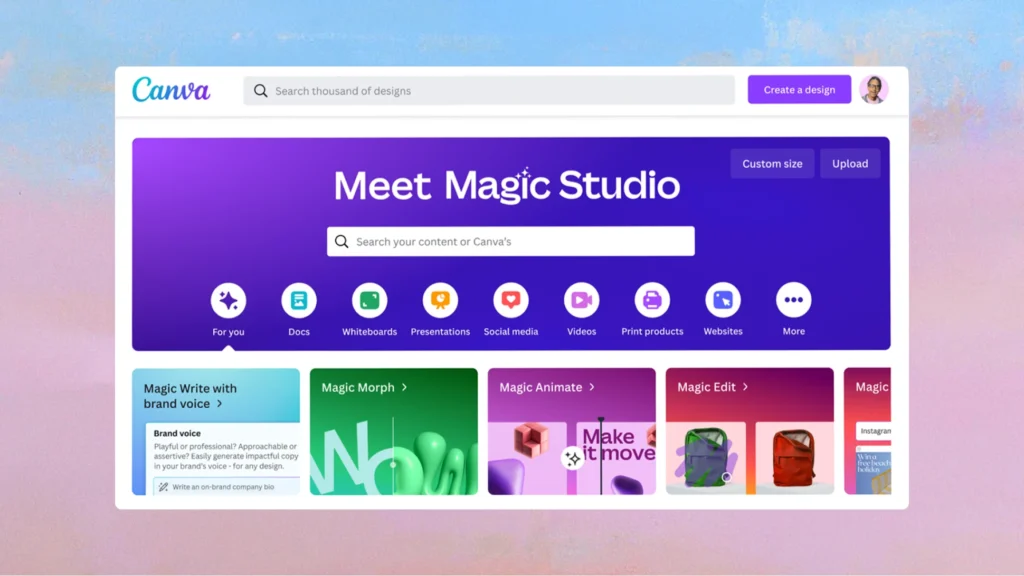
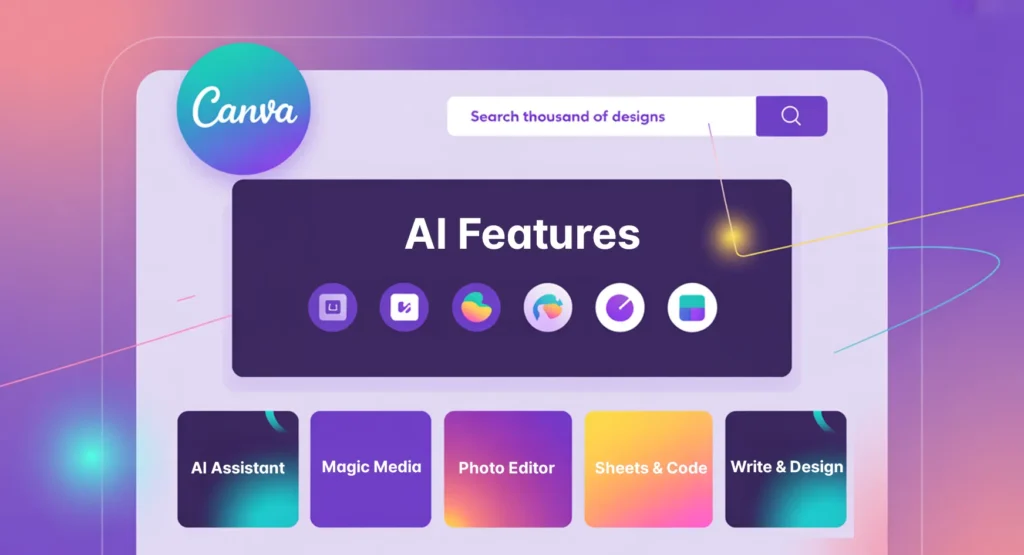
Canva put all its AI features into one special place called Magic Studio. This is your main hub. It is where all the “magic” happens.

Accessing the Magic Studio Dashboard

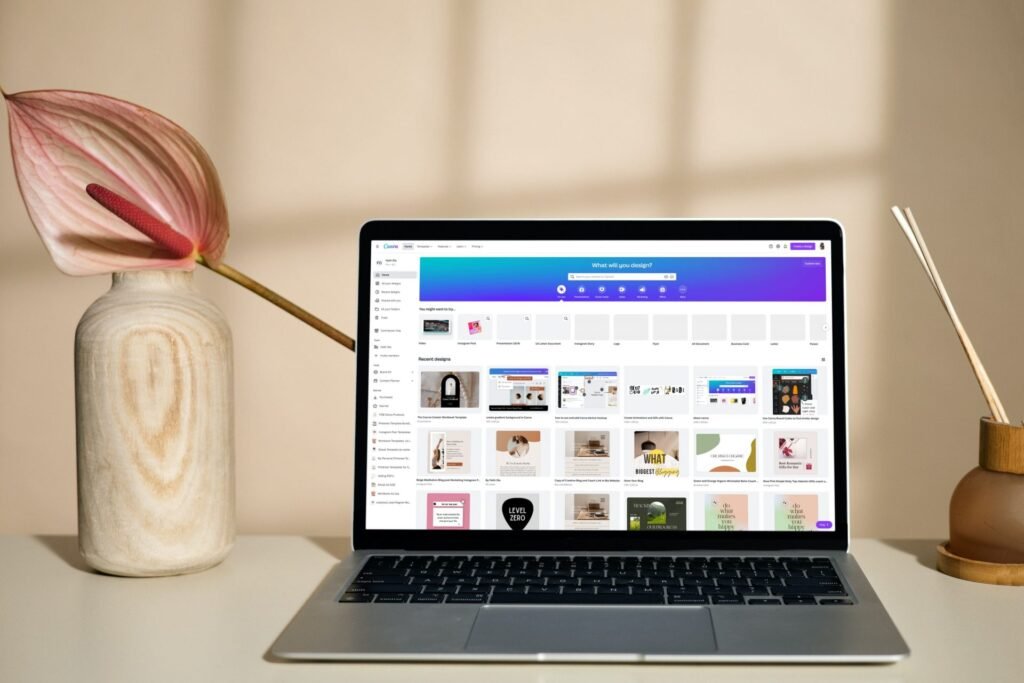
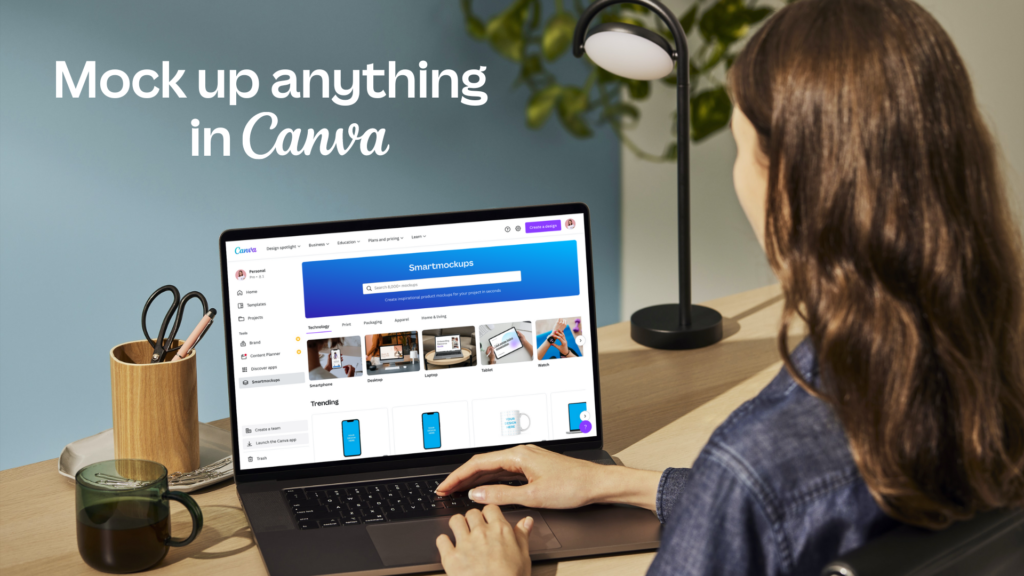
To find it, log in to your Canva account. On the home page, look at the menu on the left side. You will see a button that says Magic Studio.

Click on that. You will see a colorful page full of different options. You can also find these tools inside the editor when you are working on a design.

Just look for the sparkles icon or the search bar at the top left. If you type “magic,” you will see a list of tools pop up. It is very easy to find.

Free Vs. Pro: Which AI Features Are Available?

This is a common question. Can you use this for free? Yes and no. The free plan gives you access to some tools, but they might have limits.

For example, you might only get to generate a few images a day. If you want to use everything without limits, you might need Canva Pro.

The paid plan unlocks advanced AI features and gives you better quality. However, if you are just starting, the free trial is a great way to test the waters. You can try out the Magic Media tool and see if it helps your workflow before you pay anything.

How to Use Canva AI For Generating and Editing Images?

How to Use Canva AI For Generating and Editing Images?

Making images is one of the coolest parts of Canva’s AI. You can make things that don’t even exist yet.

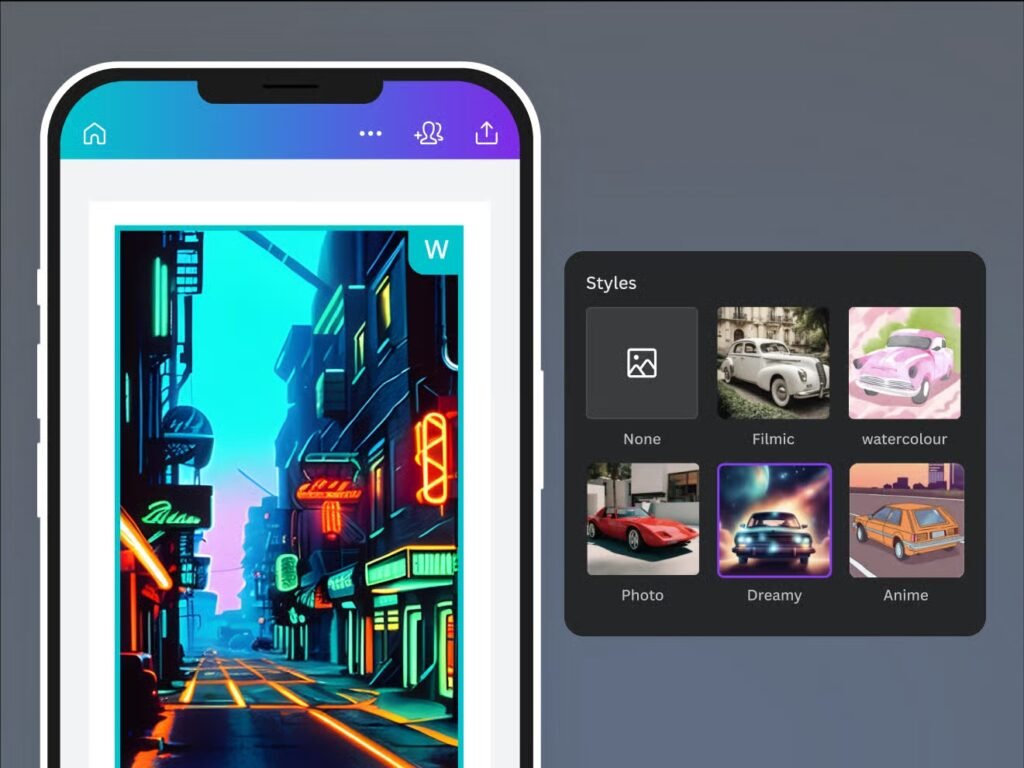
Creating Visuals From Scratch With Magic Media (Text-to-Image)

Let’s say you need a picture of a “futuristic chair made of glass” for a project. You don’t have to build it or buy it. You can use Magic Media.

  • Open a design.
  • Go to the apps section on the left and find Magic Media.
  • Click on the image generator.
  • Type a text prompt. Be specific. Type “A modern chair made of glass, blue lighting, photorealistic.”
  • Click “Generate.”

In a few seconds, Canva AI will show you four options. If you like one, drag it onto your canvas. This creates realistic images that are unique to your project.

Transforming Objects With Magic Edit

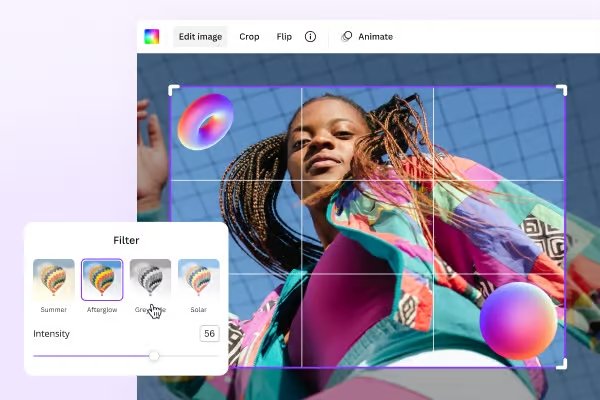
Sometimes, a photo is almost perfect, but one thing is wrong. Maybe a model is holding a coffee cup, but you want them holding a flower. Magic Edit fixes this. Click on your photo. Select Magic Edit. Use the brush to paint over the coffee cup. Then, in the text box, type “flower.”

Click generate. The AI will swap the cup for a flower, and it usually looks very real. It matches the lighting and shadows of the original photo.

Removing Unwanted Elements With Magic Eraser

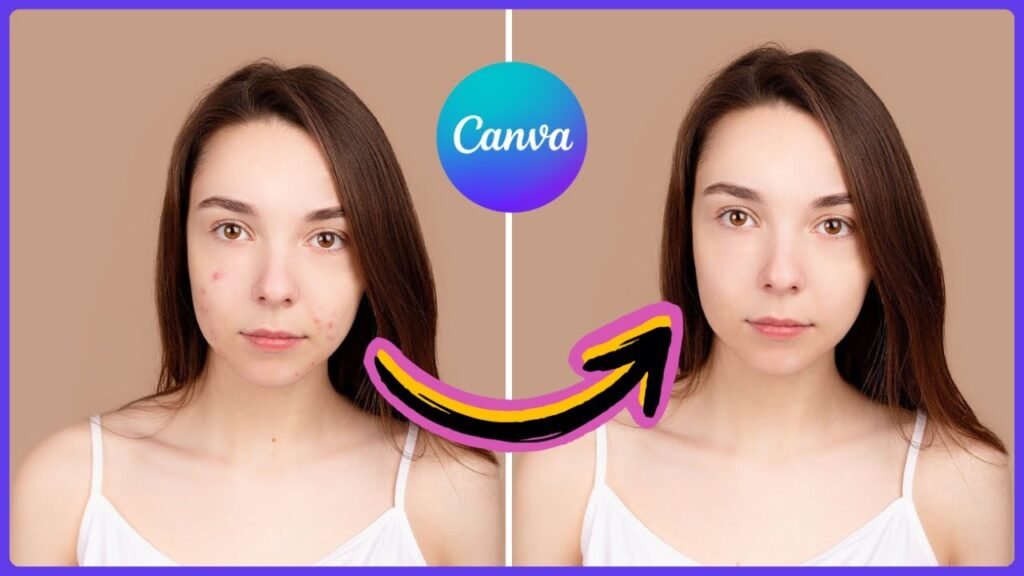
We have all had a great photo ruined by a trash can in the background or a stranger walking by. In the past, removing this took a long time.

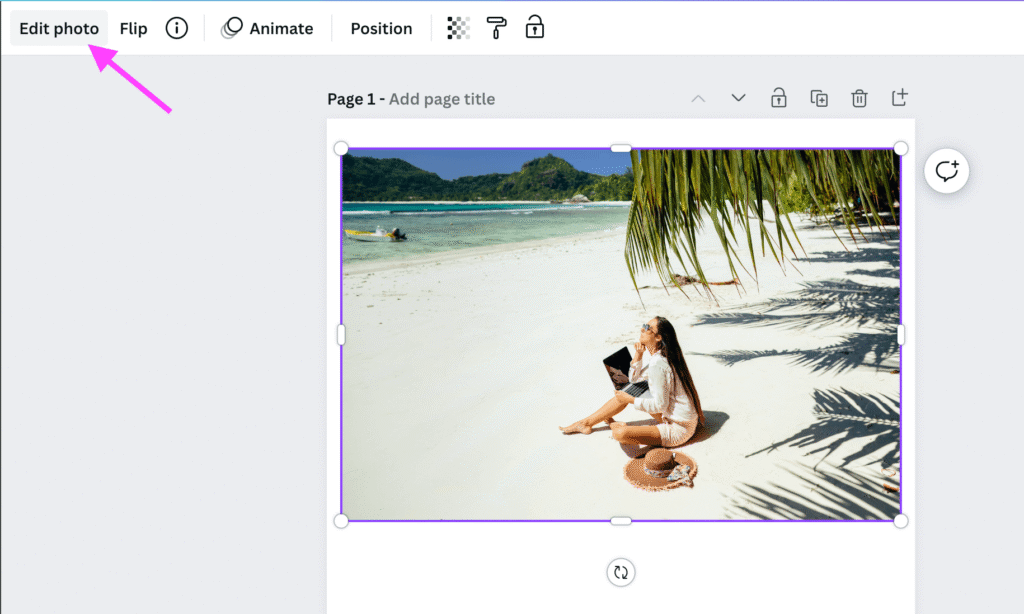
Now, use Magic Eraser. Select your image and click “Edit Photo.” Choose Magic Eraser. Adjust your brush size and paint over the thing you want to leave. Let go of the mouse, and poof! It is gone. The AI fills in the space behind it so it looks like the object was never there.

Extending Backgrounds Using Magic Expand

Have you ever had a photo that was too small for your layout? Maybe it is a square, but you need a wide banner. Magic Expand solves this.

Put your photo on the canvas. Click “Edit Photo” and choose Magic Expand. You can pick a size, like “Whole Page.” The AI will look at the edges of your photo and paint new parts to fill the rest of the space.

It adds more sky, more floor, or more background scenery. It is great for fixing social media posts that need to fit specific sizes.

How to Use Canva AI For Instant Design and Layouts?

How to Use Canva AI For Instant Design and Layouts?

As a designer, setting up layouts takes a lot of brain power. Canva Magic Design can give you a starting point.

Generating Presentations Instantly With Magic Design

This is where we answer how to use AI in Canva to create a presentation. It is a game-changer.

  • Open Canva and click on “Presentation.”
  • Type your topic in the search bar. For example: “Marketing strategy for a coffee shop.”
  • Click on Magic Design.

The AI presentation maker will write an outline, pick fonts, choose colors, and place images for you.

It creates a full set of slides. It includes cover slides, content slides, and closing slides. You get a comprehensive guide for your talk in seconds.

You can still change everything, but the hard work is done. It is a fantastic presentation maker for when you are in a rush.

Resizing and Repurposing Content With Magic Switch

If you make a great presentation, you might want to share it on Instagram.

In the past, you had to remake the whole thing. Magic Switch changes that. Click the Magic Switch button at the top.

Choose the format you want, like “Instagram Story.” Canva will move everything around to fit the new shape.

It is perfect for social media managers who need to post on many platforms. It keeps your text and images but changes the layout.

Animating Your Designs With Magic Animate

Motion grabs attention. Magic Animate analyzes your design and determines how it should move.

You do not need to be a video editor to use it.

Click on your design (not an element, but the whole page). Click Magic Animate. It will suggest styles like “Professional,” “Fun,” or “Elegant.” It automatically moves your text and images.

It makes your social media posts stand out in the feed.

Writing Better Copy: How to Use Canva AI For Text Generation?

How to Use Canva AI For Text Generation?

Design is not just pictures; it is words too. Magic Write is your writing helper.

Brainstorming and Drafting With Magic Write

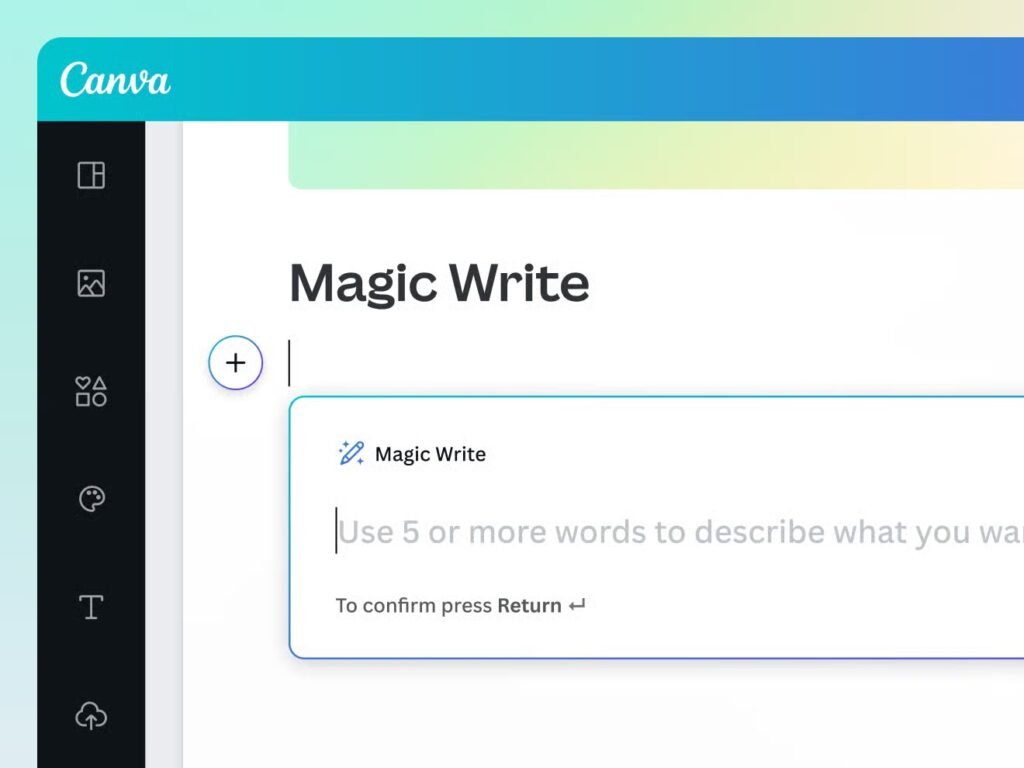
Staring at a blinking cursor is hard. Magic Write helps you start. You can use it in Canva Docs or in a design.

Click the sparkle icon and select Magic Write. Type a short text description of what you need. For example: “Five tips for designing a logo.”

It will spit out a list for you. You can use this generated text as a base and add your own voice to it.

Summarizing and Rewriting Existing Text

If you have a long report but need a short summary for a slide, this tool helps. Highlight the text and ask Magic Write to “Summarize.”

It will shrink a paragraph into one sentence. This is great for an ai presentation where you want less text on the screen.

Changing Tone of Voice With One Click

Maybe you wrote something that sounds too serious, but your brand is fun. You can highlight your text and choose “More Fun” from the menu.

Or, if you need to sound professional, choose “More Formal.” You can even translate text into different languages to reach more people.

Best Practices and Tips on How to Use Canva AI Effectively

Best Practices and Tips on How to Use Canva AI Effectively

To get the best results from Canva’s AI, you need to know a few tricks.

Writing Effective Prompts For Better Results

The AI is smart, but it cannot read your mind.

The more details you give, the better. Instead of saying “dog,” say “a happy golden retriever running in a park, sunny day, cartoon style.”

This is called a text prompt. Good prompts lead to great visual content. Treat it like you are describing a dream to a friend.

Understanding Copyright and AI Usage Rights

This is serious business.

Generally, Canva AI designs are safe for commercial use, but you should always read the fine print. Since the AI learns from training programs, the laws are still being written. Be careful if you are making a logo for a big company. For social media and flyers, it is usually fine.

Combining Multiple AI Tools For Complex Designs

The real power comes when you use tools together. Start with a text prompt to make an image. Then use Magic Expand to make it bigger.

Use Magic Grab to pull an object out of the photo so you can move it. Then use Magic Morph to change the texture of your text to match the image. Mixing these advanced features allows for complex and unique designs.

Alternatives to Canva AI Presentation Maker

Alternatives to Canva AI Presentation Maker

While I love Canva, I know it is good to have options. Here are some other ai presentation tools you might look at.

Slidesgo

Slidesgo

Slidesgo is very famous for having lots of free templates that work perfectly with Google Slides.

Now, they have added a smart AI tool that helps you start your project very fast. You just tell it what you want, and it gives you a great starting point with pictures and text already on the slides.

It is very easy to use if you already know how to use Google’s tools. It is a good choice if you want many colorful styles to pick from for your school or work projects.

Tome

Tome

Tome is a very modern tool that focuses on telling a good story rather than just making slides.

It creates visual content that looks super clean and professional, almost like a website on a screen.

You type your idea, and it creates the whole thing with generated text and matching images automatically.

It is great if you want presentation quality that looks different from standard slides. It feels very new and high-tech compared to older tools.

Sendsteps

Sendsteps

Sendsteps is special because it helps you talk to your audience, not just at them.

It uses AI to handle the presentation creation, but it adds fun quizzes and voting options.

These interactive elements let people use their phones to answer questions right on the screen. It also supports different languages, which is helpful if your class or team speaks more than one language. It makes boring meetings much more fun for everyone.

Presentations AI

Presentations AI

This tool calls itself the “ChatGPT for presentations” because it is so fast and smart.

As an AI presentation maker, it focuses on speed so you do not waste time fixing colors or moving boxes. It handles the messy parts of the design process for you automatically. It is a strong presentation maker alternative if you want to type a topic and get a result instantly.

It tries to make sure your slides never look boring or plain.

Penji

Penji

Penji is a bit different because it connects you with real humans who do graphic design. While it is not a robot that works in seconds, it ensures your final product is perfect and unique to you.

They can make customizable templates for you that you can use over and over again for your brand. It is a good choice if you need expert help and do not want to do any of the hard work yourself.

FAQ’s:

Can I Use Canva AI designs For Commercial Use?

Yes, mostly.

You can use the designs for your business, like on Instagram posts or ads. But you cannot claim you own the raw AI image if you didn’t change it.

Does Canva Use AI?

Yes! Canva uses AI in many ways. From the search bar to the Magic Studio, AI is woven into the whole platform.

Can Canva Generate AI Presentations?

Yes. The Magic Design feature acts as an AI presentation maker. It builds slides, text, and images from a simple topic.

Does Canva Have an AI Image Generator?

Yes. It is called Magic Media. You type a description, and it creates a picture for you.

Does Canva Have an AI Voiceover?

Currently, Canva connects with apps that do voiceovers, like HeyGen or Murf AI, which you can find in the Apps section.

Canva itself focuses more on graphic design software features.

Can Canva’s AI Tools Be Used For Free?

Many tools, like Magic Edit and the image generator, have free versions. However, limits apply. For unlimited use, you need a paid plan.

Can I Use AI For Complex Image Edits in Canva?

Yes. With Magic Grab, Magic Eraser, and Magic Edit, you can do very complex edits that used to require expensive software.

Conclusion

Canva AI is one of the most useful tools available to designers right now. It does not replace your creativity – it just takes care of the time-consuming parts so you can focus on the fun stuff.

Use Magic Design to build a full presentation in seconds. Use Magic Write to fix your copy. Use Magic Eraser to clean up photos. Use Magic Switch to resize your designs for different platforms. Each tool is easy to use and together they can save you hours of work.

In 2026, knowing how to use these AI tools gives you a real advantage – whether you are designing for a brand, a client, or just yourself.

Start with the free plan, open Magic Studio and explore. The more you use these tools, the faster and better your designs will get. Check out our other Canva guides on Designers Choice for more tips and tricks.

Categories
Canva

Best Elegant Fonts in Canva to Make Your Work Shine: 10+ Top Choices

The right font can make your design look expensive, professional and polished – or it can make it look like an afterthought. That is how much fonts matter.

In 2026, Canva has one of the largest free font libraries of any design tool. But with so many choices, it is easy to scroll for minutes and still not know what to pick. That is where this guide comes in.

We have handpicked the best elegant fonts available in Canva right now – from classic serif fonts perfect for luxury branding, to flowing script fonts ideal for wedding invitations, to clean modern fonts for a minimalist look.

Whether you are designing social media graphics, a logo, a wedding card, or something for your business, this list will help you find the right font quickly – no design experience needed.

Why Choosing the Right Elegant Fonts in Canva Matters For Your Brand?

Why Choosing the Right Elegant Fonts in Canva Matters For Your Brand?

The Psychology of Typography in Luxury Design

Have you ever looked at a brand and felt it was expensive or fancy just by looking at the name? That is because of the font.

In the world of design, fonts have feelings. We call this the psychology of typography.

When you pick a luxury font, you are telling people that your brand is high-quality. For a touch of elegance, you usually want fonts that have a mix of thick and thin lines. These are often serif fonts. They look traditional and trustworthy.

On the other hand, modern fonts with sharp edges feel clean and new. If you use a handwritten font, it feels like a personal touch, almost like a friend wrote it. Knowing this helps you pick the perfect font that matches the feeling you want your brand to give.

How Font Choice Impacts Readability and Tone?

A font must look good, but people also need to be able to read it. This is what we call excellent readability. If you choose a very curly script font for all your body text, it will be very hard to read. This can make people stop reading.

The tone is the “voice” of your design. A bold, thick font yells, while a thin, light font whispers.

For a wedding theme, you might want a soft whisper. For a sale poster, you might want a loud voice. Using the right font ensures your reader understands not just the words, but the mood behind them. A serif font is often an excellent choice for long text because the little feet on the letters guide your eyes. Always check that your font size is big enough to be read easily on a phone or a computer.

Top Serif Elegant Fonts in Canva For A Classic Look

Top Serif Elegant Fonts in Canva For A Classic Look

Serif fonts are the ones with little lines or feet at the ends of the letters. They are classic and often look very fancy.

Here are some of the best fonts in this category.

Playfair Display

Playfair Display

Playfair Display is one of the most popular and best elegant fonts you can find. It has a very classic style that reminds us of old-fashioned printing but looks new and fresh.

The main thing to notice about this font is the high contrast.

This means the lines in the letters go from very thick to very thin. This difference makes it look very fancy and perfect for big titles or headings.

Because of the thin lines, it is best used in a large font size. If you make it too small, the thin parts might disappear. It is a free Canva font that works perfectly for social media posts where you want to grab attention.

It pairs really well with simple sans-serif fonts. If you are making a fashion poster or a luxury brand logo, Playfair Display is a perfect choice.

It gives that high-end magazine look without costing any money.

Cinzel

Cinzel

Cinzel is a strong and powerful font. It is inspired by the classic Roman letters you might see carved into stone on old statues.

It feels very historic and grand. This font is all in capital letters (or small caps), which makes it look very important.

It is not a font you would use for writing a letter or body text, but it is amazing for titles.

If you want your design to look cinematic or like a movie poster, Cinzel is the right font. It has sharp points and a very geometric shape.

It commands respect. Many designers use it for luxury brands or for projects that need to feel serious and established.

It brings a touch of sophistication to any layout. Even though it looks premium, it is available for you to use. When you want a classic look that feels timeless and strong, Cinzel is the best canva font to pick.

Bodoni FLF

Bodoni FLF

Bodoni FLF is a font that screams fashion and style.

It is very famous in the world of graphic design because it is often used by big fashion magazines like Vogue. Like Playfair Display, it has a strong contrast between thick and thin lines, but it is a bit sharper and more geometric. This gives it a very clean and elegant look.

This font is perfect if you want to create a minimalist look that still feels expensive. It works very well for short headlines or logos.

Because the thin lines are very delicate, you should be careful when using it on busy backgrounds. It needs space to breathe.

It is a serif font that feels modern despite being quite old in style.

If you are designing for a beauty brand or a clothing store, Bodoni FLF is an excellent choice. It adds immediate value to your design and makes it look like a premium canva font even if it is free.

Lora

Lora

Lora is a beautiful font that has its roots in calligraphy. This means it looks a bit like it was drawn with a special pen. It is a contemporary serif with roots in calligraphy. It is a font with excellent readability.

Unlike the other fonts we talked about, Lora looks great even when it is small. This makes it a perfect font for writing paragraphs or body text.

It has gentle curves that give it a softer feel than Bodoni or Cinzel. It feels friendly but still very smart and poetic.

If you are writing a blog post, a poem, or a story on a graphic, Lora is a great pick. It has a magical vibe to it.

It is often used in web design because it is so easy to read on screens. It pairs nicely with many other fonts.

If you want a touch of elegance that is not too loud or showy, Lora is the best font for the job. It brings a sense of art to your words.

Best Script Elegant Fonts in Canva For Wedding Invitations

Best Script Elegant Fonts in Canva For Wedding Invitations

Script fonts look like handwriting or cursive. They are perfect for a special day like a wedding because they feel personal and romantic.

Pinyon Script

Pinyon Script

Pinyon Script is a very fancy and romantic font. It looks like the beautiful writing you might see on an old love letter from hundreds of years ago.

It is a cursive font that is very slanted and has nice, round loops. It feels very high-class and aristocratic. This is definitely a wedding font.

When you use Pinyon Script, you are setting a mood of high elegance. It is perfect for writing the bride’s and groom’s names on wedding invitations.

Because it is so fancy, you should not use it for all the text. It is best used for names or short titles.

It fits perfectly with a traditional, formal wedding theme. It is one of those elegant fonts that makes people think you paid a professional calligrapher.

It brings a touch of sophistication that is hard to beat. If you want your big day to feel royal, this is the font to use.

Great Vibes

Great Vibes

Great Vibes is a flowing, connecting script. It is one of the most popular free fonts in Canva for a good reason. It has beautifully looped ascenders (the top parts of letters like h and l) and descenders (the bottom parts like g and y). It looks very fluid, like water flowing.

This font is great because it is elegant but still easy to read. Some script fonts are too messy, but Great Vibes is clean.

It works wonderfully for wedding designs, thank you cards, or inspirational quotes on social media. It has a lovely rhythm to it.

It feels less formal than Pinyon Script, making it a good choice for a more relaxed but still beautiful wedding theme.

It adds a personal touch to your design. Whether you are making digital products or printed cards, Great Vibes ensures your text looks smooth and professional. It is a catchy mager for anyone looking for a reliable script.

Alex Brush

Alex Brush

Alex Brush is a brush-script font.

This means it looks like it was painted with a brush. It has flowing lines and feels very artistic. The unique thing about Alex Brush is that the capital letters are short and do not overlap with the text below them.

This makes it very easy to read compared to other scripts.

It has a classic, flowing style that works well for both formal and informal occasions. It is a perfect choice for wedding stationery where you want a bit of artistic flair. It feels warm and inviting. If you are sharing a love story in a design, this font matches that feeling well.

It is widely used for social media graphics because it stands out without being too hard to read. It has a nice weight to it, so it shows up well even on colorful backgrounds. It is a great example of elegant Canva fonts for wedding projects that need a bit of personality.

Moontime

Moontime

Moontime is a very modern and light script font. It is thin and airy. It looks like modern calligraphy that you see on Pinterest or Instagram.

It is very trendy right now. If you want a modern touch to your wedding invitations or branding, Moontime is a fantastic option.

Because it is so thin, it looks very delicate and graceful. It creates a minimalist look that is very popular. It is not a heavy, old-fashioned script; it feels young and fresh. It is great for a signature style logo or for adding a soft caption to a photo.

It is one of those aesthetic fonts that influencers love to use. It pairs very well with simple sans-serif fonts like Montserrat.

For a dream avenue of style and grace, Moontime is a top pick. It captures a sense of modern romance perfectly.

Modern Sans-Serif Elegant Fonts in Canva For Minimalist Branding

Modern Sans-Serif Elegant Fonts in Canva For Minimalist Branding

Sans-serif means “without feet.” These fonts are clean, simple, and modern. They are great for a minimalist look.

Tenor Sans

Tenor Sans

Tenor Sans is a font designed for the setting of a fashion publication. It is unique because it has a lot of character even though it is simple.

It has an open structure which makes it look friendly but high-end. It is one of the best elegant fonts for fashion and lifestyle brands.

It works very well for body text and also for headings.

It has a distinctive vibe that feels very “humanist,” meaning it looks natural and not like a robot made it. It is an excellent choice if you want your brand to look approachable but stylish.

It is often used in web design for online stores. It has a nice rhythm when you read it. Tenor Sans helps you create a modern touch in your designs.

It is free to use and looks like a premium font. It allows the photos in your design to shine while still providing clear information.

Julius Sans One

Julius Sans One

Julius Sans One is a very thin, all-caps font. This means it only has capital letters. It is extremely elegant because of its fine lines.

It looks very similar to the fonts used by luxury fashion houses. It has a very broad width, which makes it take up space nicely.

This font is perfect for subtitles or short headers. It is not good for long paragraphs because it is all caps.

However, for a logo or a clear statement, it is a perfect font. It pairs beautifully with a script font like Pinyon Script. The contrast between the flowy script and the straight, thin lines of Julius Sans One creates a very professional look. It gives a minimalist look that is very clean.

If you want to create social media posts that look expensive and calm, this is the font to use. It is a hidden gem in the free fonts section.

Montserrat

Montserrat

Montserrat is one of the most famous fonts in the world of design.

It is based on the old posters and signs found in a neighborhood in Buenos Aires. It is a very geometric and sturdy font.

It comes in many different weights, from very thin to very thick.

For an elegant look, the lighter or thinner versions of Montserrat are best. They look very clean and airy.

Montserrat is amazing because it is so versatile. You can use it for body text, headlines, buttons, anything. It has excellent readability.

It is a modern font that fits almost any project. If you are unsure which font to pick, Montserrat is always a safe and excellent choice.

It makes your design look organized and professional. It is a staple for graphic design and works perfectly on both Canva Pro and free accounts.

Glacial Indifference

Glacial Indifference

Glacial Indifference is an open and clean font. It is inspired by the Bauhaus movement, which was all about simple and functional design.

It is very geometric, with almost perfect circles for letters like ‘o‘. It feels very cold and crisp, which is why it is called “Glacial.”

This font is perfect for a super modern, tech-savvy, or minimalist brand. It is very easy to read.

It looks great on social media graphics where you need to deliver a quick message. It pairs well with bold fonts or messy scripts because it is so simple itself. It doesn’t fight for attention. It just sits there and looks good.

It is a free Canva font that many designers love for its simplicity.

If you want a minimalist look with sharp edges and no fuss, Glacial Indifference is the way to go.

How to Pair Elegant Fonts In Canva Like A Pro?

How to Pair Elegant Fonts In Canva Like A Pro?

Combining Serifs and Sans-Serifs

Mixing fonts is like cooking; you need the right ingredients. A classic rule is to pair a serif font with a sans-serif font.

For example, you can use a fancy serif like Playfair Display for your big title. Then, use a clean sans-serif like Montserrat for the smaller text below it. This creates a balance. The serif brings the touch of elegance, and the sans-serif brings the clean, modern touch.

This is a Canva font pairing that works almost every time. It keeps the design from looking too old or too boring.

Using Contrast For Visual Hierarchy

Contrast means making things look different so the important parts stand out. You want your main message to be the boss.

You can do this by using a big, bold font for the title and a smaller, thinner font for the details. This is called visual hierarchy. It guides the reader’s eye.

If you use a curly script font for a header, use a simple font for the rest.

If everything is big and curly, it is messy. Using different fonts creates this necessary contrast. Think of it as a love story between two fonts—they are different, but they work together perfectly.

Avoiding Common Pairing Mistakes

One big mistake is using two fonts that are too similar.

If you use two different script fonts together, it looks like a mistake. It is hard to read. Another mistake is using too many fonts. Stick to two or three fonts maximum for one design. Also, be careful with readability.

Don’t put a light text color on a light background. Make sure your font pairing is easy to see.

Avoiding these errors ensures you have a professional and elegant look. It transforms a messy graphic into a perfect choice for your brand.

Tips For Finding Hidden Elegant Fonts in Canva

Tips For Finding Hidden Elegant Fonts in Canva

Using Search Keywords Effectively

The search bar in Canva is your best friend. Instead of just scrolling through the list, type in specific words.

If you type “elegant,” you will see many options.

But you can also try words like “luxury,” “minimal,” “vintage,” or “editorial.” Typing “wedding” will show you great wedding fonts.

You can also search for styles like “calligraphy” or “geometric.”

This helps you find hidden, elegant fonts that you might miss otherwise. It turns a search into a treasure hunt for the best fonts.

Filtering by Free and Pro Options

Canva has both free and paid features. If you have a free account, you want to make sure you find fonts you can use without paying.

In the font tab, you can sometimes see a little crown icon next to a font. That means it is a premium Canva font for Canva Pro users.

If you want only free ones, you can ignore those. However, many of the best elegant fonts, like Playfair Display and Great Vibes, are free.

Knowing how to filter helps you find the right font for your budget. You can still make amazing designs with free fonts.

FAQ’s:

What is the Most Elegant Font Available in Canva?

There isn’t just one, but Playfair Display is often voted as the top choice for a classic elegant look.

For a script style, Pinyon Script is a favorite for its royal feel.

Are All the Elegant Fonts in Canva Free to Use?

No, not all of them. While there is a huge collection of free Canva templates and fonts, some are exclusive to Canva Pro. However, there are plenty of free fonts that look very expensive and premium.

How Do I Search For Elegant Fonts Specifically in Canva?

Go to the search bar in the font menu and type keywords like “elegant,” “serif,” “luxury,” or “script.”

This will filter the extensive font library to show you the style you want.

How Do I Choose an Elegant Canva Font to Match My Brand’s Aesthetic?

Think about your brand’s personality. If you are modern and clean, choose a sans-serif like Montserrat. If you are traditional and fancy, choose a serif like Cinzel. Look for Canva font combinations that match your mood.

Can I Upload My Own Elegant Fonts to Canva?

Yes, if you have Canva Pro, you can upload your own fonts.

This is great if you bought a specific catchy mager font or a unique font from a creative market and want to use it in your designs.

What is the Best Font Pair For an Elegant Aesthetic?

A classic font pairing is Playfair Display (for headings) with Lato or Montserrat (for body text). This mixes the fancy serif with a clean sans-serif for a balanced and beautiful look.

What Are the Best Free, Elegant Font Combinations in Canva For Social Media Graphics?

Try Great Vibes for a short quote paired with Glacial Indifference for your website name. Or use Bodoni FLF for a big sale title paired with Roboto.

These are free Canva font pairs that look great on social media.

Conclusion

Picking the right elegant font does not have to be overwhelming. With the fonts in this guide, you already have a strong starting point – whether you need something classic, romantic, or clean and modern.

Keep it simple: stick to two fonts per design, make sure your text is easy to read and let the font match the mood of your project. Small choices like these make a big difference in how professional your final design looks.

In 2026, Canva’s font library keeps growing – so there are always new options to discover. Start with the fonts on this list, experiment with different pairings and you will quickly find your own favourites.

And if you want more Canva tips and font guides, check out our other posts right here on Designers Choice.

Categories
Canva

3 Best Canva Alternatives For Designers in 2026 (Free & Paid Tools) 

Canva is one of the most popular design tools in the world – and for good reason. It is simple, fast and works well for everything from social media posts to presentations. But it is not the right fit for everyone.

In 2026, there are more strong Canva alternatives than ever. Some offer more advanced photo editing, others are better for teams and a few are simply faster for people who just need clean graphics without the learning curve.

In this guide, we have picked the 3 best Canva alternatives worth trying right now – Adobe Express, Snappa and PicMonkey. For each one, we cover the key features, pricing and who it is best suited for, so you can find the right tool for your needs without wasting time.

3 Best Canva Alternatives for Designers in 2026

Tool: 1 Adobe Express

Adobe Express

✅ Key Features

Adobe Express is a web-based design platform that combines speed, simplicity, and the professional touch you’d expect from Adobe. It’s designed to help anyone—from beginners to busy marketers—create standout visuals with ease.

Here’s what makes it a solid choice:

  • Thousands of customizable templates for social media posts, flyers, logos, posters, and more
  • An intuitive drag-and-drop editor with access to Adobe Fonts and Adobe Stock (available with the premium plan)
  • Handy tools like background remover, GIF maker, video trimmer, and image resizer
  • A built-in content scheduler to plan and publish posts across your social platforms
  • Brand kits and animation tools to keep your designs consistent and engaging
  • AI-powered features for text effects, background generation, and image enhancement

Whether you’re just getting started or want a quicker way to create polished content, Adobe Express delivers a nice balance of ease and creative power—all backed by Adobe’s design legacy.

💲 Pricing (as of 2025)

Free Plan Includes:

  • Access to basic templates
  • A limited library of Adobe Fonts
  • 2GB of cloud storage
  • Core editing features

Premium Plan – $9.99/month or $99.99/year

  • Unlimited access to all templates and design elements
  • 100GB of cloud storage
  • Advanced branding tools (upload your logo, set your brand colors and fonts)
  • Access to Adobe Stock images and videos
  • Social media scheduling features
  • Priority customer support

You can also access Adobe Express as part of select Adobe Creative Cloud subscriptions.

🎯 Best For

Adobe Express works well for:

  • Small business owners and marketers who need professional-looking, branded content without hiring a designer
  • Social media creators who want high-impact visuals without diving into Photoshop
  • Beginners who want an easy-to-use interface with more flexibility than Canva in some areas
  • Existing Adobe users looking for a faster, lighter tool for everyday design needs

Tool 2 : Snappa

Snappa

✅ Features

Snappa is a fast, user-friendly graphic design tool made with non-designers in mind. It’s built for speed and simplicity—perfect when you need professional-looking visuals without spending hours figuring out how to make them.

Standout features include:

  • Ready-to-use templates for social media posts, ads, blog graphics, YouTube thumbnails, and more
  • A clean drag-and-drop editor that’s easy to navigate
  • Free high-resolution stock photos built right into the platform
  • Upload your own fonts and save brand colors for consistency
  • One-click resizing to fit different platforms
  • Collaboration tools for teams (available on higher plans)
  • Virtually no learning curve—ideal for quick, effective designs

Snappa isn’t packed with complicated features—and that’s exactly what makes it appealing. If your goal is to create quality graphics fast, it gets the job done without the fluff.

💲 Pricing (as of 2025)

Snappa offers three straightforward pricing tiers:

Free Plan

  • 3 downloads per month
  • Access to 6,000+ templates
  • Limited graphic and stock photo library

Pro Plan – $15/month or $120/year

  • Unlimited downloads
  • Full access to all templates, graphics, and features
  • Background remover
  • Custom font uploads
  • Social media scheduling through Buffer
  • 1 user

Team Plan – $30/month or $240/year

  • Everything in Pro
  • 5 user accounts
  • Shared folders and team collaboration tools

🎯 Best For

Snappa is a great fit for:

  • Social media managers and digital marketers who need fast, clean designs without complexity
  • Content creators and bloggers looking to create eye-catching visuals without needing design experience
  • Small teams that want simple collaboration tools without investing in heavier software
  • Non-designers who find Canva or Adobe a bit too overwhelming

Tool 3 : picmonkey

picmonkey

Featured Features:

PicMonkey is a versatile online tool that blends beginner-friendly photo editing with powerful design features—ideal for anyone from content creators to small business marketers. It helps you design visuals like social media graphics, logos, flyers, and more, all without needing Photoshop-level skills.
Key features include:

  • User-friendly photo editor with cropping, resizing, color correction, touch-up tools like Background Remover, and one-click effects like Smart Resize.
  • Graphic design tools such as layers, text effects (curve, outline), textures, gradients, and ready-to-use templates for social media, branding, and ads.
  • Brand Kit and cloud storage (Hub) to save logos, fonts, colors, and manage your designs online.
  • Team collaboration features with the Business plan—real-time co-editing, commenting, sharing folders, and permission controls.
  • Mobile app support, so you can start a design on desktop and finish it on your phone—free to use with Pro-level features unlocked for subscribers

Pricing (Mid-2025 Update)

PicMonkey offers three straightforward subscription plans—Basic, Pro, and Business—each with increasing levels of functionality and features:

  • Basic – $7.99/month or $72/year
    Includes 1 GB of cloud storage, JPG/PNG exports, photo editing tools, templates, “primo” effects, touch-up tools, and video trimming.
  • Pro – $12.99/month or $120/year
    Adds on-demand features such as unlimited storage, Smart Resize, Brand Kit, one-click background remover, premium stock photos, PDF export, custom fonts, and priority email support.
  • Business – $23/month per user (or approximately $228/year)
    Includes all Pro features, plus advanced tools like multiple brand kits, searchable tags, real-time co-editing, in-editor commenting, shared folders, and seat/permission management—ideal for teams

Best For

PicMonkey is an excellent fit for:

  • Small business owners and marketers who need polished, branded visuals with flexibility.
  • Bloggers, social media managers, and content creators who want quick, eye-catching designs without a steep learning curve.
  • Teams and agencies that value seamless collaboration, feedback management, and asset organization.
  • Non-designers who appreciate powerful editing tools without the complexity—yet elevate beyond basic Canva features.

Conclusion 

All three tools in this list are solid choices depending on what you need. Here is a quick way to think about it:

Choose Adobe Express if you are already in the Adobe ecosystem or need AI-powered features and access to a large stock library. Choose Snappa if you want something super fast and simple with no learning curve at all. Choose PicMonkey if photo editing is important to you and you need strong team collaboration features.

And if none of these feel quite right, Canva is still the most well-rounded option for most people – especially if you are just getting started.

At Designers Choice, we keep testing and updating our tool recommendations as things change. Check back regularly for the latest comparisons.

Categories
Canva

How to Indent in Canva & Canva Docs: Learn Fast & Easy (Guide)

Indenting text in Canva is not as simple as pressing the Tab key. Unlike Microsoft Word or Google Docs, Canva does not have automatic indentation – so you need to know the right workarounds to get clean, professional-looking text in your designs.

In 2026, Canva gives you two main ways to work with indentation – manual methods for standard designs like presentations and social media graphics and built-in indent buttons for Canva Docs. Both approaches are easy once you know where to look.

In this guide, we will walk you through every method step by step – from first-line indents and hanging indents to block indentation and how to use rulers for precise alignment. No design experience needed.

Understanding Types of Indentation

Understanding Types of Indentation

Before diving into specific Canva techniques, let’s establish the different types of indentation you might need in your designs.

First-Line Indents

A first-line indent occurs when only the first line of a paragraph is indented while all subsequent lines remain aligned with the left margin. This indentation style is commonly used in books, articles, and formal documents to indicate the beginning of new paragraphs.

The standard first-line indent typically measures about 0.5 inches or 5 spaces from the left margin.

This style enhances readability by creating visual separation between paragraphs without requiring extra line spacing, making it particularly effective for body text in multi-paragraph documents.

Hanging Indents

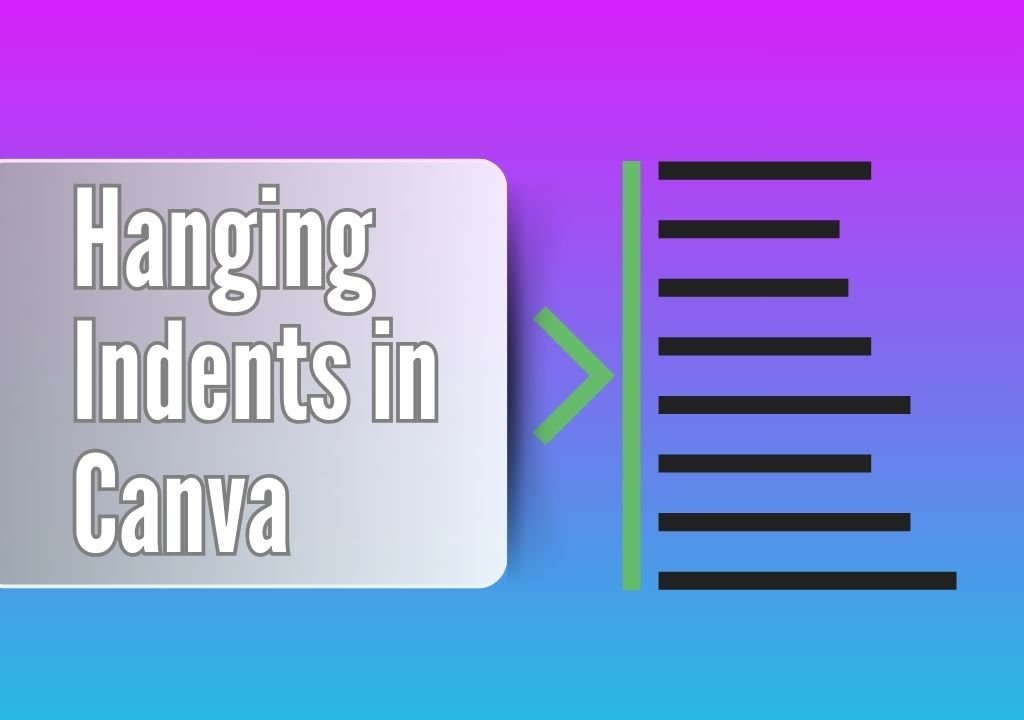
A hanging indent (also called a negative indent) is the reverse of a first-line indent.

With this formatting style, the first line of text aligns with the left margin, while all subsequent lines are indented. Hanging indents are commonly used for bibliographies, references pages, and citation lists.

This indentation style makes it easier for readers to scan through lists of information by clearly highlighting the beginning of each entry.

Academic papers using APA or MLA formatting typically require hanging indents in their references sections, making this an essential skill for creating educational materials in Canva.

Block Indents

Block indentation occurs when an entire paragraph or section of text is uniformly indented from the left margin. This style creates visual separation between the indented text and surrounding content, often used for quotes, excerpts, or to establish a hierarchy of information.

In professional documents and presentations, block indents help organize information and direct the reader’s attention to specific content. They’re particularly effective when you want to emphasize certain sections without changing other text elements like font size or style.

How to Indent in Canva?

How to Indent in Canva?

Creating indents in Canva requires different approaches depending on whether you’re working with standard Canva designs or Canva Docs.

Before you even start with text, you might need to set up your page orientation by learning how to landscape in Canva.

Unlike Microsoft Word or Google Docs, Canva doesn’t offer a tab key function for automatic indentation.

For standard Canva designs (presentations, social media graphics, etc.), you’ll be manipulating various elements manually.

For instance, when creating presentations, you might also need to learn how to put a timer in Canva to keep your talk on track. While we’re focusing on text, it’s also useful to know how to replace an image in Canva or even how to flip an image in Canva to complete your design.

For standard Canva designs, you’ll need to use manual methods:

  1. Add a text box to your canvas using the Text tab in the toolbar
  2. Enter your text content
  3. For first-line indents, place your cursor at the beginning of the paragraph and add spaces manually
  4. For block indents, either add spaces before each line or adjust the position of the entire text box
  5. For hanging indents, you’ll need to use multiple text boxes (more on this later)

Canva Docs offers more formatting options through dedicated indent buttons in the toolbar. These make basic indentation more straightforward but still have limitations compared to traditional word processors.

The key is understanding that Canva treats text primarily as a design element. This is why you can do cool things like how to curve text in Canva or even how to flip text in Canva, but also why basic formatting works differently. You can even further customize your designs by exploring if you can upload fonts to Canva for a unique look.

How To Do A Hanging Indent In Canva?

How To Do A Hanging Indent In Canva?

Creating properly formatted hanging indents requires specific techniques depending on which Canva format you’re using.

Indenting in Canva Designs (Not Docs)

When working with text in Canva presentations or other design projects, you’ll need to employ manual techniques for indentation.

First-Line Indent

To create a first-line indent in a Canva design:

  • Add a text box to your canvas using the Text tab
  • Type or paste your text into the box
  • Ensure your text is left-aligned by clicking the alignment button in the toolbar
  • Position your cursor at the beginning of the first line of your paragraph
  • Press the space bar approximately five times (the equivalent of a standard tab indent)
  • Repeat this process for each paragraph requiring a first-line indent

While not as precise as dedicated word processors, this method creates an effective visual indent for your paragraphs.

Block Indents

For block indentation in standard Canva designs:

  • Add your text box to the canvas
  • Select the entire text block
  • Use the space bar to add spaces at the beginning of each line, or
  • Adjust the position of the text box by moving it to the right on your canvas

The second method gives you greater flexibility, similar to how you can freely position other elements after learning how to cut out an image in Canva. This control is key to a polished design.

Hanging Indent

Creating hanging indents in Canva designs requires separating your text into multiple elements:

  • Add a text box and enter your complete text
  • Cut the text below the first line using Ctrl+X (Windows) or Command+X (Mac)
  • Create a new text box and paste this text
  • Format both text boxes identically (same font, size, spacing, etc.)
  • Position the second text box directly below the first line
  • Move the second text box to the right to create the hanging indent effect
  • Use rulers or guides for precise alignment

While this requires more steps than in traditional word processors, it gives you complete control over the appearance and spacing of your hanging indent.

How To Indent Text In Canva Docs?

How To Indent Text In Canva Docs?

Canva Docs provides more text formatting options than standard Canva designs, making some indentation tasks easier. These features, along with modern ai graphic design tools, help users create cleaner and more professional-looking documents without advanced design skills.

Indent An Entire Paragraph

To create a block indent in Canva Docs:

  • Select the paragraph you want to indent
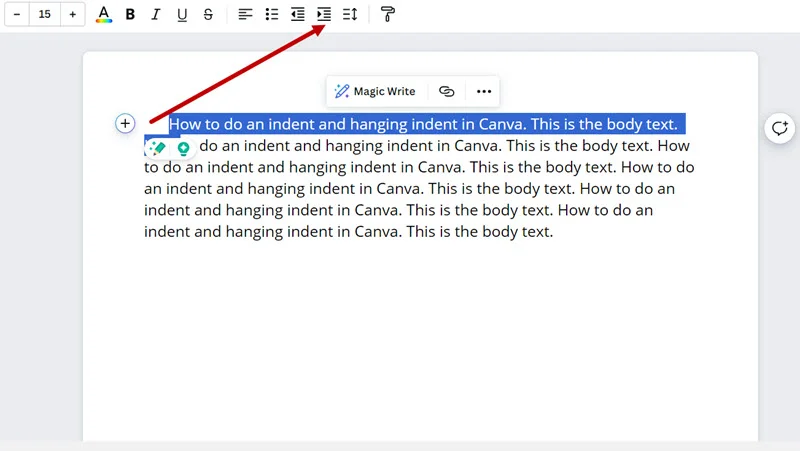
  • Locate the “Increase Indent” button in the toolbar (it appears as an arrow pointing right)
  • Click this button to move the entire paragraph to the right
  • To reduce the indent, use the “Decrease Indent” button

This creates a uniform block indent for the selected text with consistent spacing.

Indent The First Line

For first-line indentation in Canva Docs:

  • Place your cursor at the beginning of the paragraph
  • Click the “Increase Indent” button in the toolbar
  • Canva Docs will indent the first line by approximately 2em spaces
  • For additional indentation, you may need to add manual spaces

Note that Canva Docs limits how much you can indent using the toolbar buttons.

While great for basic documents, you might also want to know how to add a clickable link in Canva PDF when you export your document.

For even more interactivity, you could add a QR code, but it’s important to know if Canva QR codes expire before adding them to print designs.

Advanced Indentation Techniques

Advanced Indentation Techniques

Creating Hanging Indents Manually

For more precise control over hanging indents in Canva designs:

  • Create a text box containing your entire text
  • Duplicate this text box (Ctrl+D or Command+D)
  • In the first text box, delete everything except the first line
  • In the second text box, delete only the first line
  • Align both text boxes so the first line appears directly above the rest
  • Move the second text box to the right to create the hanging indent effect
  • Group both text boxes (select both and click “Group” in the toolbar) to keep them together

This technique gives you precise control over the spacing and alignment of your hanging indent.

Using Rulers and Guides

For consistent indentation across multiple text elements:

  • Enable rulers by going to File > Show rulers
  • Add guides to your canvas by clicking on the ruler and dragging down or across
  • Use these guides to align your indented text consistently
  • For hanging indents, place a vertical guide where you want your indented text to begin
  • Align all subsequent lines to this guide for visual consistency

Using rulers and guides ensures uniform indentation throughout your design. This is especially important for multi-page documents like presentations or when you want to learn how to create a lookbook in Canva, where consistency is key to a professional appearance.

Indent Limitations and Workarounds

Limitations often come up when using Canva for designs, especially with indentation.

Tab Key Limitations

Canva’s most significant limitation for text formatting is the absence of a tab key. Another common question is, “Does Canva have spell check?”.

While it does, its functionality differs from traditional word processors, reinforcing the need for manual proofreading.

Workarounds include:

  • Using a consistent number of spaces (typically 5) for first-line indents
  • Creating separate text boxes for complex indentation needs
  • Utilizing Canva Docs’ indent buttons for basic indentation functions

These workarounds are especially useful when working with free graphic design tools like Canva’s basic version.

Solutions For Complex Formatting

When creating documents requiring complex indentation:

  • Consider drafting your text with proper formatting in Google Docs or Microsoft Word first.
  • For especially complex sections, you might create images of properly formatted text. Similarly, for visual effects you can’t achieve directly, knowing how to fade an image on Canva or how to slice in Canva can provide creative workarounds.
  • For bibliographies or references, create one properly formatted entry, then duplicate and modify it. Mastering other text effects, like learning how to outline text in Canva or how to add a shadow in Canva, can also make your reference pages more visually distinct.
  • These workflows are especially helpful when working with beginner-friendly graphic design tools, where manual adjustments are often needed to achieve precise formatting.

Tips For Professional Documents

For creating professional-looking documents with proper indentation:

  • Maintain consistent indentation spacing throughout your document.
  • When using multiple text boxes, match font, size, spacing, and alignment exactly.
  • Group related text elements to prevent accidental misalignment. This is especially important in complex layouts where you might also be figuring out how to wrap text in Canva around images.
  • Consider using Canva Docs for text-heavy projects. If you’re frequently creating professional documents, you might wonder, “Is Canva Pro worth it?”. The Pro version unlocks features that can streamline your workflow. Knowing how much Canva Pro costs and how to get Canva Pro for free can help you decide.
  • Use alignment tools and guides to ensure precise positioning of text elements.

FAQ’s:

How Can I Create A First-Line Indent In Canva?

In standard Canva designs, add spaces at the beginning of the first line of your paragraph- approximately 5 spaces creates a standard first-line indent. In Canva Docs, select the first line and use the “Increase Indent” button in the toolbar to indent just that line.

Remember that Canva Docs limits how much you can indent the first line before it begins indenting the entire paragraph.

Can I Apply Different Indents To Different Paragraphs?

Yes! In Canva designs, you can customize indentation for each paragraph individually by adding different numbers of spaces or creating separate text boxes with different positioning.

In Canva Docs, select specific paragraphs and apply different levels of indentation using the toolbar options. This gives you flexibility to create varied formatting styles within a single document.

Is There A Way To Do A Hanging Indent In Canva?

Yes, though it requires a manual approach. The most effective method in standard Canva designs is to separate your text into two text boxes-one for the first line and another for subsequent lines. Position the first text box at the left margin and place the second text box with the remaining text indented to the right. In Canva Docs, you’ll need to use similar manual techniques as there’s no built-in hanging indent feature.

Can I Indent An Entire Paragraph In Canva?

Absolutely. In Canva designs, indent an entire paragraph by either adding spaces at the beginning of each line or positioning the entire text box with an offset from the margin.

In Canva Docs, simply select the paragraph and click the “Increase Indent” button in the toolbar. This creates a uniform block indent that can be useful for highlighting quotes or important sections of text.

Conclusion

While Canva doesn’t provide the same text formatting capabilities as traditional word processors, the techniques outlined in this guide give you the tools to create professional-looking indentation in all your projects.

Understanding the different indentation types and mastering the manual methods in Canva lets you create polished, readable documents.

Remember that Canva’s strength lies in its flexibility as a design tool.

A common concern for professionals is whether Canva images are copyright-free, and understanding the licensing is important.

With practice, you’ll create perfectly indented text that enhances your designs. Once you’ve mastered these skills, you can even learn how to sell Canva templates on Etsy. Many designers ask, “Can I sell Canva designs on Etsy?”, and the answer is yes—turning your design skills into a business.

Whether you need to format academic references with hanging indents, create professional documents with first-line paragraph indents, or emphasize quotes with block indentation, these methods will help you achieve consistent, professional results in all your Canva projects.

Categories
Canva

74 Canva Tips and Tricks For Stunning Visuals Every Time

Canva is one of the most widely used design tools in the world  – and knowing a few smart tricks can make a huge difference in how fast and how well you design.

In 2026, Canva has more features than ever, from AI-powered tools to advanced brand kits and collaboration options. But even with all those features, most people only use a small part of what Canva can do.

This guide covers 74 of the best Canva tips and tricks  – from simple things like matching colors and choosing fonts, to more advanced techniques like using white space, setting up brand templates and working with grids. Whether you are a complete beginner or someone who uses Canva every day, there is something here that will improve your work.

Let’s get into it.

74 Canva Tips and Tricks

Canva Tips and Tricks

Creating top designs with Canva does not have to be hard. When you learn some Canva tips, you can make your own designs better. You get to use good templates, easy design tools, and add your own style to every graphic.

If you want to make graphics for social media or put together a first-rate presentation, Canva is very handy.

It has good design tools that save you time and help you get what you want. You will find many good design features that are simple to use in the editor. They help you with design skills, get good alignment, and improve how you work.

Dive into these 74 Canva tips and watch your own designs get better, faster, and more fun to make.

Canva Tip #1: Match Image Colors With Graphic Colors

Canva Tip #1: Match Image Colors With Graphic Colors

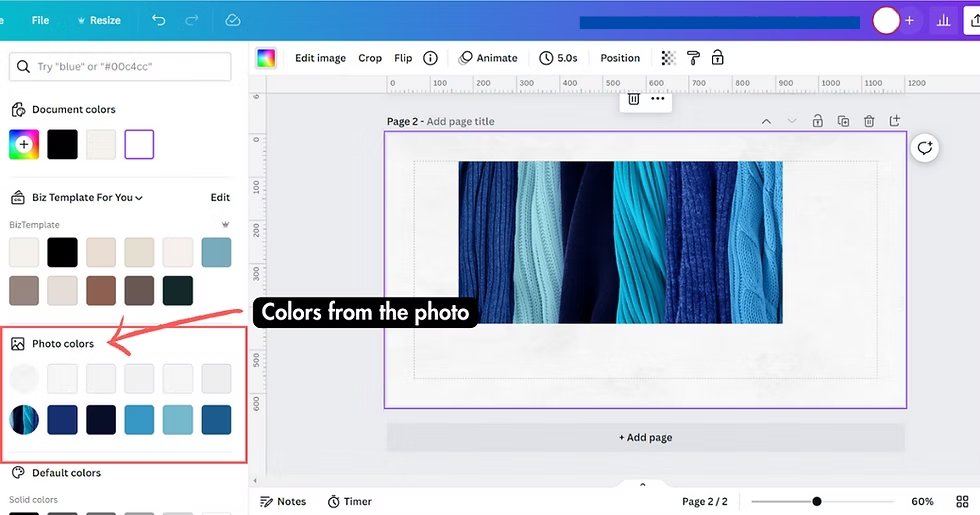
One of the best ways to create good design is to pick colors from your images and use them in your graphics. This technique helps everything look connected and professional. To do this in Canva, click on the object you want to change, then click the color box.

Next, click the plus sign and select the part of your image where you want to grab the color from. This creates a perfect color scheme that makes your design look polished and thought-out.

Professional designers use this trick all the time because it creates visual harmony. When your graphics and images share the same color palette, your design feels more unified.

This is especially important for social media posts where you want everything to look like it belongs together.

Try this technique with photos, illustrations, and even logos to create consistency across all your design elements.

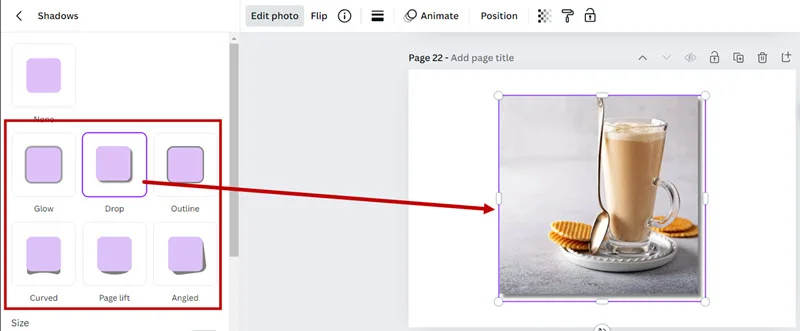
Canva Tip #2: Never Use Drop Shadow

Canva Tip #2: Never Use Drop Shadow

Drop shadows might seem like a good way to make things stand out, but they often make designs look unprofessional and outdated.

Instead of using drop shadows, try changing your background color, moving your elements to different spots, or using contrast to make important parts pop. Good designers know that clean, simple designs usually work better than ones with lots of effects.

When you want something to stand out, use white space around it, make it bigger, or choose a different color that contrasts well with the background.

These methods create a visual hierarchy without making your design look cluttered.

Remember, less is often more in graphic design, and removing unnecessary effects like drop shadows will make your work look more modern and professional.

Canva Tip #3: Limit Your Design to Two Fonts

Canva Tip #3: Limit Your Design to Two Fonts

New designers often make the mistake of using too many different fonts in one design. This makes everything look messy and hard to read.

A good rule of thumb is to use only two fonts – one for your main titles and another for your body text. This creates a clean, organized look that’s easy for people to read and understand.

When choosing fonts, pick ones that work well together but are different enough to create contrast. You might choose a bold serif font for headlines and a simple sans-serif font for body text.

This combination gives you hierarchy while keeping things simple.

Most professional designers stick to this two-font rule because it creates consistency and makes designs look more polished and trustworthy.

Canva Tip #4: Keep Title Sizes Smaller Than You Think

Many beginners make their titles too big, especially for designs that will appear on screens.

A great way to improve your designs is to make your titles about 20% smaller than you first think they should be.

This gives your design more breathing room and makes it easier to read on different devices and platforms.

Smaller titles also help create better balance in your design.

When titles are too large, they can overwhelm other important elements like images or body text. By keeping titles at a reasonable size, you create space for other design elements to shine.

This technique is especially important for social media graphics, where people often view content quickly on small screens.

Canva Tip #5: Get Better Inspiration

Canva Tip #5: Get Better Inspiration

Good design starts with good inspiration.

Instead of copying what everyone else is doing, look at design work from different industries and periods. Study how professional designers use color, spacing, and typography in their work.

Save examples that inspire you in a folder so you can reference them later when working on your designs.

The Canva design community also offers tons of inspiration through templates and user-created content.

Spend time browsing different template categories to see how other designers solve common design problems.

Pay attention to how they use white space, arrange different elements, and create visual hierarchy. This research time will improve your design skills faster than just jumping into creating without any direction.

Canva Tip #6: Design With Whiteboards

Canva Tip #6: Design With Whiteboards

Canva’s whiteboard feature is perfect for planning your designs before you start creating them.

Use this tool to sketch out your ideas, organize your thoughts, and plan the layout of your design elements. This planning step can save you much time later and help you create better organized final designs.

Whiteboards are also great for collaboration when you’re working with a team. You can share ideas, get feedback, and make changes together before moving to the final design phase.

This collaborative approach helps ensure everyone is happy with the direction before you spend time on detailed design work.

Canva Tip #7: Contrast the Important Parts

Canva Tip #7: Contrast the Important Parts

Contrast is one of the most powerful design tools for directing attention. Make sure the most important parts of your design have strong contrast with their surroundings.

If something isn’t important but has high contrast, try reducing the contrast or changing the image to better control where people look first.

Think of contrast like a spotlight – it should shine on the most important information.

This might mean using bright colors against dark backgrounds, large text against small text, or bold elements against subtle ones.

The key is being intentional about where you want people’s eyes to go and using contrast to guide them there.

Canva Tip #8: Consistent Spacing

Canva Tip #8: Consistent Spacing

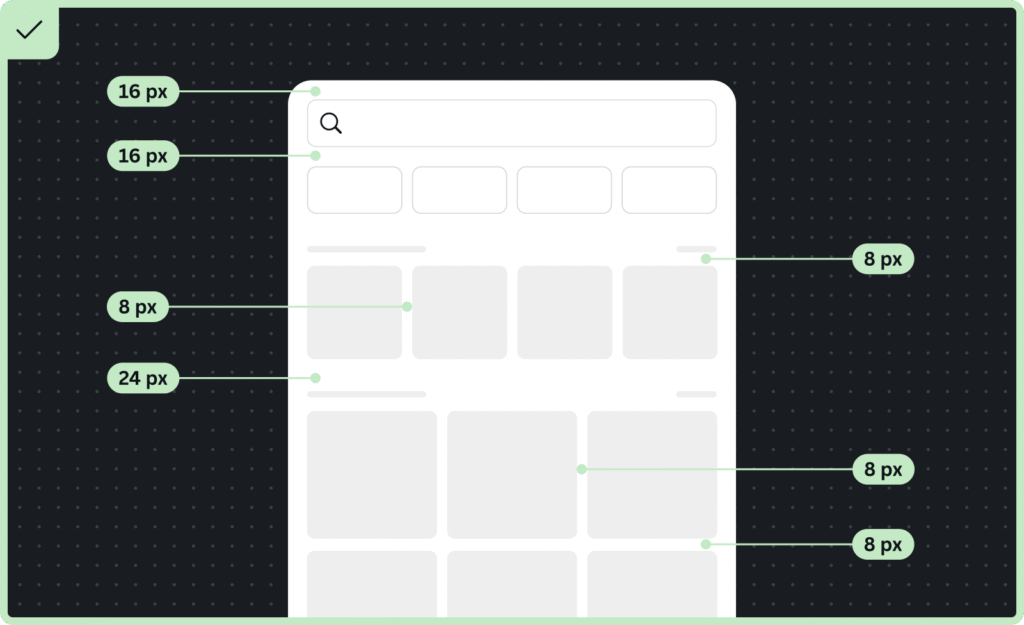
Great designs have consistent spacing between all their elements. Canva makes this easy with built-in alignment tools.

Select all your elements, click the position button at the top menu, and you can create even spacing both horizontally and vertically.

This creates a professional, organized look that makes your design easier to read and more visually appealing.

Consistent spacing is like having good posture for your design – it makes everything look more put-together and intentional.

When spacing is inconsistent, designs look sloppy and unfinished.

Canva Tip #9: The Split the Difference Rule

Sometimes you want certain elements to feel connected, like a title and its description. In these cases, you can use half the normal spacing between elements to show they belong together.

This creates visual relationships and helps organize information in a way that makes sense to viewers.

This technique helps create groups of related information while maintaining the overall structure of your design.

It’s particularly useful for layouts with multiple sections or when you’re designing infographics with different categories of information.

Canva Tip #10: Remove the Fluff

Professional designs are usually simple and clean. If your design feels cluttered, start removing elements that aren’t absolutely necessary.

Every graphic, line, or decoration should serve a purpose. If it doesn’t help communicate your message or improve the visual appeal, take it out.

This minimalist approach helps your main message stand out and makes your design easier to process.

People’s attention spans are short, especially on social media, so removing unnecessary elements helps your audience focus on what really matters.

Canva Tip #11: Negative Space

White space (also called negative space) is the empty area around your design elements. Don’t be afraid to use plenty of it!

White space gives your design room to breathe and makes it look more professional and easier to read.

Many new designers try to fill every inch of space, but experienced designers know that empty space is just as important as filled space.

Good use of white space can make your design feel luxurious and high-end.

It also helps create focus by giving important elements space to stand out.

When planning your layout, think about white space as an active design element, not just leftover area.

Canva Tip #12: Grid System

Using grids helps create organized, professional-looking designs. Canva offers grid templates that you can use as guides for placing your elements. Grids help ensure everything lines up properly and creates a structured, easy-to-follow layout.

Even if you don’t use visible grid lines in your final design, thinking in terms of grids will improve your layout skills.

Grids are especially helpful for complex designs with multiple elements. They provide a framework that keeps everything organized and helps create visual rhythm throughout your design.

Canva Tip #13: Best Fonts to Use

Canva Tip #13: Best Fonts to Use

Choose fonts that match your message and audience. For professional business content, stick with clean, readable serif or sans-serif fonts.

For creative projects, you might choose more decorative typefaces, but always prioritize readability. Keep your font choices simple and make sure they work well at different sizes.

The canva editor offers hundreds of fonts, but having too many choices can be overwhelming.

Pick a few favorites and stick with them to create consistency across your designs. This also helps build your brand identity over time.

Canva Tip #14: Color Theory in a Nutshell

Canva Tip #14: Color Theory in a Nutshell

Understanding basic color theory will instantly improve your designs.

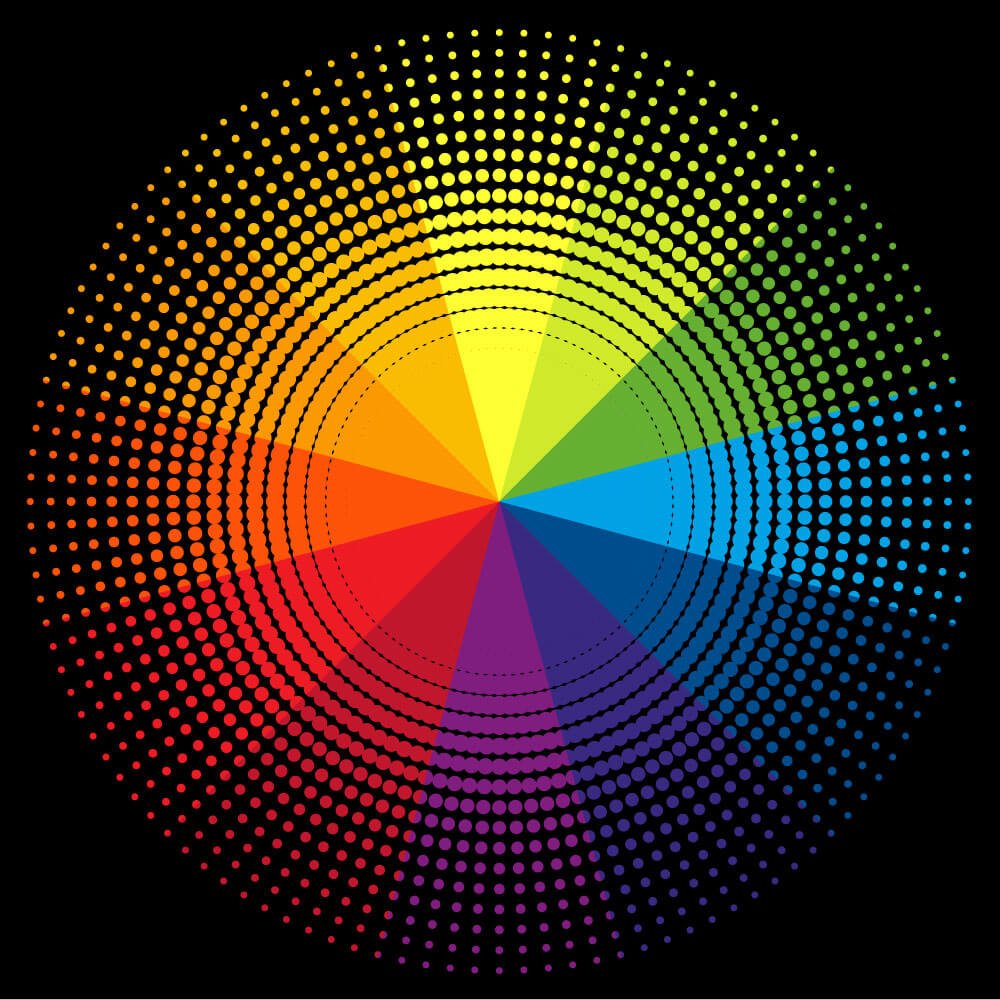
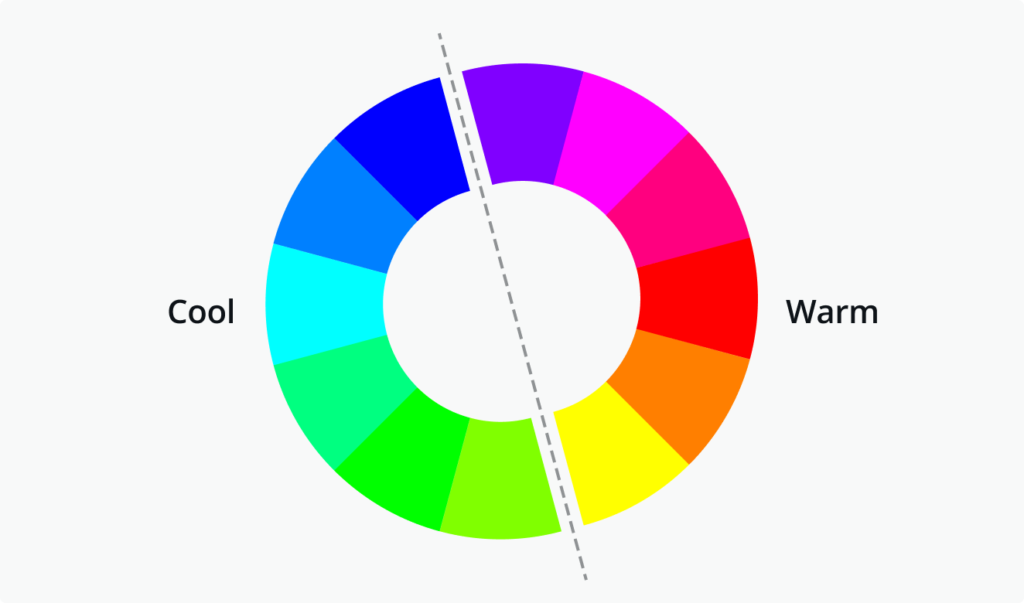
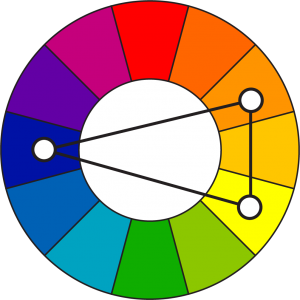
Colors next to each other on the color wheel work well together, while colors across from each other create strong contrast.

Use warm colors (reds, oranges, yellows) to create energy and cool colors (blues, greens, purples) to create calm feelings.

Don’t feel like you need to use many colors in one design.

Sometimes the best color scheme uses just two or three colors that work well together. This creates a more sophisticated look than using too many competing colors.

Canva Tip #15: Consistent Color Scheme

Canva Tip #15: Consistent Color Scheme

Pick a color palette and stick with it throughout your design. This creates unity and makes your work look more professional.

Canva’s color palette tools make it easy to save and reuse color schemes across different projects. Consistency in color choices helps build recognition and trust with your audience.

Your color scheme should reflect your brand identity and the mood you want to create. Once you find colors that work well for your style, save them in your brand kit so you can easily access them for future designs.

Canva Tip #16: Saving Templates

Canva Tip #16: Saving Templates

When you create a design you love, save it as a template so you can reuse the layout with different content.

This saves much time and helps maintain consistency across your work. Templates are especially useful for regular content like social media posts or presentations where you want the same look but different information.

To save a template, simply click on the three dots menu and select “Save as template.” This adds it to your personal template library where you can access it for future projects.

Canva Tip #17: Brand Colors, Logos, and Fonts

Canva Tip #17: Brand Colors, Logos, and Fonts

Set up your brand kit with your official colors, logos, and fonts.

This makes it easy to create on-brand content quickly and ensures consistency across all your designs.

Having everything in one place saves time and helps maintain your brand identity across different projects and team members.

Your brand kit becomes especially valuable when working with a team or when you need to create multiple designs quickly.

Instead of searching for your logo or trying to remember your exact brand colors, everything is easily accessible in one tab.

Canva Tip #18: Brand Templates

Canva Tip #18: Brand Templates

Create branded templates for your most common design needs.

This might include social media post templates, presentation layouts, or marketing materials. Brand templates help maintain consistency while allowing for quick customization. This approach is particularly valuable for businesses that need to produce regular content.

Set up templates with your brand colors, fonts, and style already in place. Then team members can simply swap out images and text while maintaining the professional, consistent look of your brand.

Canva Tip #19: Uploading Fonts

You can upload your own custom fonts to Canva to match your brand perfectly. This is especially important if you have specific brand fonts that aren’t available in canva’s library. Custom fonts help your designs stand out and maintain brand consistency across all platforms.

Make sure any fonts you upload are ones you have the legal right to use. Many font licenses allow personal use but require payment for commercial use, so check the terms before uploading fonts for business projects.

Canva Tip #20: Duplicating A Design

Canva Tip #20: Duplicating A Design

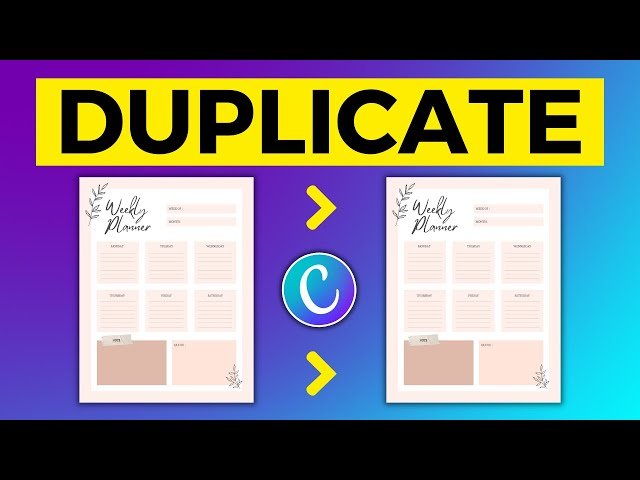
When you need to create similar designs with different content, duplicate your original design instead of starting from scratch.

Use the keyboard shortcut Command+D (or Ctrl+D on PC) to quickly duplicate elements, or use the option drag method to copy items while moving them.

This technique saves enormous amounts of time when creating a series of designs like social media content, presentations, or marketing materials that need the same basic layout but different information.

Canva Tip #21: Fast Color Schemes Using Styles

Canva’s styles automatically apply professional color schemes to your designs.

This is a great way to quickly test different color combinations and see what works best for your content. Styles take the guesswork out of color selection and can inspire new direction for your designs.

Try different styles on the same design to see how dramatically color changes can affect the mood and effectiveness of your work.

This experimentation can teach you a lot about color theory and help you develop your own color sense.

Canva Tip #22: Copy and Paste Images From Around the Web

Canva Tip #22: Copy and Paste Images From Around the Web

You can copy images from websites and paste them directly into canva. This makes it easy to quickly add reference images or inspiration to your designs. Just remember to only use images you have permission to use in your final designs.

This feature is particularly useful during the planning and inspiration phase of design work. You can quickly gather visual references and experiment with different directions before committing to final image choices.

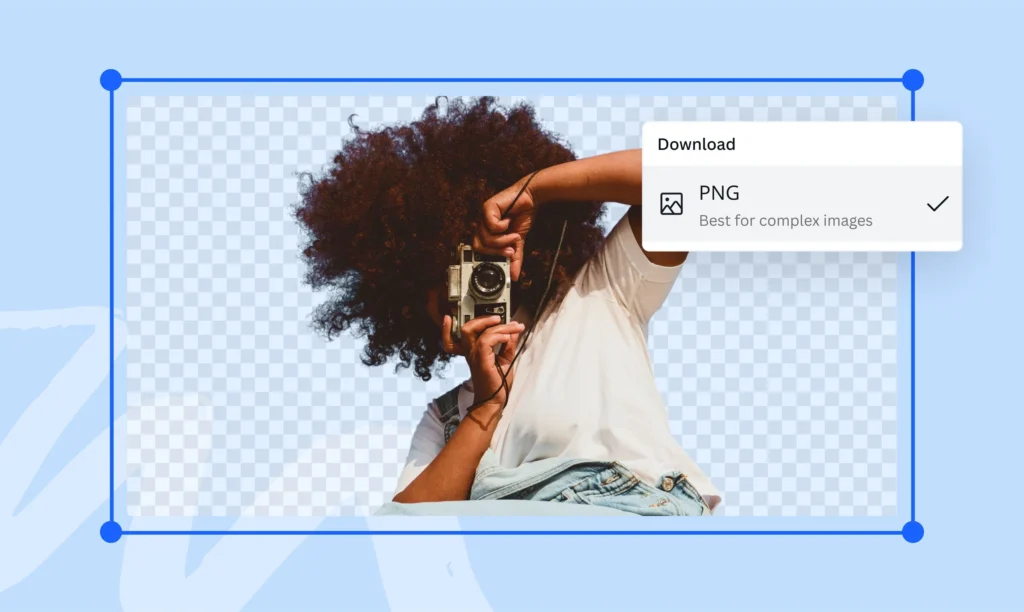
Canva Tip #23: Removing Backgrounds From Graphics

Canva Tip #23: Removing Backgrounds From Graphics

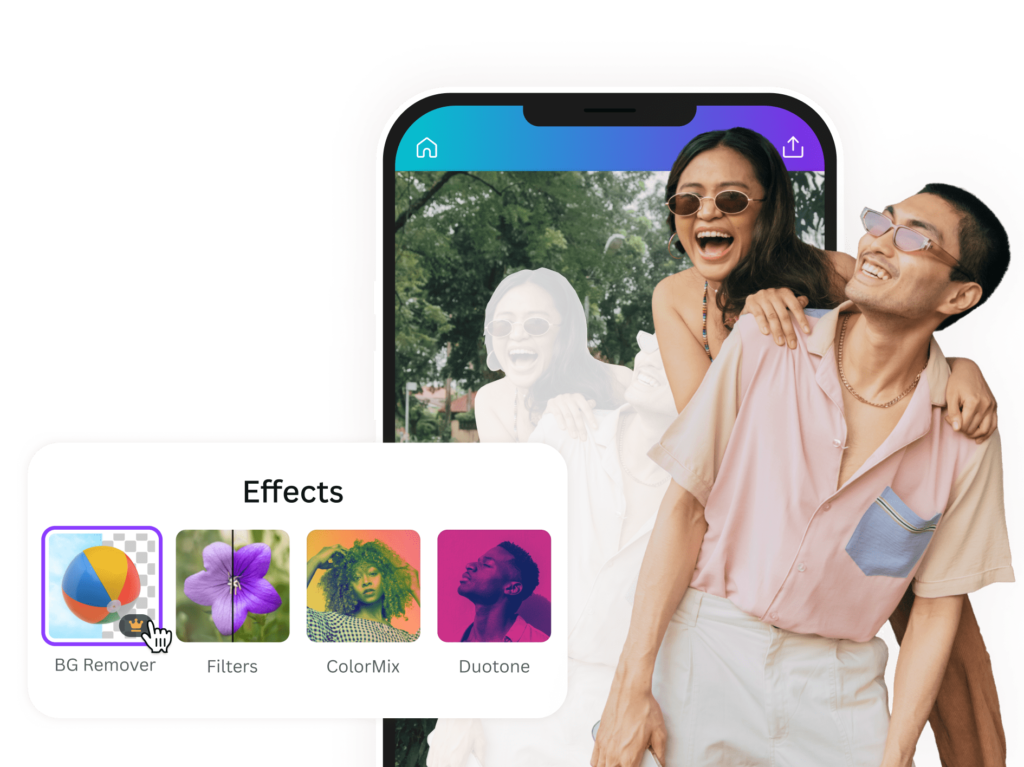
Canva’s background removal tool uses AI to automatically remove backgrounds from graphics and illustrations.

Select your graphic and click the background removal filter to instantly create a transparent background. This feature saves hours of manual work that would traditionally require complex software like Photoshop.

Background removal is particularly useful for creating layered designs where you want to combine multiple graphics or place images over different backgrounds. The AI does an impressive job with most images, though you may need to make small adjustments for perfect results.

Canva Tip #24: Removing Backgrounds From Images

Canva Tip #24: Removing Backgrounds From Images

The same background removal feature works on photographs too.

This allows you to cut out subjects from photos and place them on new backgrounds or create transparent PNG files. This opens up endless creative possibilities for combining different visual elements.

This tool is especially valuable for creating product photos, social media content, and marketing materials where you need clean, professional-looking images without distracting backgrounds.

Canva Tip #25: Using Shaped Framed Image Elements

Shape frames let you put images into different shapes like circles, stars, or custom forms.

Drag an image onto a frame to instantly crop it to that shape. You can take this further by removing the background from the framed image and adding shapes with your brand colors behind it for a custom look.

This technique is perfect for creating unique profile pictures, product showcases, or decorative elements that fit your brand style.

The combination of frames and background removal gives you professional-level design control.

Canva Tip #26: Alignment Tool

Proper alignment makes designs look professional and organized. Instead of trying to line things up by eye, use Canva’s alignment tools. Select multiple elements, click position in the top menu, and choose how you want them aligned. This ensures perfect positioning every time.

Good alignment is one of the fastest ways to make your designs look more professional. It shows attention to detail and creates visual order that makes your content easier to read and more trustworthy.

Canva Tip #27: Grouping Tool

Group related elements together so you can move and resize them as one unit. This is especially helpful for complex designs with many different parts. Select multiple elements and right-click to group them, or use the keyboard shortcut Command+G (Ctrl+G on PC).

Grouping helps maintain relationships between elements and prevents accidentally moving parts of your design independently.

It’s particularly useful for logos, complex graphics, or any design elements that should always stay together.

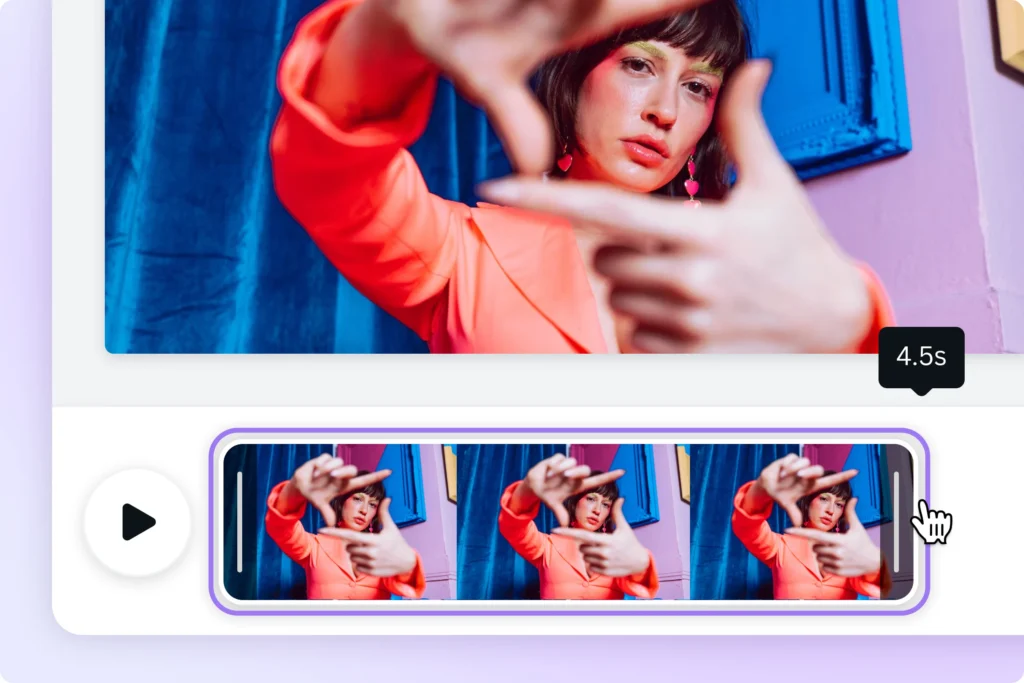
Canva Tip #28: Quick Animation For GIFs

Canva Tip #28: Quick Animation For GIFs

Add simple animations to your designs to create engaging GIFs for social media. Canva offers several animation options that can bring your static designs to life without requiring advanced animation skills.

Animations can help your content stand out in busy social media feeds. Keep animations simple and purposeful. The goal is to enhance your message, not distract from it. Subtle animations often work better than dramatic ones for most business and social media applications.

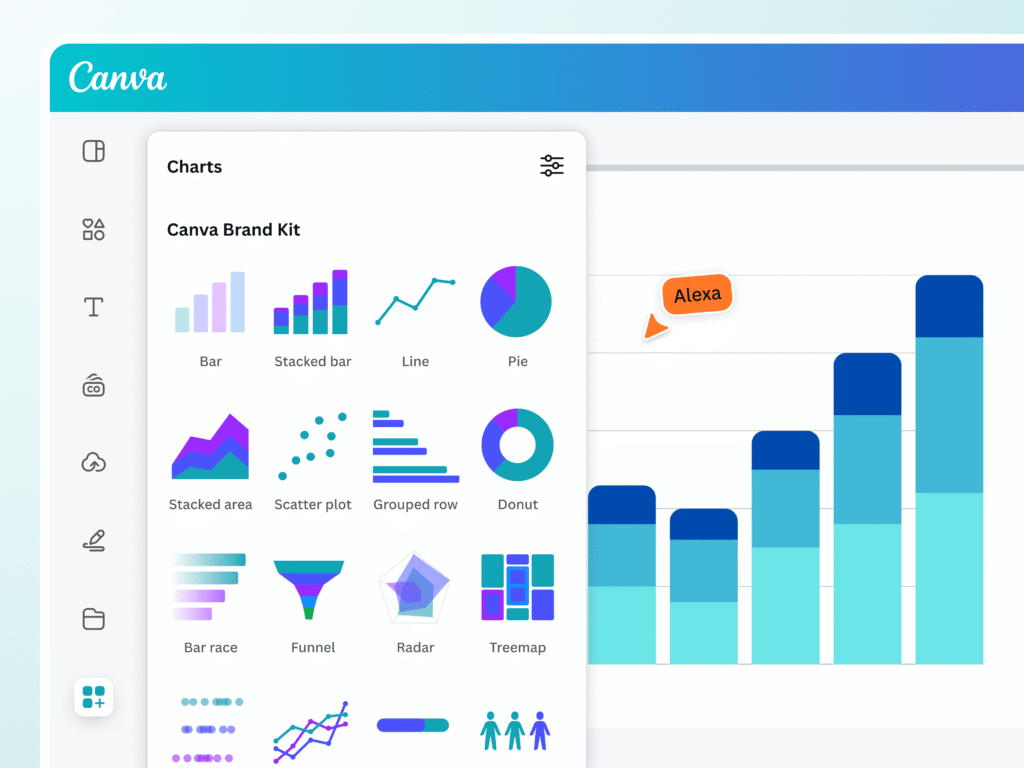
Canva Tip #29: Creating Charts

Canva Tip #29: Creating Charts

Canva includes chart and graph tools for creating data visualizations.

These are perfect for presentations, infographics, or any design that needs to communicate numerical information clearly.

You can customize colors, fonts, and styles to match your brand.

Good data visualization is important for making complex information understandable. Canva’s chart tools make it easy to create professional-looking graphs without needing specialized software.

Canva Tip #30: Resizing Designs

Canva Tip #30: Resizing Designs

Magic Resize instantly adapts your design to different dimensions for various platforms.

Create one design and resize it for Instagram posts, Facebook covers, presentations, and more. This feature saves hours of manual resizing work.

This tool is particularly valuable for social media management where you need the same content in multiple formats.

Instead of recreating designs for each platform, you can adapt one design to work everywhere.

Canva Tip #31: Locking Elements

Canva Tip #31: Locking Elements

Locking elements stops them from moving accidentally.

Click any object (like text, logos, or images), then click the lock icon in the top menu. This is helpful when working with layers or protecting key parts like brand logos.

For example, lock a logo in the corner so it stays fixed while editing other elements. Unlock it later by clicking the same icon.

This feature saves time and keeps designs tidy, especially for social media templates where consistency matters.

According to Canva tutorials, locking ensures elements like borders or text boxes stay in place, even when selecting multiple items.

Canva Tip #32: Business Logos

Canva Tip #32: Business Logos

Create professional logos using shapes, text, and brand colors. Upload logos to Canva’s brand kit for easy access. Keep logos simple—use 1-2 fonts (like serif for titles and sans-serif for body text) and avoid clutter.

For example, pair bold text with a minimalist icon.

Update colors anytime using your color palette to match projects. Logos with transparent backgrounds work best for social media or business cards.

Canva’s brand kit lets teams maintain consistency across all designs.

Canva Tip #33: Option Drag For Duplicating

Hold the Option or Alt key while moving an item. This lets you make quick copies of it. You can use this for text, icons, or images.

For example, duplicate bullet points in a list. You can also copy social media icons for a neat look.

This method is faster than copy-pasting items. It also helps keep even spacing between items.

Use this tip in presentations or infographics to save time.

Tutorials explain how holding the Alt or Option key allows you to drag copies while keeping the original in place.

Canva Tip #34: Alt Drag For Scaling Proportionally

When you resize images, hold the Alt or Option key. This helps stop distortion, especially in photos with faces.

This method keeps shapes, text boxes, logos, and other design parts looking good together.

For example, scaling a QR code evenly is important to keep it working well.

This tip is great for making nice Instagram posts or eye-catching flyers.

Canva Pro has a resize tool that lets you change sizes without losing image quality. This makes sure your designs look professional on different platforms and print materials.

Always remember that keeping proportion while resizing is key for clear visual message.

Canva Tip #35: Select All Elements

Canva Tip #35: Select All Elements

Pressing Ctrl+A on Windows or Cmd+A on Mac selects everything on your canvas at the same time. This tool is helpful for making big changes. You can change colors, fonts, or alignments all at once.

For example, you can make all headings blue. You can also adjust spacing evenly in a grid layout. This saves time by not needing to edit each piece one by one. It helps keep things looking the same in brand projects.

This ensures a strong visual identity across different media platforms.

Canva Tip #36: Add A Line With L

Press the L key to add straight lines to your design.

You can change the line thickness and color using the options at the top. These lines can help separate text sections or underline important titles.

For example, a nice gold line under a heading makes a brochure look better. In social media graphics or infographics, lines help create structure and order. This makes designs look nicer and easier to follow.

Canva Tip #37: Add A Rectangle With R

Rectangles and squares are useful shapes for design.

They can be used as backgrounds, frames, or buttons. These shapes help people interact with web design better.

For instance, a pink rectangle placed behind a quote catches the eye. It also makes the visual look nicer.

To keep your brand strong, match the rectangle’s color to your brand’s colors.

In resumes or posters, these shapes help organize content for better reading. Try using different sizes and placements to fit your design style.

This could be modern and simple or bright and lively. Rectangles and squares give you many ways to be creative in graphic design.

Canva Tip #38: Circle With C

Press C to add circles. This is an easy way to improve your design.

Circles can have many uses. They work well for profile pictures, bullet points, or icons. They give a new look that makes things more appealing.

For instance, you can use a round badge with your logo in Instagram stories. This helps keep your brand the same on different sites. You can also resize circles without losing quality.

This makes it easy to change your design as needed.

Adding circles to social media posts or flyers makes them more interesting. It also helps your content get noticed.

Try using different sizes, colors, and shapes for better graphics. This will help share your message and grab your audience’s attention.

Canva Tip #39: Text Box With T

Adding text boxes to your design can make your graphics look better and work well.

You can use them for a blog image, poster, or TikTok thumbnail.

Text boxes let you add captions under photos. They also help you highlight key points or include calls to action. Try using different font styles, like bold or italic. This change can make your text pop out more.

Adjust the size and position of your text boxes to make them easier to read. This will help with how nice it looks overall. Press T to quickly add text boxes anywhere in your design. This way, you can show your creativity!

Canva Tip #40: Recording Presentations

Canva Tip #40: Recording Presentations

Recording presentations as videos is a powerful tool for educational or professional purposes.

Adding voiceovers or camera feeds to your slides creates a more engaging experience. Exporting your recordings as MP4 files allows easy sharing on platforms like YouTube, expanding your audience.

Canva’s recording tool enhances video creation, offering the ability to pause and retake sections for a polished final product.

This feature is invaluable for achieving seamless, professional presentations. Whether you’re a student on a project or a business professional pitching ideas, Canva’s recording feature can elevate your presentation quality and leave a lasting impression.

Canva Tip #41: Notes For Presenting

Adding secret notes under each slide with the Notes tab can improve your talks. These notes help you remember key facts or important points, especially for a pitch.

The great thing about these notes is that only you can see them when you present. This helps build your confidence and makes your talk smoother. You won’t miss any important details this way.

Using hidden notes well makes you look more ready and smart while speaking. This can leave a good mark on your audience.

Canva Tip #42: Chat During Presentations

Canva Live lets you talk with your audience in real-time. This means viewers can ask questions during your talks. It helps to keep everyone engaged. You can share a special access code for easy joining.

For instance, if you host a Q&A at a webinar, it increases audience involvement. This doesn’t disturb your main points.

All chat talks are saved for later use and insights. Canva Live also allows live polls and feedback collection.

You can work together to brainstorm ideas, too. This will help you create fun and engaging times for all who join.

Canva Tip #43: Presentation Countdown Timer

Canva Tip #43: Presentation Countdown Timer

Adding a timer from Canva’s video library can make your presentation more lively. You can search for “countdown” in Canva.

Then, you can add it to your slide. This will help build excitement among your audience. It gets them ready before you start your talk or event.

The countdown timer looks professional and adds a nice touch. It also creates urgency and keeps viewers interested.

They will be eager to see what comes next. This simple addition can make the experience engaging and memorable for everyone.

Canva Tip #44: Making Presentations Funner

Canva Tip #44: Making Presentations Funner

To grab your audience’s attention, use animated templates and fun GIFs in your slides. These visuals bring creativity and energy.

They make your content more memorable. Try different slide transitions like “Fade” or “Zoom” to create a smooth flow.

But, keep a balance between being professional and playful. Animations can add life, but they should match your message.

By finding this balance, you will make a great presentation. It will share your ideas clearly while keeping your audience interested.

Canva Tip #45: Remote Control

One convenient way to present slides without being tethered to your computer is by utilizing your mobile phone.

By opening the provided link on your device, you can seamlessly control the slideshow and navigate through your presentation with ease.

This flexibility allows you to move around freely, engaging with your audience without being confined to a specific spot near your computer.

This mobile-friendly approach to presenting offers convenience and enhances your ability to deliver a dynamic and interactive presentation experience.

Canva Tip #46: Delivery Formats

When you save your designs, think about how you will use them. If you want to print, save as PDFs. This gives high-quality prints.

If you need clear images for the web or design, use PNG format.

For social media or moving content, consider saving as videos. Videos are fun and share your message well online.

By choosing the right format for each use, your designs will always look great wherever they appear.

Canva Tip #47: Transparent Backgrounds

Canva Tip #47: Transparent Backgrounds

Removing backgrounds from images makes your designs look better. It helps you get clean and clear images.

This is great for logos, overlays, product photos, and more. Special software has a “Background Remover” tool that makes this easy. You can take out the main subject and make transparent PNG files without trouble.

Whether you are a graphic designer, photographer, e-commerce seller, or social media user, learning to remove backgrounds will improve your images. It brings focus to your subject and keeps your brand strong on different platforms.

Spending time on good background removal methods saves you effort and boosts your content’s quality.

Try out different tools to see which one works best for you.

Canva Tip #48: Sending Prototypes

When sharing your designs, it’s important to provide clickable links that allow others to easily access and interact with your work.

Before finalizing any buttons or navigation elements, it’s a good practice to test them with different users to ensure smooth functionality and user-friendliness.

By getting feedback quickly through shared links instead of sending files back and forth, you can expedite the review process and make necessary revisions promptly.

This approach not only saves time but also promotes effective collaboration and seamless communication among team members or clients involved in the design project.

Canva Tip #49: Changing Logo Colors

Canva Tip #49: Changing Logo Colors

When you change logo colors in the brand kit, keep it the same. This helps your brand look good in all projects.

Click on your logo to pick new colors from your color palette. Keeping your branding the same helps people know your brand better. It also builds trust and respect with your audience.

For both digital and print items, make sure colors and designs match well. This will create a strong brand image that connects with customers.

Always remember, each part of your brand is important. It helps shape how people see your business.

Canva Tip #50: QR Code Generator

Canva Tip #50: QR Code Generator

QR codes are popular because they are easy to use and flexible.

Canva is a simple design tool. It lets you make your own QR codes that link to websites or social media pages.

This is great for businesses that want more online visitors. You can change the colors and designs of the QR codes to match your brand.

This helps with looks and makes them easier to recognize.

After making the QR codes, you can add them to ads like posters, business cards, flyers, or product boxes. Putting them in busy spots encourages people to scan them and view your online content.

In short, Canva’s QR code tool connects offline and online marketing well. It helps engage your audience and drives traffic to your digital sites.

Canva Tip #51: Collaborative Commenting

Canva Tip #51: Collaborative Commenting

Leaving comments on designs helps teams work together and share ideas in group tasks. You can click the comment icon to add your thoughts or suggestions. Tagging teammates makes sure the right people see your comments and can join in.

When you fix a problem, resolve the comments to show it has been handled. This clear process improves communication among team members. It also helps teams make better designs. This way, everyone stays on the same page, and project goals are reached quickly.

Canva Tip #52: Graphic Search Tool

When you look for icons or photos on Canva, use the search bar. Type in specific words to find what you need fast.

For example, use words like “social media” or “nature.”

This will help you explore Canva’s large library. You can find many visuals that fit your designs. This tool makes the creative process easier. It gives access to many high-quality images for different themes and ideas.

Whether you’re making a social media post or a nature project, Canva’s search feature helps a lot. It simplifies the search for the right visual parts to match your design plans.

Canva Tip #53: Linking From Designs With PDFs

Canva Tip #53: Linking From Designs With PDFs

Adding clickable links to PDFs can greatly improve how users interact with your documents.

To do this, first highlight the text you wish to link. Then click on the link icon and enter the URL you want.

This allows readers to go to extra resources or related content easily. This tool is very helpful for making reports, portfolios, or e-books.

Readers can quickly move between sections or find more information from outside sources. Including clickable links makes your PDFs easier to use. It also gives your documents a more professional look.

This makes them more interesting and informative for your audience.

Canva Tip #54: GIF Library

Canva has a “Videos” section. It offers many GIFs you can use.

These GIFs add fun to your posts or emails. They are great for catching your audience’s eye. This makes your content more interesting.

If you want to show a product, share a fun message, or make your talk better, GIFs are helpful. Using GIFs from Canva helps you shine online.

Take time to look through the collection. You will find the right animations that match your brand’s style and words.

Canva Tip #55: The Map Tool

To make your content look better and improve user experience, add maps through the “Elements” tab in your design tools.

Maps are useful for showing event spots or business addresses. They give clear directions to your audience.

You can change map colors to match your brand’s colors. This creates a unified look that helps people remember your brand.

Also, using interactive maps lets users zoom in and check different areas, which boosts engagement.

Features like clickable markers and pop-up windows provide more details about certain places. This makes the maps both helpful and useful.

Canva Tip #56: YouTube Videos

Embedding YouTube videos can make your presentations and websites more fun. It adds exciting visuals for your viewers.

Resizing the video frame helps it fit your layout. This makes your content look better and provides useful information.

This method also increases user interest and helps explain tough ideas easily. It makes the content feel lively too.

Plus, using videos from trusted sources makes your work more reliable. This can also bring more visitors to your site. Make sure that the videos you embed relate to your topic for the best effect.

Canva Tip #57: Quick Websites

Canva’s website templates make it easy to build good-looking sites. You can use a drag-and-drop tool. This lets you change your site with photos, text, and buttons—no coding needed.

When you are happy with your site, publish it right away. You can use a free Canva URL to share it fast.

The templates come in many styles for portfolios, blogs, or business sites. They can be fully changed to fit your brand.

Their responsive design makes sure your site looks great on all devices.

Whether you are new or a pro designer, Canva helps you make stunning websites with ease.

Canva Tip #58: Social Publishing

Canva is a flexible tool that helps you make great-looking content.

You can use it for social media sites like Instagram and Facebook. It lets you create eye-catching posts easily. You can also post directly to your favorite site. This saves you time because you won’t need to switch apps.

Plus, Canva has a scheduling feature. This lets you plan your posts ahead of time. You can keep a steady online presence without working daily.

This tool improves your social media plan and boosts your work speed. It also helps keep your content neat.

Canva Tip #59: Social Scheduling

Canva’s content planner helps you make content more easily. You can plan a week ahead with it.

The drag-and-drop tool lets you pick designs and images for your calendar. Planning early helps keep your message and brand steady. It also meets what your audience wants.

With Canva’s auto-publish tool, you can set up posts ahead of time.

This way, your posts get seen better and attract more people. This smart method saves time and makes your content work more organized.

Canva Tip #60: Animation Formats

Canva Tip #60: Animation Formats

Exporting your designs as GIFs or MP4s makes them more lively. This adds a fun touch to your visuals.

To add motion, use the “Animate” feature in the top menu. It is easy to include movement in your text or images.

Animating parts of your design helps highlight important points. It also makes complex ideas easier to understand.

Whether you use it for social media, presentations, or websites, animation grabs attention. It can leave a strong mark on viewers. Try out different effects and timings to improve your design and message.

Canva Tip #61: Select Elements Behind Other Elements

When using design software or editing tools, it is important to know how to find hidden items.

You can do this by right-clicking and choosing “Select behind.” This lets you reach and change layers that are covered by other parts of your project.

You can do this without messing up the rest of your design.

This feature helps with more exact edits. It ensures you can change specific parts without changing the whole layout.

Learning this skill can make your work faster. It also improves how well you edit, especially when working with tricky or layered designs.

Canva Tip #62: Get Better Photos

When you create nice designs, using good images is very important.

Using high-quality images from Canva’s large library helps improve your design. You can also upload your own clear pictures.

Blurry images can make your work look less professional.

So, it is very important to choose sharp and clear photos. This will help you achieve a polished look in your designs.

Good images not only make your designs look better but also show that you pay attention to detail.

This makes your visuals more interesting and powerful.

Remember, in design, clear photos are vital for making a strong impression on your viewers.

Canva Tip #63: Access Brand Logos

A brand kit is key for keeping a strong brand look in your marketing. It stores logos all in one spot.

This means you can find them easily and design faster. Saving time is important for every project. Being consistent is also very important. Having all logos ready helps you use them right on different sites.

Whether for social media posts or printed items, quick access makes your brand stand out well. Organizing your things in a brand kit makes your work easier and boosts your brand’s image.

Canva Tip #64: Tidy-Up Feature

In Canva, making a pretty design is just one click away. You can select items and go to Position → Tidy Up.

Canva will space everything out evenly for you. This tool is great for arranging lists or grids in your designs.

It helps create a clean and nice look easily. The Tidy Up feature makes layout work quicker. It saves you time and gives a polished finish.

Whether you are working on slides, social media posts, or other projects, Canva’s easy tools make design simple and fast.

Canva Tip #65: Downloading Specific Items

When you export files, it is important to choose the right pages or formats.

For example, if you use a PDF and want to leave out some pages, change the export settings to skip them.

This makes your document clearer and keeps only the needed info.

Also, if you want transparency, pick the PNG format. This format keeps the background clear and removes unwanted parts.

Knowing how to choose the best options when exporting helps your work go smoothly.

It also improves the quality of your documents. This applies whether you are leaving out extra pages in a PDF or using transparency in PNG files.

Canva Tip #66: Font Pairing

When you use Canva’s font pairs for titles and body text, keep a good look. Avoid using styles that clash. Canva suggests using only 2 to 3 fonts at most. This will help keep your design looking nice and consistent.

Following these tips can help you make content that is easy to read and nice to see.

Choosing matching fonts for titles and body text can also help show your message well. It will improve the overall look of your project too.

Don’t forget to think about font size, spacing, and order. These factors will help make your graphics easy to read and neat in appearance.

Canva Tip #67: Brand Controls

Setting clear rules for brand colors and fonts is important. This helps keep things consistent across all types of communication.

Consistency builds trust with customers and strengthens your brand.

When you set specific rules, all marketing materials will match your style. This includes social media posts and printed content.

Sticking to these rules helps create a neat, professional look. It also makes it easier to design and produce content while keeping the quality high.

Checking and updating these rules often keeps your brand fresh in a changing market. This reinforces your message and sets you apart from others, helping you gain loyal customers.

Canva Tip #68: Color Pallet Library

Canva Tip #68: Color Palette Library

Creating a brand kit with saved colors is key for keeping things consistent in your marketing. You can click “Styles” to use pre-saved color groups.

This helps make sure your brand’s colors are used on your website and social media. It also works for ads.

This way, people can easily recognize your brand. Using a set color group saves time, too. There is no need to pick colors by hand.

This makes your design work smoother and helps your brand look united.

Canva Tip #69: Importing PDFs

Canva Tip #69: Importing PDFs

Uploading PDFs for text or image editing is an easy way to change old documents. This is great for updating flyers with new info. It helps add more details, too.

By using this tool, people can change content without starting over. They do not need to make the whole document again.

Whether fixing mistakes or updating contact info, editing PDFs is flexible and fast. It makes managing promotional materials simple and quick.

Also, this feature allows easy customization. Users can adjust their content for different audiences or events without any hassle.

Canva Tip #70: Smart Mockups

Canva Tip #70: Smart Mockups

Transform your designs into real products. You can show them on items like mugs or posters. Use an AI mockup tool for your images.

This gives them a neat and professional look. This method helps you see how your designs would look in real life.

It also makes the overall presentation better. This makes your designs more appealing to potential buyers.

By adding this visual part, you can market your work well. You will attract more people who can enjoy the beauty and use of your designs.

Canva Tip #71: Print Your Designs

Ordering prints from Canva is an easy way to make your designs real.

Their simple platform helps you pick the paper type and size. You can choose for business cards, posters, or other printed items.

Canva makes it easy to turn digital designs into real products. This saves you time and gives you great quality.

Whether you are a small business owner or making gifts, Canva’s printing service is a simple way to bring your ideas to life.

Canva Tip #72: Blemish Removal

Canva Tip #72: Blemish Removal

The “Edit photo” tool helps you improve images. You can fix skin and object flaws easily. Use the “Retouch” option and the brush tool.

This is great for portraits or product photos. Try different brush sizes to get a good look.

Also, change the opacity for a soft effect. You can adjust brightness, contrast, and saturation too.

These changes will make your images better. Keep in mind that being subtle is very important. This will give you a realistic and polished look.

Canva Tip #73: AI Artwork

Canva Tip #73: AI Artwork

Canva’s AI tools make it easy to create images. You can do this by typing in simple words like “sunset over mountains.”

This feature lets anyone make art without needing special design skills.

Canva’s AI uses smart programs to read your words and create nice graphics that fit your idea. If you need pictures for social media, presentations, or ads, Canva’s AI tools can help.

They allow you to bring your thoughts to life fast and easily.

Canva Tip #74: Magic Blurs

Blurring backgrounds helps make text easier to read. It also grabs the viewer’s attention. This trick creates a nice contrast in designs.

It focuses on important parts of graphic art, photos, and websites.

To blur a background well, use editing software or online tools that have blur options. Change the strength of the blur to find the right mix of clarity and focus on front items. Using blur smartly leads viewers to key details. This improves how your work is seen and understood.

For your next project, think about using blur effects. They can create a lively design that shows what is most important.

Conclusion

These 74 Canva tips cover everything from the basics of good design to the more advanced features that most people never discover. The more of these you put into practice, the faster and better your designs will get.

Start with the ones that feel most useful to you right now – whether that is setting up your brand kit, learning keyboard shortcuts or simply limiting yourself to two fonts. Small changes like these add up quickly.

In 2026, Canva keeps adding new features, so it is worth checking back regularly to see what is new. At Designers Choice, we keep our guides updated so you always have the latest tips at your fingertips.

Categories
Canva

How to Landscape in Canva: A Step-by-Step Guide

Switching your Canva design to landscape mode is one of the most common things designers need to do – and one of the easiest to get wrong if you don’t know where to look.

Landscape orientation is wider than it is tall, making it perfect for website banners, presentation slides, YouTube thumbnails, social media covers and printed posters. In 2026, Canva gives you more than one way to do this – whether you are on the free plan or using Canva Pro.

In this guide, we will walk you through every method step by step. You will learn how to switch an existing design to landscape, how to set custom dimensions and how to adjust your layout after resizing – all without needing any design experience.

Understanding Landscape Orientation In Canva

Understanding Landscape Orientation In Canva

What is Landscape Orientation?

Landscape orientation means your design is wider than it is tall. Think of it like a TV screen or a picture of mountains. The width is greater than the height. In simple terms, when we talk about landscape orientation, we mean the page is set up so it’s wider than it is tall.

For example, if a design is 1000 pixels by 800 pixels, it’s in landscape format because 1000 (width) is bigger than 800 (height).

Benefits of Using Landscape Mode

Using landscape mode has many good points:

  • It gives you more space from left to right
  • It works better for designs that will be seen on computer screens
  • It’s great for website headers, banners, or wide photos
  • Many social media covers use landscape formats

When you pick the right orientation for your project, it makes your design look better and work better for what you need.

How To Landscape In Canva?

How To Landscape In Canva?

Let’s go through the steps to make your design landscape in Canva:

Step 1: Open Your Design

First, log into your Canva account. You can either open an existing design that you want to change, or start a new one. If you’re starting fresh and know you want a landscape format, you can pick a template that’s already in landscape mode or set custom dimensions from the start.

Step 2: Go To The Resize Tool

Once your design is open, look at the top menu. You’ll see a button called “Resize” in the upper left corner. Click on this button to open the resize options.

Note: The full resize feature is only for Canva Pro users. If you don’t have Canva Pro, don’t worry – I’ll show you a free way to do this later.

Step 3: Choose Your Landscape Format and New Dimensions

After clicking “Resize,” you’ll see options to change your design’s size. You can:

  • Pick from preset sizes (like A4 Landscape or 1920 x 1080 pixels)
  • Enter custom dimensions in the “Custom size” fields

For landscape format, make sure the width (first number) is bigger than the height (second number). For example, if your design is currently 800 x 1000 pixels, you could make it 1000 x 800 pixels to switch to landscape.

If you want to keep the same ratio but just flip the orientation, simply swap the width and height numbers.

Step 4: Select Resize Options

After setting your new dimensions, Canva will show you a preview of how your design will look. You’ll have two options:

  • “Copy & Resize” – This makes a new design with the new dimensions while keeping your original design unchanged. Your original design will stay open in its original tab, and the new resized design will open in a new tab.
  • “Resize This Design” – This changes your current design to the new dimensions. This option doesn’t make a copy, so your original design will be replaced.

Choose the option that works best for you.

Step 5: Adjust and Finalize Your Design

After resizing, you’ll need to check how your design elements look in the new layout. You might need to move text, images, or other elements to make them fit better in the landscape format.

While adjusting, you may need to learn how to replace an image in Canva or even how to flip an image in Canva to get the perfect fit.

Sometimes, you might even want to know how to cut out an image in Canva to create a more dynamic layout. Resize and reposition things until your design looks good in its new orientation.

How To Make A Document Landscape In Canva?

How To Make A Document Landscape In Canva?

Making a document landscape in Canva follows the same steps as changing any design to landscape:

  1. Open your document in Canva
  2. Click the “Resize” button at the top
  3. Enter new dimensions where the width is larger than the height
  4. Click “Continue“
  5. Adjust your layout as needed

For documents like flyers, brochures, or reports, remember that landscape format gives you more horizontal space but less vertical space.

This means you might want to organize your text in more columns or learn how to indent in Canva to make good use of the space..

Converting Existing Designs To Landscape

Converting Existing Designs To Landscape

Using The Resize Or Magic Switch Feature

The easiest way to change an existing design to landscape is with Canva’s “Magic Switch” feature (also called “Resize”). This feature lets you change the orientation with just a few clicks:

  • Open your design in Canva
  • Click “Resize & Magic Switch” at the top of the screen
  • Select “Custom size” from the menu
  • Click on either the width or height field
  • Choose “Landscape” from the quick options that appear
  • Click “Continue” and then select “Copy & resize” or “Resize this design“

This method is fast and easy, but it requires Canva Pro.

If you’re wondering Is Canva Pro is worth it, features like this can be a major time-saver. You can learn more about how much Canva Pro costs or even find out how to get Canva Pro for free to test these features.

Manual Dimension Adjustment Process

If you’re using the free version of Canva, you can still make landscape designs by following these steps:

  1. Create a new design with landscape dimensions
    • From Canva’s home page, click “Create a design“
    • Click “Custom size” and enter dimensions where the width is larger than the height
    • Click “Create new design“
  2. Copy elements from your original design
    • Open your original design in a new tab
    • Select all elements (click on each one while holding Shift)
    • Copy them (Ctrl+C or Cmd+C)
    • Go to your new landscape design
    • Paste the elements (Ctrl+V or Cmd+V)
  3. Adjust the elements to fit the new layout

This method takes more time than using the Magic Switch feature, but it works with the free version of Canva.

Landscape Design For Special Projects

Landscape Design For Special Projects

Creating Landscape Posters

Landscape posters are great for showing wide scenes or displaying lots of information side by side.

To create a landscape poster in Canva:

  1. Start a new design with landscape dimensions (for a standard poster, try 24″ × 18″).
  2. Choose a template or start from scratch.
  3. Add your images, text, and other elements. For more advanced designs, you might want to learn how to slice in Canva for cool effects.
  4. Use the horizontal space to create a flowing layout from left to right.

Remember that people read from left to right, so put the most important information on the left side of your poster.

Designing Landscape Headers For Websites

Website headers need to be landscape because websites are usually wider than they are tall.

Here’s how to make a website header in Canva:

  1. Create a new design with dimensions around 1920 × 300 pixels (a common header size).
  2. Add your logo, navigation elements, and any featured text or images.
  3. Make sure the text is easy to read. A great way to do this is to learn how to highlight text in Canva.
  4. Check how your header looks at different screen sizes.

A good website header should be clean, show your brand clearly, and work well on both big and small screens.

Adjusting Elements After Orientation Change

Adjusting Elements After Orientation Change

Repositioning Design Elements

When you change from portrait (tall) to landscape (wide), your design elements might not be in the right place anymore.

Here’s how to fix that:

  1. Check the alignment of all elements – Are they centered, left-aligned, or right-aligned as they should be?
  2. Resize elements if needed – Some images or text boxes might need to be larger or smaller in the new layout. You may want to how to fade an image on Canva to blend it into the background.
  3. Move elements to follow a logical flow – In landscape format, layouts often work better when elements flow from left to right.
  4. Check spacing between elements – Make sure there’s enough space between all parts of your design.

Take your time with this step – proper layout is key to making your design look good.

Optimizing Visual Flow For Landscape Format

Visual flow means the way people’s eyes move through your design. In landscape format, people usually look from left to right.

Here’s how to make this work for your design:

  1. Put the most important information on the left side.
  2. Use elements like lines, arrows, or colors to guide the eye across the design. You can also play with text effects by learning how to curve text in Canva or how to outline text in Canva.
  3. Create a balance between the left and right sides of your design.
  4. Use the extra horizontal space for elements that work well side by side, like before-and-after images.

A good landscape design uses the width to tell a visual story from beginning to end.

Pro Tips For Landscape Designs In Canva

Pro Tips For Landscape Designs In Canva

Working With Free Vs. Pro Features

Canva’s free version has some limits, but you can still create great landscape designs. One common question is, “Can you upload fonts to Canva?” The answer is yes, but it’s a Pro feature.

With Canva Pro:

  • Use the Magic Switch/Resize feature to quickly change orientation
  • Resize multiple designs at once (up to 50 designs)
  • Access more templates and elements that work well in landscape mode

With Free Canva:

  • Create new designs with custom landscape dimensions
  • Copy and paste elements between designs
  • Use the available free templates and adjust them for landscape format

If you work with landscape designs often, Canva Pro’s resize feature can save you a lot of time. Consider the free trial to see if it helps you.

Saving and Exporting Landscape Designs

After creating your landscape design, you’ll want to save and export it properly:

  1. Save your design by clicking “File” then “Save” (Canva also saves automatically)
  2. To export, click “Share” then “Download“
  3. Choose the right file format:
  4. Click “Download“

For website headers or social media images, PNG is usually best.

For print materials like posters, PDF is better because it keeps the image quality when printed.

FAQ’s:

How To Change Portrait to Landscape In Canva?

To change a portrait (tall) design to landscape (wide) in Canva:

  • Click the “Resize” button
  • Enter new dimensions where the width is larger than the height (or swap your current dimensions)
  • Click “Continue” then choose “Copy & resize” or “Resize this design“
  • Adjust your elements to fit the new layout

How To Make A Document Horizontal In Canva?

Making a document horizontal (landscape) in Canva is the same as changing to landscape orientation:

  1. Click “Resize“
  2. Enter dimensions where the width is greater than the height
  3. Click “Continue“
  4. Choose whether to create a new copy or resize the current design
  5. Adjust your layout as needed

How Does Resizing Affect The Layout and Elements In My Design?

When you resize a design:

  • Elements stay in the same relative positions
  • Some elements might look too big or small in the new format
  • Text might wrap differently
  • You’ll need to check and adjust the positions of all elements
  • Background images might be cropped or stretched

Always review your design after resizing to make sure everything looks right.

Can I Use The Resize Feature Without Canva Pro?

The built-in resize feature requires Canva Pro, Canva Teams, Canva for Education, or Canva for Nonprofits.

Without these, you can:

  1. Create a new design with landscape dimensions
  2. Copy and paste elements from your original design
  3. Adjust the layout

This takes more time but works with the free version of Canva.

Is There A Way To Save Custom Landscape Dimensions For Future Designs In Canva?

Yes! When you create a design with custom dimensions:

  1. Make your design
  2. Click “File” then “Save as template“
  3. Give your template a name
  4. Click “Save“

Now you can find this template with your saved dimensions whenever you start a new design.

Conclusion

Changing your designs to landscape in Canva opens up new possibilities for your projects.

Whether you’re making website banners, presentation slides, or social media graphics, landscape format can give your designs the space they need.

Remember that you can change to landscape format in Canva by using the Resize tool if you have Canva Pro, or by creating a new design with landscape dimensions if you’re using the free version.

After changing the orientation, take time to adjust your elements to make the best use of the landscape format.

With this guide, you now know how to landscape in Canva and how to make your landscape designs look great. Keep practicing, and soon changing orientations will be a simple part of your design process!

Categories
Canva

10 Top Audio To Text Converters Online – FREE AI Transcriptions

Typing out everything from a voice note, meeting, or podcast recording takes a lot of time. Audio to text converters solve this problem in minutes. These tools use AI to turn your spoken words into clean, ready-to-use text – with no manual effort.

In 2026, AI transcription tools have become faster and more accurate than ever. Whether you need to transcribe a Zoom meeting, a client interview, or a full podcast episode, there is a tool out there that fits your needs and budget. Many of them even offer free plans to get you started.

In this guide, we have listed the 10 best audio to text converters available right now. We cover what each tool does best, what formats it supports, and who it is best suited for – so you can pick the right one without wasting time.

What Is An Audio To Text Converter?

What Is An Audio To Text Converter?

An audio to text converter is a special tool. It can be software or a web app.

This tool changes spoken words in audio files into written text. It does this through automated transcription. These tools use smart speech recognition to analyze audio recordings. They then make text transcripts that can be easily edited, searched, and shared.

Modern audio transcription tools use artificial intelligence. This helps improve accuracy and recognize different speakers. They can also deal with background noise well. There are many options available. Some are free and have basic features.

Others are premium and offer high accuracy plus more features like translation. The best free audio to text converters usually have limits on minutes for transcription before they need payment.

However, they can still work well for occasional use. Professional tools provide stronger features for content creators, researchers, and businesses that need regular transcription services.

How Audio To Text Conversion Works?

How Audio To Text Conversion Works?

Audio-to-text conversion uses voice tech and AI to change spoken words into text.

The process starts when you upload an audio file. The system then breaks the file into smaller parts to study the sound patterns. AI transcription checks these patterns against many speech samples. It identifies phonemes, which are tiny sound units.

Then, it uses math models to guess the spoken words. Some advanced systems can tell different speakers apart. They can also remove background noise for better clarity. This tech is quickly improving and can reach up to 98% accuracy with clear audio.

However, accuracy may drop with low quality audio or strong accents, as well as hard words.

Top 10 Best Audio to Text Converters

Best Audio to Text Converters

Audio-to-text converters help users by making transcription easier and faster. They provide high accuracy for recordings and use advanced AI features.

Here are some of the best options available:

Sonix

Sonix

Sonix stands out as a powerful audio transcription tool that specializes in delivering high accuracy across multiple languages. This web app processes audio files quickly and supports automated translation features, making it ideal for international projects.

Sonix offers robust editing capabilities within its interface, allowing you to refine transcripts without switching platforms. The platform supports numerous file formats, including MP3, WAV, and various video files.

Sonix integrates well with other tools like Google Drive and offers team collaboration features that make it suitable for professional environments where multiple people need access to the same transcripts.

Notta

Notta

Notta is an AI-powered transcription tool that delivers impressive accuracy, even with technically dense terms.

The platform supports 58 transcription languages and offers bilingual transcription in 11 languages, making it versatile for global users. Notta integrates with popular calendar and video conferencing software, simplifying the workflow for business users.

This transcription service automatically identifies different speakers and adds timestamps, creating well-organized transcripts.

Notta’s AI features automatically highlight key points and generate summaries of meetings, saving users significant time when reviewing content. The platform supports multiple audio and video file formats such as WAV, MP3, AVI, MP4, and MOV.

Descript

Descript

Descript takes a unique approach by combining audio transcription with audio/video editing capabilities.

This all-in-one platform allows you to edit your audio by editing the text transcript, making it particularly valuable for podcast creators and video editors. The text transcription tool offers impressive accuracy and an intuitive interface.

With Descript, you can remove filler words automatically, collaborate with team members, and export in various formats.

The platform uses AI transcription to convert audio to text quickly while maintaining high accuracy levels, even with challenging audio recordings containing multiple speakers.

Maestra

Maestra

Maestra.ai delivers fast AI transcription with support for over 80 languages including German, English, Spanish, Italian, and Portuguese.

The platform features a built-in text editor for making quick corrections and supports various audio formats such as MP3, AAC, FLAC, M4A, and WAV. Users appreciate Maestra for its simple interface and custom dictionary feature, which allows you to add technical terms for improved accuracy.

The platform enables export in multiple formats, including Word (DOCX), PDF, TXT, SRT, and VTT, making it versatile for different use cases. Maestra offers a free trial with premium subscriptions starting at $5 per month.

Canva’s Transcribe Audio

Canva

Canva has expanded beyond design to offer audio transcription capabilities within its platform.

This integration makes it particularly useful for designers who already use Canva in their workflow. The transcribe audio feature allows you to convert spoken content directly within your design projects, streamlining the process of creating visual content with accompanying text.

The tool supports multiple languages and provides reasonable accuracy for clear recordings. While not as feature-rich as dedicated transcription services, Canva’s solution offers convenience for those already working within the Canva ecosystem.

Otter.ai

Otter

Otter.ai specializes in real-time transcription, making it excellent for meetings, interviews, and lectures. The platform offers live transcription during Zoom meetings and can identify different speakers automatically.

Otter’s mobile app allows you to record and transcribe on the go, syncing across devices for a seamless workflow.

The service provides AI-generated summaries, highlights, and automated action item extraction, saving users significant time after meetings. Otter also offers strong search capabilities, allowing you to find specific moments in long recordings quickly.

The platform’s voice recognition technology continues to improve, delivering increasingly accurate results.

Happy Scribe

Happy Scribe

Happy Scribe offers both automated AI transcription and human transcription services, giving users flexibility based on their accuracy needs.

The platform supports 45+ formats and converts audio recordings to text with impressive speed. Users can import files from Google Drive, YouTube, Dropbox, and other sources. This transcription tool provides approximately 85% accuracy compared to other apps and allows users to get transcripts of podcasts and class lectures.

Happy Scribe enables export in various formats including plain text, Microsoft Word, PDF, and subtitle formats like SRT. The basic plan starts at $18 per month and is designed for individual users.

Amberscript

Amberscript

Amberscript combines automated transcription with human editing options for maximum accuracy.

The platform is particularly popular in Europe and offers strong support for European languages. Amberscript provides specialized services for subtitling and captioning, making it valuable for video content creators.

The platform features an intuitive text editor for refining transcripts and supports multiple export formats including subtitles. Amberscript integrates well with video platforms and offers enterprise solutions for organizations with high-volume transcription needs.

Rev

Rev

Rev offers both automated transcription and human transcription services, with the latter providing exceptional accuracy for critical content.

The platform is known for its quick turnaround times and straightforward pricing model. Rev’s automated service provides good accuracy for clear recordings, while the human service delivers near-perfect results.

The platform includes an editor for making corrections and supports various audio and video files. Rev also offers additional services like captioning, subtitling, and translation, making it a comprehensive solution for content creators and businesses.

Scribie

Scribie

Scribie differentiates itself by offering tiered transcription services based on accuracy needs and budget constraints.

The platform provides both automated AI transcription and various levels of human transcription services. Scribie’s automated option delivers quick results at a lower cost, while its human services offer exceptional accuracy with longer turnaround times.

The service includes a built-in editor for corrections and supports multiple file formats. Scribie is particularly useful for researchers and academics who need verbatim transcripts with high precision.

Key Features To Look For In Audio To Text Converters

Key Features To Look For In Audio To Text Converters

Accuracy and Language Support

Accuracy is very important when picking an audio-to-text converter.

The best tools can reach 95-99% accuracy with clear audio. It is good to test each option with your own recordings to see how well they work. You should also look for services that can understand specific terms, accents, and different ways of speaking.

Language support can be different; top converters like Notta can handle up to 58 languages.

This includes English, German, Spanish, French, and Hindi. If you use many languages, make sure your tool keeps good accuracy in all the languages you need.

File Format Compatibility

Good audio to text tools work with many file types. They can change recordings from formats like MP3, WAV, and M4A. They also support FLAC and video files such as MP4, MOV, and AVI.

This means you do not have to change the files first. It is useful to see if the tool can take files directly from places like YouTube or Google Drive. This helps make your work faster. Some tools also let you record live in their apps for quick text changes.

Editing Capabilities

Strong editing tools help make transcripts better. Important features include editing text, knowing who speaks, adjusting time stamps, and fixing repeated words. Good interfaces show possible mistakes for fast checking.

Advanced editors have search and replace tools. They also have custom lists for special words and work with spelling and grammar checkers. These features can save a lot of time when improving a transcript, especially for long recordings.

Translation Features

Translation features improve your transcripts for audiences around the world. Top services give built-in translation between many languages. This lets you write in one language and get results in another. This is very helpful for creators and researchers who work globally.

The quality of automated translation can be different. It is smart to test this feature with sample text before using it for important tasks. Some services also provide human translation for better accuracy when needed.

Export Options

Versatile export choices make it easy to use transcripts in your work. You should pick converters that support formats like plain text, RTF, DOCX, PDF, and subtitles like SRT and VTT. The option to export with or without timestamps is important.

It also allows for speaker tags and paragraph breaks. This feature offers much-needed flexibility.

Some advanced services allow direct use with content management systems. They also work with video editors and teamwork tools. This saves time by removing the need for manual copying and formatting steps.

Benefits Of Using Audio To Text Converters

Benefits Of Using Audio To Text Converters

Time and Effort Savings

Transcribing one hour of clear audio by hand takes a skilled worker 4 to 5 hours. AI tools can do this in just minutes. This saves more than 95% of the time. With this ease, you can focus on understanding the content instead of typing it out.

The best tools also lessen mental effort by taking care of the hard parts of transcription. This helps you get more done with other tasks. For workers who deal with audio often, these time savings lead to big cost cuts.

Improved Content Accessibility

Text transcripts help make audio content easier to access. They are useful for people who cannot hear well. This feature helps you reach a larger audience. It also ensures you follow rules about accessibility.

Transcripts allow people to enjoy content in quiet places. Users can read in libraries, on public transport, or in quiet offices. They do not need to wear headphones. This flexibility improves how people engage with the content.

SEO Enhancement

Search engines cannot read audio content directly. However, they can read text transcripts.

Converting audio to text helps your content get found. This may increase organic traffic to your site. Transcripts filled with keywords can improve search rankings. They also allow for better internal links and anchor text use, which boosts SEO value.

Plus, longer user engagement with both audio and text shows quality to search engines. This helps improve your overall site ranking.

Content Repurposing Opportunities

Transcripts are very important for making different types of content. You can use one transcript to make blog posts. It can help create social media posts, email newsletters, ebooks, and course materials.

This way, you get the most from your original recording. Transcripts also allow for quick changes and updates. Editing text is faster than re-recording audio. This makes it easy to adjust your message or include new ideas.

Search and Organization Benefits

Text transcripts help you find audio content easily. They let you locate specific facts without listening to every recording. This is very helpful for reference works, interviews, and research where exact details matter. Transcripts also make it easier to organize content. You can use tags and categories to improve how you manage large audio files. This makes your audio collection more valuable over time.

How To Convert Audio To Text: Step-By-Step Guide

How To Convert Audio To Text?

Converting audio to text is easy if you follow some simple steps.

Uploading Your Audio File

Start by picking a transcription service. You may need to create an account. Services like Notta make it easy. You can upload your audio file by clicking ‘Select File.’ You can also drag and drop the file. Make sure your file is in a supported format.

These formats include MP3, WAV, M4A, or video files like MP4. Your audio should have clear sound with little background noise. Look for any size limits before uploading. Many tools let you import files directly from cloud storage like Google Drive or from sites like YouTube.

Selecting Language and Settings

Choose the main language for your recording from the options given. Some services, like Notta, support many languages. Pick the one that fits best. If your audio has more than one language, check if it can handle bilingual notes.

Set up features like speaker identification to tell voices apart. Some services allow you to add special industry terms or upload a custom word list. This can improve accuracy for specific words. Change quality settings based on your needs and budget.

Processing and Transcription

After you upload your audio file and set the options, you can start the transcription. The system will use AI and speech tools to change speech into text. The time it takes to process depends on how long the recording is and which service you use.

However, most tools work faster than real-time speaking. Some services give updates as it works.

When done, tools like Notta will send the results to your email. They may also show them in your account dashboard. Check the first version of the text for quality before making changes.

Editing and Correcting The Transcript

Check the transcript for mistakes. Most transcription tools have built-in editors. These editors show issues for easy fixing. Pay close attention to tricky words, names, and numbers. They often have more mistakes. Use the search tool in the editor to find and fix repeated errors.

Take advantage of features like changing playback speed and synchronized audio/text highlighting. You can also use keyboard shortcuts to make editing easier. For long transcripts, split the work into smaller parts. This helps with accuracy and focus.

Exporting In Your Preferred Format

After you finish your transcript, export it in the format you want. Most services let you choose from plain text, Word files, PDFs, and subtitle types like SRT for videos. Pick the format that works best for you.

You can change export settings to add timestamps, speaker names, or breaks between paragraphs if needed. Some services also let you export directly to Google Docs or video editing apps. Save a copy in your account or download it for safety.

Common Use Cases For Audio to Text Converters

Common Use Cases For Audio to Text Converters

Podcasts and Interviews

Podcast makers use audio transcription to help those who can’t hear well. It also helps with SEO. Transcripts let listeners find specific details easily. They provide good reference material too. Turning transcripts into new content adds value to the original recording.

For news writers and researchers, transcribing interviews saves a lot of time. It gives clear records for quotes and study. The search feature of transcripts makes it easy to analyze themes. It also helps find key statements fast, acting as a backup for important interviews.

Meetings and Lectures

Meeting transcription helps to record talks, choices, and tasks. This is done without the need for manual notes. It lets people take part fully while keeping a record. The transcripts can be searched easily. This makes it simpler to follow up on certain points.

Lecture transcription gives students study materials. These help with audio or video recordings. They also make learning easier for those who have hearing issues or are not fluent in the language. Searchable transcripts allow for focused review of ideas or sections.

Content Creation

Content creators use transcription to change spoken thoughts into written words. This process is often quicker than writing from scratch.

This is especially true for those who speak more easily than they write. Transcripts act as a base for articles, blogs, and books. Video creators also use transcription for subtitles and captions. This makes their content easier to access and helps keep viewers engaged.

Furthermore, transcripts help in making video descriptions, show notes, and extra articles. These additions improve SEO. They allow viewers to look at content before watching the full videos.

Research and Education

Researchers use transcription to write down interviews, focus groups, and field notes. These written records are key for studying ideas. They also act as main sources for research.

Digital transcripts make it easier to sort themes and analyze data. Teachers depend on transcription to make learning materials easy for all students. This allows lessons to be changed into different languages. It also helps students go over material at their own speed.

Accessibility Compliance

Organizations use typing services to follow rules for access. These rules help people with hearing issues. This makes sure they can get information easily. Following these rules lowers the chances of legal problems. It also helps to reach more people.

Media firms create closed captions for their videos. This meets both legal needs and viewer likes.

Many people choose to watch with captions, no matter their hearing ability. Transcripts give another choice for those with slow internet. Some prefer reading text instead of streaming video.

FAQ’s:

What is Audio Transcription?

Audio transcription is the process of converting spoken words from an audio recording into written text. This applies to various audio sources like interviews, lectures, podcasts, and meetings, and can be performed manually by transcriptionists or automatically using speech recognition technology.

How Do I Convert Audio To Text Online?

To convert audio to text online, open a web browser and access an audio to text converter like Notta or Media.io. Upload your audio file, select the transcription language, and initiate the transcription process. Some services may require an email address to receive your transcript. Within minutes, you’ll receive your text transcription that can be downloaded or edited online.

Can I Convert Audio To text For Free?

Yes, you can convert audio to text for free using services like Media.io, Restream, or the free tier of Notta.

However, free services typically have limitations such as restricted transcription minutes, limited features, or watermarks. Notta’s free tier, for example, only transcribes the first three minutes of a conversation, while other services might offer 5-10 minutes of free transcription monthly.

How Do I Transcribe Audio To Text Automatically For Free?

To transcribe audio to text automatically for free, visit an online transcriber like Media.io or Restream. Upload your audio file from your local storage, select the language and settings, and start the automatic transcription process. Once complete, you can preview the text and export it in formats like TXT or SRT. Free services typically limit the duration or number of transcriptions you can perform.

What File Formats Are Supported For Audio To Text Conversion?

Audio to text converters support numerous file formats. Common audio formats include MP3, WAV, M4A, FLAC, AAC, AIFF, and OGG. Many services also accept video files like MP4, MOV, AVI, WMV, and RMVB.

Top converters like Notta support a wide range of formats, including WAV, MP3, M4A, AVI, RMVB, FLV, MP4, and MOV.

How Long Does It Take To Transcribe An Hour-Long Audio Manually?

Manually transcribing an hour-long audio recording typically takes 4-5 hours for an experienced transcriptionist.

This ratio varies based on audio quality, number of speakers, speech clarity, and technical terminology. In contrast, AI transcription tools can complete the same task in minutes, representing a significant time savings.

What’s The Difference Between Automatic and Manual Transcription?

Automatic transcription uses AI and speech tools. It changes audio to text without needing people. This method is quick and cheaper. However, it can have accuracy problems. These issues arise with bad audio quality or strong accents.

Manual transcription is done by people. Human workers listen to the audio and write down what they hear. This method gives better accuracy. It also handles many speakers and tricky words well. But, it costs much more and takes longer to finish.

How Accurate Are Audio To Text Converters?

The accuracy of audio to text converters typically ranges from 80% to 99%, depending on audio quality, speech clarity, and the sophistication of the AI system. Premium services like Notta can deliver up to 98.86% accuracy for high-quality audio recordings.

Factors affecting accuracy include background noise, accents, technical terminology, and speaker overlap.

What Languages Are Supported By Audio To Text Converters?

Modern audio to text converters support numerous languages. Notta supports 58 transcription languages including English, German, Spanish, French, Hindi, and many more. Restream supports 15 languages including Dutch, English, French, German, Hindi, Indonesian, Italian, Japanese, Korean, Mandarin, Portuguese, Spanish, Swedish, Turkish and Ukrainian. Maestra.ai offers transcription in over 80 languages.

Can ChatGPT Transcribe Audio?

Currently, ChatGPT itself cannot directly transcribe audio files. ChatGPT is a text-based AI that processes and generates text content but lacks native audio processing capabilities.

For audio transcription, you need to use dedicated audio to text converters like the ones covered in this article. However, ChatGPT can help analyze, summarize, or refine transcripts after they’ve been created using a transcription tool.

Can I Edit My Transcript After Conversion?

Yes, most audio to text converters provide editing capabilities within their platforms. After transcription, you can correct any inaccuracies, add speaker labels, adjust timestamps, and format the text as needed.

Advanced editors include features like search and replace, custom dictionaries, and collaborative editing. Once edited, you can export the final transcript in your preferred format for further use.

Conclusion

Audio to text converters have made transcription simple, fast and affordable for everyone. Whether you are a content creator, a student, a researcher, or a business owner, there is a tool on this list that will work for you.

If you are just starting out, try a free plan first – tools like Notta and Otter.ai let you test things out without spending a penny. If you need more accuracy or advanced features, paid plans from tools like Sonix, Descript, or Rev are well worth it.

The key is to pick the tool that fits how you actually work. Think about the languages you use, the file formats you record in and how often you need transcriptions done.

At Designers Choice, we keep testing and updating our recommendations as new tools come out. Bookmark this page and check back for the latest updates.

Categories
Canva

How To Fade An Image On Canva? Simple Tricks For Better Designs

Want to make your Canva designs look more professional? Fading images is one of the easiest ways to do it. It helps your photos blend smoothly with backgrounds, makes text easier to read and gives your whole design a clean, polished look.

In 2026, Canva gives you several simple ways to create a fade effect – from the built-in transparency slider to free apps like Easy Reflections. Whether you are making a social media post, a presentation, or an invitation, these tools are easy to use and require zero design experience.

For more advanced effects, you can even combine image fading with other Canva tricks like slicing to create unique, eye-catching compositions.

Just follow the steps in this guide and you will be fading images like a pro in no time!

Understanding Image Transparency in Canva

Understanding Image Transparency in Canva

What is Transparency in Canva?

Transparency in Canva means making something see-through.

When you change the transparency of an image or shape, you can see through it to what’s behind it. The transparency tool in Canva lets you decide how see-through something is. You can make it a little bit see-through or almost fully see-through. This is different from learning how to cut out an image in Canva, which removes parts of the image entirely.

This is measured from 0% (you can’t see it at all) to 100% (you can see it fully).

Making parts of your image transparent is how you create a fade effect. The fade effect helps to blend images with the background color or with other pictures.

This makes your design look smooth instead of having hard edges.

Benefits of Image Fading

Fading your images has many good points:

  • It helps your text stand out when put on top of images. For even more emphasis, you can also learn how to highlight text in Canva.
  • It makes your design look smooth and clean.
  • It helps draw attention to the most important parts.
  • It creates a soft look that many people like.
  • It helps your images blend with your background color.

When you use the fade effect well, it makes your whole design look more put together. People who see it will focus on what’s important.

How to Fade an Image in Canva?

How to Fade an Image in Canva?

Method 1: Using the Transparency Tool

Using the transparency tool is the easiest way to fade an image in Canva. Here’s how to do it:

  1. Open your Canva project and add the image you want to fade. If you change your mind, it’s easy to learn how to replace an image in Canva.
  2. Click on the image to select it.
  3. Look at the top of your screen. You’ll see a toolbar with many options. From here, you can also discover how to flip an image in Canva.
  4. Find the “Transparency” option in this toolbar.
  5. Click on it to show a slider.
  6. Move the slider to adjust how see-through your image will be. Moving left makes it more see-through, moving right makes it less see-through.
  7. When you like how it looks, click anywhere else to apply the change.

This method is great because it makes the whole image fade the same amount. If you need only part of the image to fade, you’ll want to try one of the other methods.

Method 2: Using the Easy Reflections App

The Easy Reflections app in Canva is a special tool that can help you create fade effects. Here’s how to use it:

  1. In your Canva design, add the image you want to fade.
  2. Select the image by clicking on it.
  3. Click on “Apps” in the bottom left corner of your screen.
  4. Search for “Easy Reflections” in the search bar.
  5. Click on the Easy Reflections app to open it.
  6. Choose where you want the fade to be (top, bottom, left, or right).
  7. Set the opacity to 100% if you want to keep most of the image clear.
  8. Adjust the “offset” slider to control how much of the image fades.
  9. Click “Add to Design” when you’re happy with how it looks.
  10. You might need to move the faded image to line up perfectly with your original.

This method is great for making just one side or edge of your image fade out.

Method 3: Creating Transparent Gradients

Transparent gradients are another way to make your images fade. This method uses a see-through gradient that goes from solid to clear:

  1. Open your Canva project and add your image.
  2. Click on “Elements” on the left side.
  3. Search for “transparent gradient” in the search box.
  4. Find a gradient that goes from solid to transparent. You can also get creative and learn how to curve text in Canva to complement the gradient’s shape.
  5. Drag the gradient onto your image.
  6. Resize the gradient to cover your image.
  7. You can change the color of the gradient by clicking on it and using the color tool at the top. For more text effects, you might also want to know how to outline text in Canva.
  8. Move and rotate the gradient until you get the fade effect you want.

This method gives you more control over how and where your image fades.

Advanced Fading Techniques

For the more detailed Canva projects, you can make your designs better with advanced fading methods.

Creating Directional Fades

Directional fades let you fade your image from one side to another. Here’s how to make them:

  1. Add your image to Canva.
  2. Go to “Elements” and search for “gradient transparency“.
  3. Choose a gradient that fades in the direction you want (top to bottom, left to right, etc.).
  4. Place this gradient over your image.
  5. Resize it to fit your image.
  6. Change the color of the gradient to match your background color.

This creates a smooth fade in one direction. It’s great for making text more readable when placed on top of images. If you have a lot of text, you should also learn how to wrap text in Canva.

Fading Multiple Images

When you want to fade multiple images that are next to each other or overlapping:

  1. Add all your images to your design.
  2. Arrange them however you want. You can even learn how to landscape in Canva to change the orientation.
  3. For each image, use any of the methods we talked about earlier.
  4. Make sure the fade directions match where the images meet.
  5. Adjust the transparency until all images blend well together.

When fading multiple images, it helps to create a new layer with a solid color behind all the images. This way, all images fade into the same color.

Creating Fade-In Animations

You can also make your images appear to fade in when making videos or presentations in Canva:

  1. Add your image to a Canva presentation or video.
  2. Click on “Animate” at the top of the screen.
  3. Choose an animation type like “Fade” or “Fade in.” You could even explore how to put a timer in Canva for more dynamic presentations.
  4. Adjust the speed if needed.
  5. Preview your animation to make sure it looks right.

This creates a nice effect where your image slowly appears on the screen.

Layer Management For Complex Fades

For more complex designs with many layers and fades:

  1. Keep your original images on separate layers.
  2. Make copies of images before applying fades.
  3. Use groups to keep related items together.
  4. Use the “Position” tools (forward/backward) to control which faded images appear on top of others.
  5. Save versions of your work as you go so you can go back if needed.

Good layer management makes it easier to create complex fade effects without getting confused.

Tips For Professional Image Fading

Tips For Professional Image Fading on canva

Choosing The Right Fade For Your Design

Not all fades work for all designs. Here are tips for choosing the right fade:

  1. For text over images: Fade the image where the text will go. Learning how to add shadow in Canva can also make your text pop.
  2. For a dreamy look: Use a soft, all-over fade with higher transparency.
  3. For focus on one part: Fade the less important parts more.
  4. For blending with colored backgrounds: Match the gradient color to your background color.

The best fade depends on what you want people to notice first in your design.

Maintaining Visual Hierarchy

Visual hierarchy means making sure people look at the most important things first. When using fade effects:

  1. Fade less important parts of images more.
  2. Keep important parts clear and bright.
  3. Use fading to make text stand out better. You can also learn how to flip text in Canva for a unique look.
  4. Don’t fade everything the same amount, or people won’t know where to look.

Good fading helps guide the viewer’s eyes to what matters most.

Common Mistakes To Avoid

Here are some mistakes people often make when fading images:

  • Making the whole image too faint so it’s hard to see.
  • Fading in the wrong direction so text is hard to read.
  • Using fade effects that don’t match the rest of the design.
  • Not saving the original image before applying fades.
  • Using too many different fade styles in one design. Another common issue is typos; it’s useful to know, Does Canva have spell check?

Avoiding these mistakes will help your designs look better.

Examples of Effective Image Fading

Let’s look at some ways faded images work well:

  • A product photo that fades out at the bottom with text in the faded area. If you’re showcasing products, you might also want to learn how to create a lookbook in Canva.
  • A background image fades to be less bright so text shows up better.
  • Two images side by side that fade where they meet, making them blend.
  • A profile picture with edges that fade into the background.
  • A collection of photos that all fade to the same background color.

These examples show how fading can make designs look better when used well.

FAQ’s:

Can I Adjust the Fade Effect After Applying It?

Yes, you can change the fade effect after applying it. If you used the transparency slider, just select the image again and adjust the slider. If you used a gradient or the Easy Reflections app, you can select those elements and change their settings. It’s always good to keep a copy of your original image just in case.

Does the Easy Reflections App Work With All Image Types in Canva?

The Easy Reflections app works with most image types in Canva, including JPG and PNG files. However, it works best with images that have had their backgrounds removed. If you don’t know how, you can learn how to cut out an image in Canva. If your image has a transparent background already, the app will create cleaner fade effects.

Can I Use The Fade Effect With Transparent PNG Images?

Yes, you can apply fade effects to PNG images with transparent backgrounds.

In fact, these often work best because the transparency in the PNG lets the fade blend more naturally with your background. When using the transparency tool or gradients with a PNG, only the visible parts of the image will fade.

Is The Easy Reflections App Available On The Free Version Of Canva?

Yes, the Easy Reflections app is available to use in the free version of Canva. You don’t need Canva Pro to access this tool. Just go to the Apps section and search for “Easy Reflections” to find and use it in your designs.

Can I Save A Custom Fade Setting To Use Later In Canva?

Canva doesn’t let you save custom fade settings by themselves, but you can save entire designs as templates.

If you create a fade effect you like, save that design as a template.

For those looking to monetize their creations, it’s useful to learn how to sell Canva templates on Etsy. You might also wonder, “Can I sell Canva designs on Etsy?”, and The platform provides clear guidelines for this.

When sharing your templates, knowing how to add a clickable link in Canva PDF is also a valuable skill.

Then, when you want to use the same fade effect again, open the template and replace the image while keeping the fade settings.

Conclusion

Fading images in Canva is a simple way to make your designs look better. You’ve now learned several methods to create fade effects, from using the basic transparency tool to more complex techniques with apps and gradients. It’s also helpful to know if Canva images are copyright-free when selecting your visuals.

Each method gives you different options for how your images fade. You can even expand your design skills by exploring whether you can upload fonts to Canva to further personalize your work.

Good fading is about balance. It should not be too much or too little. You should practice with these tools. This will help you find what works best for your designs. Try fading just one edge of an image. You can also create a soft blur effect by using transparency. To add more professional text formatting, you can also learn how to indent in Canva.

With the skills you’ve learned, you can now make text more readable over images, blend photos with your background color, and create designs that look smooth and professional. The best way to get better is to try different fade effects and see which ones you like best.

Keep these tips in mind as you work on your next Canva project, and your designs will stand out with beautiful, smooth image fades.

Categories
Canva Fonts

Top 15 Irish Fonts Which Bring Ireland’s Art To Your Designs

Irish fonts are a great way to make your designs look special. They come from Ireland’s long history of art and writing – think Celtic knots, old Gaelic scripts and beautiful ancient books like the Book of Kells. No regular font can give your work that same feeling.

In 2026, Irish and Celtic fonts are more popular than ever. Designers are using them for logos, wedding cards, book covers, brand designs and social media posts – not just for St. Patrick’s Day. If you want your design to feel truly Irish, picking the right font is the first step.

At Designers Choice, we went through Canva’s full font library and picked the 15 best Irish fonts available right now. Whether you’re making a St. Patrick’s Day poster, designing a logo or creating something that celebrates Irish culture, this list will help you find the perfect font quickly and easily.

What Are Irish Fonts?

What Are Irish Fonts?

Irish fonts are typefaces that come from Ireland’s writing history.

They’re based on old styles of writing that Irish monks and scholars used hundreds of years ago. These fonts have special looks that remind us of Celtic art, ancient manuscripts like the Book of Kells, and the unique writing styles from medieval Ireland.

Most Irish fonts fall into a few main groups: Celtic fonts with fancy knot designs, Gaelic script fonts that were used in Ireland for many years, Uncial fonts with round letter shapes, and newer fonts that mix old Irish styles with modern looks.

What makes a font “Irish” isn’t just where it comes from, but how it looks. True Irish fonts have special curves, fancy decorations, and unique letter shapes that connect them to Ireland’s artistic past.

They often show the same kinds of designs you’d see in old Irish art, with twisting patterns and beautiful details.

15 Best Irish Fonts On Canva For Authentic Celtic Designs

Best Irish Fonts On Canva For Authentic Celtic Designs

Canva offers many great Irish fonts that bring Celtic flair to your designs. Here are 15 top choices that work well for many projects:

Vast Shadow

Vast Shadow

Vast Shadow is a font with thick, strong letters and a big shadow behind each one. The shadow makes the words look important, almost like a headline in a newspaper. This font is perfect for creating posters, logos, or invitations that need a touch of elegance and authenticity.

Vast Shadow can remind people of vintage Irish pub signage or old book covers from Ireland. It pairs well with decorative elements like Celtic knots or other Celtic fonts.

This font is also great for St. Patrick’s Day projects or anything related to Irish culture. Its boldness helps your words get noticed.

Londrina Shadow

Londrina Shadow

Londrina Shadow is a playful font with chunky, rounded letters and a shadow that adds a 3D effect.

This makes your text look fun and friendly, which is perfect for greeting cards, social media graphics, or book covers for kids. The style is modern but can be used with celtic art or celtic culture themes for an Irish touch.

Londrina Shadow is easy to read and brings a sense of joy to your designs. It’s also great for making invitations or certificates that need a little extra flair. The shadow makes your words stand out on any background.

Quebab Shadow

Quebab Shadow

Quebab Shadow is a sans-serif font with thick letters and a strong shadow that gives it a bold, modern look.

This font is great for logos, certificates, and signage where you want your text to be clear and easy to read.

The shadow effect adds depth, making your words pop out, which is perfect for commercial use or social media graphics.

Quebab Shadow can be paired with celtic fonts or decorative elements to add a touch of sophistication and authenticity.

It works well for both modern and vintage designs, especially if you want to show off Irish culture.

Bungee Shade

Bungee Shade

Bungee Shade is a fun, energetic font with big letters and a deep shadow that makes your text look like it’s jumping off the page.

This font is perfect for event posters, St. Patrick’s Day graphics, or signage that needs to grab attention. The boldness and decorative elements give your design a modern look, but you can also use it with Celtic knots or other Irish symbols for authenticity.

Bungee Shade is easy to read and adds a touch of flair to any project. It’s also great for greeting cards and book covers that need to stand out.

Intro Rust Base Shade

Intro Rust Base Shade

Intro Rust Base Shade is a font with a rough, vintage feel and a shadow that adds a 3D effect.

The letters look a little worn, like old Irish pub signs or vintage book covers. This font is perfect for projects that want to show cultural significance or a connection to Celtic culture. Use it for logos, certificates, or invitations that need a touch of authenticity and boldness.

The shadow makes your text pop, while the rustic style adds sophistication. It works well for both modern and old-fashioned designs.

Rig Solid Bold Halftone

Rig Solid Bold Halftone

Rig Solid Bold Halftone is a thick, bold font with a dotted shadow that gives it a cool, textured look.

This makes your text look modern and stylish, perfect for social media graphics, posters, and signage. The halftone shadow adds a decorative element, making your words stand out with flair.

Rig Solid Bold Halftone can be used for book covers, certificates, or any project that needs a touch of sophistication and boldness.

It pairs well with Celtic fonts or Celtic art for an Irish vibe. The font is easy to read and great for commercial use.

Rig Solid Medium Fill

Rig Solid Medium Fill

Rig Solid Medium Fill is a strong, solid font with medium-thick letters and a subtle shadow for depth.

The clean lines make it easy to read, which is great for logos, invitations, or certificates.

This font adds a touch of elegance and modern look to your designs, but you can also use it with Celtic decorative elements for authenticity.

Rig Solid Medium Fill is perfect for book covers, signage, or social media graphics that need to stand out. The shadow effect gives your words a 3D feel, adding flair to any project.

Rampart One

Rampart One

Rampart One is a bold font with sturdy letters and a shadow that makes your words look strong and important. This font is perfect for certificates, signage, or logos that need to show strength and cultural pride.

Rampart One can remind people of Irish castles or ancient manuscripts, making it great for book covers or projects about Irish culture.

The shadow adds depth and helps your text stand out on any background. It’s also good for social media graphics and greeting cards that need a touch of sophistication and authenticity.

Chromium One

Chromium One

Chromium One is a modern font with shiny-looking letters and a shadow that adds a 3D effect. The style is sleek and easy to read, making it great for social media graphics, event posters, or book covers.

Chromium One adds a touch of sophistication and flair to your designs, while the shadow makes your words pop out. You can use this font with celtic art or decorative elements for an Irish look.

It’s also good for logos, certificates, and signage that need a modern touch with a bit of boldness.

Agnets

Agnets

Agnets is a modern, bold font with a unique style that mixes decorative elements and a modern look.

Its letters have sharp, artistic shapes with intricate details, making it stand out in logos, social media graphics, or signage.

Though not a traditional Irish font, Agnets adds boldness and flair to designs, especially for projects needing a touch of sophistication.

It works well for commercial use, like branding or posters, thanks to its eye-catching letterforms.

While it doesn’t include Celtic knots or Gaelic script, Agnets brings a creative, modern twist to typography, perfect for making your work look fresh and stylish.

Stenciliqo Extruded

Stenciliqo Extruded

Stenciliqo Extruded is a stencil-style font with thick letters and a strong 3D shadow. The letters look like they were cut out and lifted off the page, which is perfect for signage, certificates, and logos.

This font adds a touch of celtic art and boldness to any project, making it great for book covers or greeting cards with an Irish theme. The shadow effect helps your words stand out and gives your design a modern look.

Stenciliqo Extruded is also easy to read and works well for commercial use.

Krisper Wireframe

Krisper Wireframe

Krisper Wireframe is a creative font with letters that look like they are made from thin wires, with a shadow for extra depth.

This gives your text a modern and unique look, perfect for book covers, greeting cards, and social media graphics.

Krisper Wireframe adds a touch of sophistication and flair to your designs. You can use it with celtic knots or decorative elements for an Irish feel. The font is easy to read and brings a sense of elegance and authenticity to any project.

Canter 3d

Canter 3d

Canter 3D is a tall, thin font with a 3D shadow that makes your text look stylish and modern. The clean lines and shadow effect add a touch of sophistication and celtic culture to your designs.

Canter 3D is great for event posters, signage, and certificates that need to stand out. The font is easy to read and works well with decorative elements like celtic knots or celtic art. Use it for book covers, logos, or greeting cards that need a modern look with a bit of Irish flair.

Charu Chandan Unicode 3d

Charu Chandan Unicode 3d

Charu Chandan Unicode 3D is a font with bold, rounded letters and a strong 3D shadow. The style is playful and easy to read, making it great for social media graphics, book covers, and greeting cards.

The shadow effect gives your words a sense of depth and makes your design feel modern and authentic. Charu Chandan Unicode 3D can be paired with Celtic fonts or decorative elements for an Irish touch.

It’s also good for certificates, signage, and commercial use.

UKIJ Kawak 3D

UKIJ Kawak 3D

UKIJ Kawak 3D is a fun font with thick letters and a deep 3D shadow that makes your text stand out.

This font is perfect for posters, logos, and signage where you want to grab attention. The style brings a touch of Celtic flair and boldness, making your designs pop with a modern look.

UKIJ Kawak 3D is easy to read and works well for book covers, greeting cards, and social media graphics. You can use it with celtic art or decorative elements for extra authenticity and sophistication.

These fonts all use shadows and 3D effects to make your words pop, adding depth, flair, and a touch of sophistication to any project.

They are great for Irish-themed designs, Celtic culture, and anything that needs to stand out and be noticed!

Types of Irish Fonts

Types of Irish Fonts

Many types of Irish fonts show the rich culture and art of Ireland.

  1. Celtic Fonts: Celtic fonts show off the beautiful art style of ancient Celtic culture. They often have fancy knot designs and curved lines that twist and turn. These fonts look like the art you might see in old Irish books or stone carvings. They’re perfect for projects that need to feel magical or ancient. Fonts like Enchant and Celtoria belong in this group.
  2. Gaelic Script Fonts: Gaelic script fonts come from the old writing system used in Ireland for hundreds of years. This type of writing was used in Ireland from the 16th century until about 100 years ago. Gaelic fonts have some special letter shapes that look different from regular letters we use today. TF-Gaelic and Old Norse are good examples of this style.
  3. Uncial Fonts: Uncial fonts have round, curved letters that look like they were written with a broad pen tip. Irish monks used this style when writing religious books in medieval times. These fonts look fancy but are still easy to read. Piera and Agnets show the uncial style well.
  4. Modern Irish-Inspired Fonts: These newer fonts take ideas from traditional Irish writing but update them for today’s designs. They keep some Celtic or Gaelic features but make them work better for modern projects. They often have better readability while still looking Irish. Fonts like She Dance and Ring of Kerry mix old Irish style with new design ideas.

Characteristics of Irish Fonts

Characteristics of Irish Fonts

Distinctive Design Elements

Irish fonts stand out because of their special designs inspired by Celtic culture. They often include Celtic knots-twisty patterns that look like braided ropes-woven into the letters.

Many letters have decorative elements at the ends, like small curls or dots, giving them a fancy look. Some letters connect, almost like they’re holding hands, which makes the text flow smoothly.

The shapes are often round and curvy, similar to handwriting, and some letters look different from regular alphabets, like a “d” with a loop or a “g” with a tail. These features help Irish fonts feel tied to Ireland’s artistic history and Celtic art.

Insular Script Features

Many Irish fonts are based on Insular script, a writing style from 600 AD used by Irish monks. This script has triangle-shaped tops on tall letters (like “b” or “h”) and wide, rounded parts in letters like “b,” “d,” or “q.”

When monks wrote, they’d start a line with big letters that slowly got smaller, creating a “fading” effect. They also added dots or marks to change how letters sounded. The letters look like they were written with a flat-tipped pen, giving them thick and thin lines.

These features come from old manuscripts like the Book of Kells, written on animal skin pages.

Typography and Letter Forms

Irish fonts have unique letter shapes that make them different from regular fonts. Letters are often wider and rounder, making them look friendly and artistic. Capital letters might have extra swirls or decorations, like a crown on a king.

The spacing between letters is sometimes wider, giving the text room to breathe. Some letters, like “s” or “r,” have unusual shapes- for example, an “s” that looks like a snake or an “r” with a hook. Letters also mix thick and thin lines, as if they were drawn with a brush.

These details help Irish fonts feel both old-fashioned and special, perfect for logos, book covers, or St. Patrick’s Day projects.

Historical Background of Irish Fonts

Historical Background of Irish Fonts

Origin and Development

Irish fonts started with the writing of Irish monks in the 600s AD. These monks created beautiful handwritten books using special writing styles. They combined Roman letter shapes with their own Celtic art style to make something new and beautiful.

The most famous example is the Book of Kells, made around 800 AD. This amazing book shows the highest level of Irish lettering skill. The monks used colored inks and gold to make letters that were also pieces of art.

As time went on, these handwritten styles were turned into printing fonts. Even as printing became common, Ireland kept using its own special letter styles that were different from what was used in other European countries.

Gaelic Type History

Gaelic type became the main way to print Irish language materials from the 1500s until the 1900s. This special type style was used for books, newspapers, and official documents in Ireland.

The Queen Elizabeth font, created in 1571, was one of the first fonts made specially for printing Irish. For hundreds of years after that, most things printed in the Irish language used some form of Gaelic type.

In the 1900s, Ireland slowly shifted away from using Gaelic type for everyday printing. But today, these font styles are making a comeback for special designs that want to show Irish culture and history.

Cultural Significance

Irish fonts are more than just letters – they represent Ireland’s cultural identity. When Ireland was trying to keep its culture strong while under British rule, these special letter forms became important symbols of Irish independence and cultural pride.

Even today, Irish fonts appear on signs throughout Ireland, especially in areas where the Irish language is still spoken daily. They’re used for road signs, pub names, and shop signs in Dublin and across the country.

For Irish people around the world, these font styles create an immediate connection to their heritage and homeland. Using an Irish font on a design instantly links it to thousands of years of Irish cultural history.

Popular Uses For Irish Fonts

Popular Uses For Irish Fonts

St. Patrick’s Day Projects

Irish fonts work perfectly for St. Patrick’s Day designs. They add authentic Irish style to:

  • Party invitations with shamrock designs
  • Food and drink menus for March 17th celebrations
  • Posters and flyers for St. Patrick’s Day events
  • Social media graphics announcing holiday specials
  • T-shirts with fun Irish sayings and symbols

The right Irish font makes these items feel more truly connected to Irish tradition rather than just using green colors.

Branding and Logo Design

Businesses with Irish connections often use Celtic fonts for their brand identity:

  • Irish pub and restaurant logos that need authenticity
  • Celtic jewelry brand names that show craftsmanship
  • Tourism companies focused on Irish travel
  • Music groups performing traditional Irish music
  • Irish cultural organizations and festivals

These fonts give immediate visual clues about a business’s Irish connections and values.

Invitations and Cards

Irish fonts add special meaning to personal items like:

  • Wedding invitations for couples with Irish heritage
  • Greeting cards celebrating Irish holidays or events
  • Birth announcements for families wanting to honor their Irish roots
  • Certificates of Irish ancestry or family trees
  • Special occasion cards with Celtic blessing texts

The elegant curves and decorative elements of Irish fonts add beauty to these important personal items.

Publishing and Print Media

Books and printed materials use Irish fonts for:

  • Books about Irish history, folklore, or fiction
  • Chapter titles in books about Celtic topics
  • Poetry collections featuring Irish writers
  • Magazines about Irish culture and traditions
  • Educational materials teaching about Ireland

These fonts help readers immediately understand the Irish connection of the content they’re about to read.

Where To Find Irish Fonts?

Where To Find Irish Fonts?

Free Irish Font Resources

You can find free Irish fonts in several places:

  • FontSpace offers 89 free Irish style fonts you can download
  • 1001 Free Fonts has a section with 138 Celtic Irish fonts
  • Google Fonts includes some options with Celtic style
  • Canva’s free plan includes several Irish-inspired fonts
  • Free font websites often have basic versions of Celtic typefaces

These free options give you a good starting point for projects with limited budgets.

Premium Irish Font Collections

For higher quality and more complete Irish font families:

  • MyFonts marketplace has professional Irish fonts with full character sets
  • Creative Market offers handcrafted Irish fonts from independent designers
  • Adobe Fonts includes premium Celtic typefaces in their subscription
  • Font foundries like Fontfabric create high-quality Irish fonts with special features
  • Professional type designers sell Irish font packages with multiple styles and weights

Premium fonts usually have better letter spacing, more character options, and higher quality details.

Font Marketplaces

These online stores sell both free and paid Irish fonts:

  • Etsy has many affordable Irish font bundles, including some for Canva
  • Creative Fabrica regularly features Celtic font collections
  • DesignCuts sometimes offers discounted Irish font packages
  • FontBundles includes Irish options in their regular deals
  • Individual type designers’ websites often sell directly to customers

Buying fonts from these marketplaces helps support the designers who create and maintain these special typefaces.

How To Use Irish Fonts In Design?

How To Use Irish Fonts In Design?

Pairing With Other Typefaces

When using Irish fonts in your designs:

  • Pair a fancy Irish headline font with a simple body text font for good readability
  • Use a Celtic font for the first letter of paragraphs and a regular font for the rest
  • Match an Irish script with a clean sans-serif font for modern contrast
  • Choose fonts from the same designer for heading and text that work well together
  • Consider using an Irish font for someone’s name and a standard font for their contact information

The right pairing keeps your design looking professional while still having Irish character.

Color Combinations

Colors that work well with Irish fonts include:

  • Green and gold – traditional Irish colors that feel authentic
  • Deep blues and greens – reminding readers of the Irish countryside
  • Earth tones like brown and cream – giving an aged manuscript look
  • Black on cream background – mimicking traditional book printing
  • White on deep green – creating a strong contrast for readability

The right colors help strengthen the Celtic feel of your Irish font choices.

Best Practices For Readability

To keep Irish fonts readable:

  • Use larger sizes for very decorative Irish fonts
  • Add more space between lines when using Celtic fonts
  • Limit the use of the fanciest fonts to short headings or titles
  • Make sure there’s a strong contrast between the font and the background
  • Test your design on different screens to check that details remain clear

Remember that communication is still the main goal, even when using decorative Irish fonts.

FAQ’s:

What Makes A Font “Irish”?

A font becomes “Irish” when it includes elements from Ireland’s writing history. This means it might have features from Celtic art like knot patterns, follow the style of Gaelic script that was used in Ireland for centuries, or look like the handwriting in ancient Irish manuscripts. True Irish fonts connect to Ireland’s artistic traditions through their letter shapes, decorative elements, and overall style.

Are Irish Fonts and Celtic Fonts The Same?

Not exactly. Celtic fonts represent the broader Celtic culture that includes Ireland but also Scotland, Wales, Cornwall, Brittany, and the Isle of Man. Irish fonts specifically connect to Ireland’s writing traditions. Many Celtic fonts work well for Irish projects because Ireland is part of Celtic culture, but some Celtic fonts may include symbols or styles from non-Irish Celtic regions.

Which Irish Fonts Work Best For Professional Designs?

For professional designs, choose Irish fonts that balance authenticity with clarity. Saint George works well for formal certificates or logos. Garamond with Celtic elements adds sophistication to business cards or letterheads.

For corporate materials, consider less decorative Irish fonts that maintain readability while still showing Irish flair. The best professional Irish fonts keep their cultural connections without sacrificing clarity.

Do Irish Fonts Support Special Characters?

Many modern Irish fonts include special characters needed for the Irish language, like vowels with the fada (á, é, í, ó, ú).

Premium Irish fonts usually offer better language support than free versions. Check the font’s character map before purchasing to make sure it includes all the letters and symbols you need, especially if you’ll be typing actual Irish text rather than just English with an Irish look.

How Can I Create Authentic Irish-Looking Typography?

To create authentic Irish typography, start with a genuine Irish font like those based on uncial or insular scripts. Add appropriate spacing between letters and lines.

Consider adding Celtic decorations like knots or spirals as accents rather than overwhelming the text.

Study examples from the Book of Kells or other Irish manuscripts for inspiration. Sometimes authenticity comes from restraint – using decorative elements carefully rather than everywhere.

Conclusion

Irish fonts bring the beauty and history of Celtic culture to your design work. These special typefaces connect your projects to Ireland’s rich artistic past through their unique letterforms and decorative elements.

Whether you’re creating something for St. Patrick’s Day, designing a logo with Irish roots, or making greeting cards with Celtic flair, the right Irish font adds authenticity and visual interest.

Canva makes it easy to access many Irish fonts for your design needs. From traditional styles based on ancient manuscripts to modern interpretations with fresh looks, these fonts help you create work that stands out.

Remember to balance the fancy features of Irish fonts with good readability, and pair them with colors and other design elements that strengthen their Celtic character.

Irish fonts aren’t just letters – they’re connections to thousands of years of artistic tradition that continue to inspire designers today.

Categories
Canva Fonts

Canva Font Combinations: Best Pairings for Professional Designs

At Designers Choice, we are a team of passionate designers with years of hands-on experience.

We created this place to be the resource we always wished we had. This is a space where expert skills meet fresh ideas.

We know the hard challenges of turning creative dreams into real things.

From picking the perfect materials to staying ahead of new design trends, it takes a lot of hard work. That is why we have gathered a collection of top-quality products, smart solutions, and trusted tips.

All of this is made for fellow professionals who demand the best. Our mission is to help you bring your boldest visions to life.

We are backed by a community that values creativity, craftsmanship, and excellence just as much as you do.

Have you ever looked at a graphic and felt something was wrong, but you could not put your finger on it? Most of the time, the problem is the text. Picking the right font is a very big deal. If you want to make great graphics, you need to learn about Canva font combinations. The right Canva font pairings can make your text pop. Today, we will look into the best font options and different combinations you can use.
Whether you are working on a new blog post or a big web design job, we will help you find the perfect font for your next project.

Why Typography Can Make Or Break Your Canva Design?

Why Typography Can Make Or Break Your Canva Design?

The Psychology Behind Font Choices

Every font has its own mood and feelings. The types of fonts you pick will send a hidden message to the person reading. This is why making the right choice plays a very important role in your visual identity.

For example, classic serif fonts look very traditional and serious.

If you look closely at serif fonts, you will see little lines at the ends of the letters. These little lines give a clear tone of trust and respect.

On the other hand, a modern serif might look a bit fresher and sharper.

If you want something fun, a script font or cursive fonts can add a lot of personality. But you must be careful. If you use a very fancy script font everywhere, your design needs will not be met because it becomes hard to read. You have to think about your target audience. What do they like? What makes them feel good? The best fonts will match the feelings of your target audience. You always want to create a strong brand identity that speaks directly to the people you want to reach.

How Font Pairing Improves Readability and Engagement

Reading should always be easy and fun.

If you mix too many different fonts, you create visual clutter.

Visual clutter makes people want to stop reading immediately. This is why proper font pairing is a great way to keep your readers interested.

When you find the right font pairing, your text becomes super easy to read. You always want to find a perfect balance between your big text and your small text. The big text is meant to grab attention, while the body text is meant to be read slowly.

If your body text is too fancy, readers will get tired.

Using clean and simple font styles for the main text elements is always the best path. You want to guide the reader’s eyes from the top to the bottom without any stress. When you have a perfect balance of different font styles, your whole graphic looks neat and professional.

How to Create Your Own Canva Font Combinations Like A Pro?

How to Create Your Own Canva Font Combinations Like A Pro?

Understand the Rule of Opposites (Serif Vs. Sans Serif)

One of the best rules for creating different font combinations is the rule of opposites. Opposites attract! This means you should mix a font that has little feet (serif) with a font that has no little feet (sans serif).

This creates a striking contrast that looks beautiful.

When you have a striking contrast, the two fonts do not fight with each other. Instead, they help each other stand out. A high contrast between your font pairs makes your work look much better.

For instance, pairing a classic serif font with a very simple sans serif font gives you a high contrast look.

It is a great starting point for anyone on a font pairing journey. Trying out these different combinations will help you learn what looks best.

Establish Clear Visual Hierarchy (Heading, Subheading, Body Text)

To make your graphics easy to read, you need a clear visual hierarchy.

A clear visual hierarchy means that the most important text is the biggest and boldest. Your headline font should be the first thing people see.

It should grab attention right away.

Under the headline font, you have the subheading. This should be a little smaller. Finally, you have the body text, which should be the smallest but still very easy to read. Playing with different font sizes is a great way to set up your text elements. By changing the font sizes, you tell the reader exactly where to look first, second, and third. This simple trick makes all your different font combinations work perfectly.

Stick to the “Two Font Maximum” Rule

When you are working with Canva fonts, it is very tempting to use many different styles. However, you should strictly watch the number of fonts you use. A smart rule is to use a maximum of two fonts per graphic.

Using more than two will quickly lead to visual clutter. When you limit the number of fonts, your graphics gain a strong sense of professionalism.

A low number of fonts keeps your visual identity neat. You can use your two chosen fonts in various design contexts without looking messy.

If you really feel you need more variety, try changing the font styles (like making it bold or italic) instead of adding a totally new font.

This is one of the best options for keeping a clean and professional look.

Top Canva Font Combinations to Elevate Your Brand

Top Canva Font Combinations to Elevate Your Brand

League Spartan & Libre Baskerville (Modern & Classic)

If you want a look that is both fresh and trusted, this is a winning choice.

League Spartan is a very thick and modern font. It works amazingly well as a headline font.

When you pair it with Libre Baskerville, you get magic. Libre Baskerville is a beautiful classic serif font that is very easy to read in small sizes.

This Canva font pairings strategy gives you a perfect balance between strong and soft. It is an amazing starting point for any small business.

Anton & Montserrat (Bold & Clean)

Anton is a very tall and bold font. It shouts for attention and makes a great headline font. Montserrat is a clean, round, and simple font.

When you use Anton for your big words and Montserrat for your body text, you create a striking contrast. This is one of the best font pairings for making loud posters or bold web design banners.

The high contrast helps your text elements stand out perfectly.

Playfair Display & Source Sans Pro (Elegant & Professional)

Playfair Display is a very elegant, sophisticated serif font. It has beautiful, thick, and thin lines.

Source Sans Pro is a very neat and simple sans-serif font. Together, they create a professional look that is loved by beauty brands and luxury stores.

This is a very reliable Canva font pairing. It gives a clear tone of high quality and trust.

Pacifico & Quicksand (Playful & Friendly)

If your brand is fun and happy, you will love this pair.

Pacifico is a bouncy script font that looks like handwriting. Quicksand is a very round and soft sans serif font. Using a script font for your main titles and a soft font for your body text creates a warm and friendly feeling.

Many content creators love these free fonts for their daily social media updates.

Oswald & Lato (Corporate & Trustworthy)

Oswald is a strong, tall font that looks very serious.

Lato is a very neat and balanced font.

When you put them together, you get a strong sense of professionalism. This pair is wonderful for business reports, charts, and official papers.

If you need professional designs, Oswald and Lato are among the best options you can choose from the Google Fonts list available in Canva.

DM Serif Display & Glacial Indifference (Stylish & Minimal)

For a highly stylish look, try mixing DM serif display with glacial indifference.

DM serif display is a beautiful modern serif that looks very rich.

Glacial indifference is a very flat and minimal font.

When you mix DM serif display for headings and glacial indifference for your body text, you get a striking contrast. This is one of the coolest different font combinations for modern web design.

Le Jour Serif & Open Sans (Chic & Simple)

Le jour serif is a trendy font.

It is widely used by fashion labels and modern blogs.

When you pair Le Jour Serif with a simple font like Open Sans, the results are amazing. Le jour serif grabs the eye, while Open Sans does the heavy lifting for the body text. This makes it a great way to keep your design needs met while staying very stylish.

Citadel Script & Roboto (Fancy & Easy to Read)

Citadel script is a very fancy and formal cursive font. It looks like old-fashioned calligraphy.

Because the citadel script is so decorative, it needs a very plain partner. Roboto is the perfect choice.

Using citadel script for a lovely title and Roboto for the text elements ensures nobody gets a headache reading your work.

This is a perfect example of how font pairing improves your graphic.

Lora & Merriweather (Classic & Soft)

Sometimes, you want a very gentle and soft look.

Lora is a beautiful serif font that looks like it belongs in a nice book.

Merriweather is another lovely font that reads very well on screens. This combination is highly popular for a long blog post or an online article.

It provides a clear visual hierarchy and a very comfortable reading experience.

Bebas Neue & Helvetica (Strong & Neat)

Bebas Neue is a very tall, strong, and uppercase-only font. It is loud and proud.

Helvetica (or a similar clean font in Canva) is smooth and simple. These font pairs are highly effective for catching the eye quickly.

It is one of the best Canva font combinations for big sales banners or exciting news announcements.

Best Canva Font Combinations For Specific Projects

Best Canva Font Combinations For Specific Projects

Best Pairings For Instagram Posts and Stories

When working on social media, you need fonts that catch the eye fast. People scroll very quickly, so your target audience only has a second to see your graphic. Content creators often rely on Canva templates that use bright and bold font pairs.

For social media, combining a fun script font with a clean sans serif is a great way to stand out.

Beauty brands often use elegant serif fonts to show off their products. Using the right font pairing will make your Instagram feed look amazing.

Make sure your font sizes are large enough to be read on a small phone screen. This ensures your social media graphics do the job perfectly.

Professional Fonts For Presentations and Pitch Decks

If you are stepping into a meeting room, you need Canva font combinations for presentation slides that demand respect.

A presentation should never use messy or silly fonts.

Instead, a strong sense of professionalism is needed. You want professional designs that look smart and clean.

Using a modern serif for the slide titles and a crisp sans serif for the bullet points is the right choice. This gives your presentation a professional look that investors and bosses will appreciate.

Finding the best font pairings for various design contexts, like pitch decks, will help you deliver a clear tone of confidence.

Clean Typography For Resumes and Portfolios

When you are looking for a job or showing off your past work, your visual identity matters a lot. A resume should never have visual clutter.

Clean typography is a must. Many small business owners and job seekers use Canva fonts to make their resumes pop.

Using a classic serif font for your name and a simple font for your job history creates a strong brand identity.

When you select the right font, the person hiring will find it much easier to read your skills. Whether you are doing web design or writing a portfolio, picking the perfect font for your resume is the best path to success.

FAQ’s:

What is the Best Canva Font Combination For A Professional Presentation?

The best Canva font combinations for presentation slides keep things neat and easy to read. A great starting point is pairing a bold sans serif like Montserrat for your titles with a clear serif like Lora for your smaller words. This creates a strong sense of professionalism.

You should avoid bouncy or hard-to-read script fonts. Clean font pairs will keep your audience focused on your message.

How Many Fonts Should I Use In A Single Canva Design?

You should always try to stick to the “Two Font Maximum” rule.

Using a large number of fonts will quickly cause visual clutter. Two fonts provide a perfect balance and give you a clean visual identity. If you need more variety, you can use different font styles of the same font family, like making it bold or italic. This keeps your work looking neat.

Are All Fonts in Canva Free to Use?

No, not all fonts are free.

Canva offers a huge library of free fonts that anyone can use. However, some of the very best fonts are locked behind a Canva pro subscription.

If you have Canva pro, you get access to thousands of extra font options.

Even if you only use the free versions, there are plenty of amazing Canva font pairings to choose from for your next project.

Are There Free Canva Tools For Generating Elegant Font Pairings?

Yes! If you are stuck on your font pairing journey, you can use a canva font combinations generator online. These tools help you see how different fonts look together before you use them. Finding font pairing inspiration is easy when you use a generator.

It takes the guesswork out and helps you find the right font pairing in seconds.

How Do I Upload My Own Custom Fonts to Use Alongside Canva Fonts?

If you have a Canva Pro subscription, you can easily upload your own custom fonts.

You do this by going to the Canva brand kit section. In the Canva brand kit, you can upload any font file you own. This is a great way to keep a strong brand identity if your company uses a specific font that is not in the regular Canva list.

What is the Best Way to Pair A Script/Cursive Font In Canva?

When using cursive fonts, the most important rule is to pair them with something very simple.

A script font is usually very busy and curly. If you use Canva font combinations cursive styles, you must balance them with plain font pairs like Open Sans or Roboto for the body text. Never use a cursive font for small paragraphs, as it will be too hard to read.

What Should I Consider When Choosing Canva Fonts For Social Media Posts?

For social media, you must think about your target audience and the size of the screen. Most people view social media on phones, so your font sizes must be big and readable. Whether you are a small business or making content for beauty brands, your graphics need a clear visual hierarchy. Using templates and proven Canva font combinations will help you catch eyes quickly as people scroll.

Conclusion

Picking the perfect font might seem hard at first, but it is actually a very fun font pairing journey. Remember to look for a perfect balance and use a clear visual hierarchy in all your professional designs.

Whether you are using free fonts or paying for Canva Pro, there are endless best options available for you. From standard google fonts to fancy choices like DM serif display and Le Jour serif, you have everything you need.

By testing different combinations and leaning on good font pairing inspiration, you will soon find the right font for any situation.

Whether you need Canva font combinations for logo design, Canva font combinations wedding invitations, or a simple Canva font combinations for poster project, keeping things simple is always smart. Take these tips, try out these best font pairings, and watch your brand grow.

Good luck with your next project!