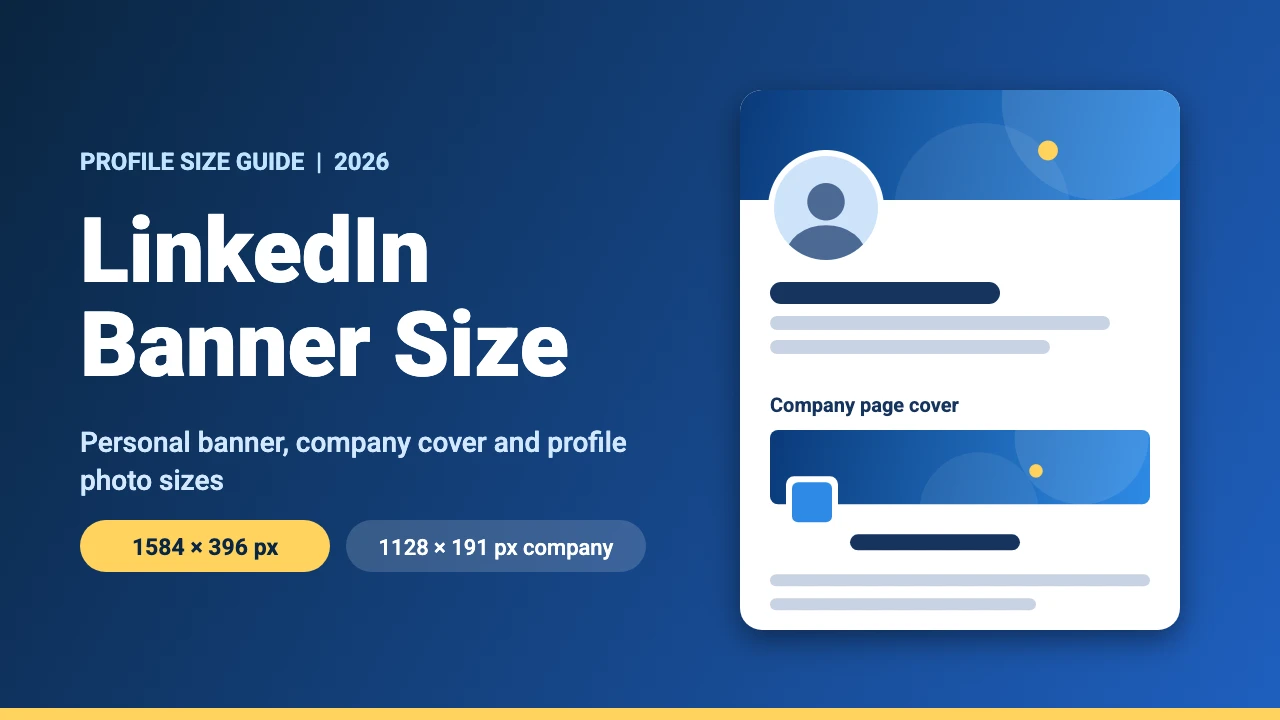
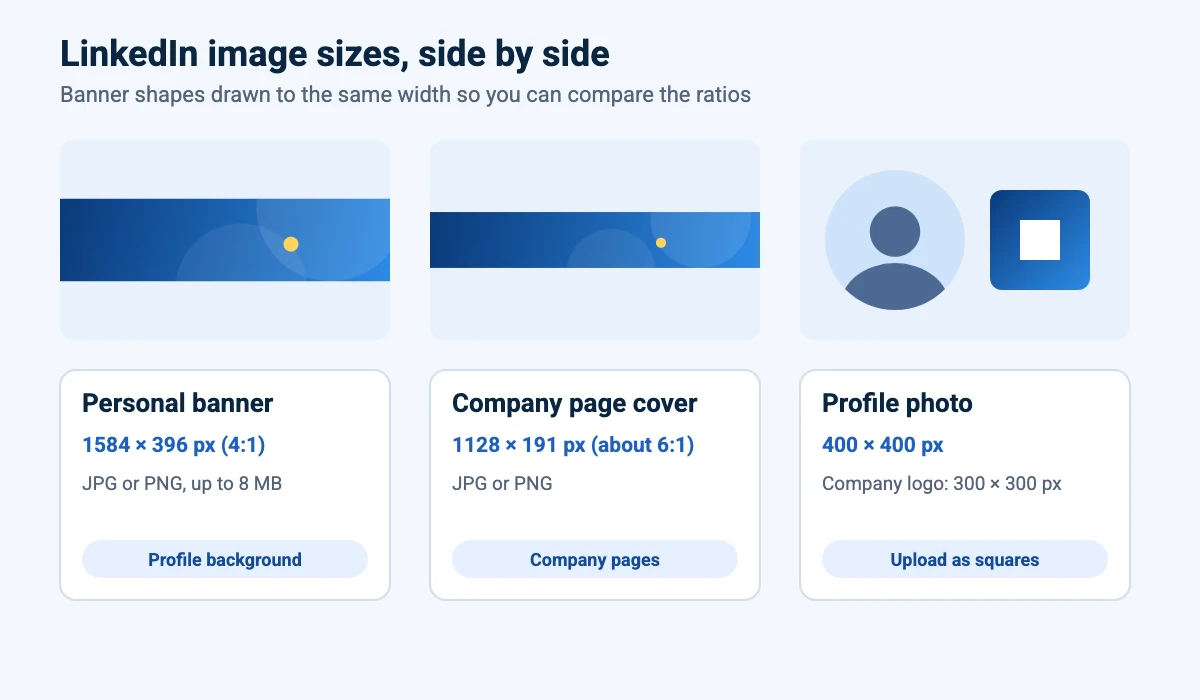
The recommended LinkedIn banner size is 1584 x 396 pixels (a 4:1 ratio) for a personal profile. A company page cover is smaller at 1128 x 191 pixels, and a profile photo is 400 x 400 pixels. This guide shows each size, where your profile photo covers the banner, which file types to use and how to make a banner in Canva.
LinkedIn Banner Sizes at a Glance
LinkedIn’s help pages block automated tools, so we could not read them directly. Instead we compared several independent size guides, and they agree on the sizes below. LinkedIn can change its limits and menus, so check the upload screen when you add your image. LinkedIn explains the steps on its help pages for the background photo and the profile photo.
| Image | Size | Ratio | Notes |
|---|---|---|---|
| Personal profile banner | 1584 x 396 px | 4:1 | JPG or PNG. Most guides give 8 MB as the maximum. |
| Personal profile photo | 400 x 400 px | 1:1 | Shown as a circle |
| Company page cover | 1128 x 191 px | About 6:1 | Partly covered by the company logo |
| Company page logo | 300 x 300 px | 1:1 | Upload a square image |
LinkedIn Personal Banner Size (1584 x 396 Pixels)
The personal banner, which LinkedIn calls the background photo, runs across the top of your profile. The commonly recommended size is 1584 x 396 pixels, a wide 4:1 rectangle. JPG and PNG are the safest file types, and most guides give 8 MB as the upper limit. Aim for a much smaller file, because a banner of a few hundred kilobytes loads quickly and looks the same.
Use at least the recommended size. A small image stretched to fill the space looks soft, especially on large or high density screens. If you design at exactly 1584 x 396 pixels, nothing has to be scaled.
Safe Zone: Where Your Profile Photo Covers the Banner
On a computer, your round profile photo sits over the lower left of the banner, and phones can trim the sides of the image. LinkedIn does not publish exact safe zone measurements, so the zones in the diagram are a design guide, not an official rule. They are based on how this layout behaves and on the common advice to keep key content inside the middle 75% of the width.
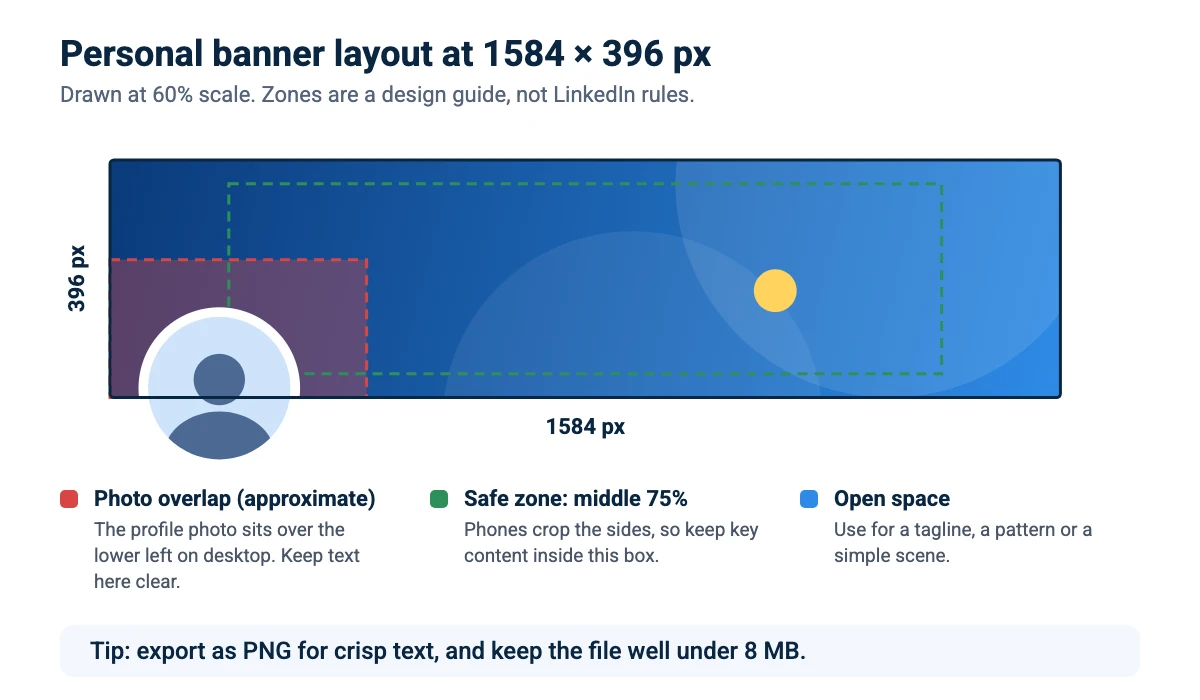
- Put your headline or tagline in the center or on the right, not in the lower left corner where the photo sits.
- Keep logos and faces away from the very edges, since phones can crop the sides.
- After you upload, view your profile on a phone and on a computer, and nudge the design if anything is hidden.
LinkedIn Company Page Cover Size (1128 x 191 Pixels)
Company pages use a flatter cover image. Guides recommend 1128 x 191 pixels, a ratio of about 6:1, which leaves very little height. Use one short line of text and a simple background, and keep the lower left corner clear because the company logo overlaps it. The logo itself should be a square image, 300 x 300 pixels is the common size, and it is worth checking that it stays readable when small.
Do not reuse a personal banner on a company page. A 1584 x 396 design has a different shape and will be cropped.
LinkedIn Profile Photo Size (400 x 400 Pixels)
A profile photo should be a square image of 400 x 400 pixels or larger. LinkedIn shows it as a circle, so center your face and leave a little space around it. Guides give JPG or PNG with a limit of about 8 MB, but there is no benefit in uploading something far larger than you need.
How to Change Your LinkedIn Banner
- Open your profile. Click your photo or your name to go to your own profile page.
- Find the banner. Click the pencil or camera icon on the banner area.
- Upload your image. Choose your file, and adjust the position if LinkedIn shows a crop screen.
- Save and check. Save the change, then view your profile on your phone as well as on a computer.
LinkedIn changes its menus from time to time, so follow the icons and labels you see if they differ from these steps.
How to Make a LinkedIn Banner in Canva
- Create the canvas. In Canva, click Create a design, choose Custom size and enter 1584 x 396 px. Custom sizes work on the free plan, and our guide to Canva Pro pricing explains what the paid plan adds.
- Mark the safe zone. Draw a simple shape over the lower left corner and another box for the middle 75% of the width as guides. Delete them before you download.
- Add a background. Use a brand color, a pattern or a photo. If you need an original image, try one of the free AI image generators.
- Add one short line of text. Say what you do or who you help, and choose a font that is easy to read. Our Canva fonts list and Canva font pairings can help.
- Download as PNG. PNG keeps text sharp. Then upload the file to LinkedIn.
If a photo does not fit the frame, cropping it in Canva fixes that before you export, and the resize guide helps if you want to reuse a design from another platform. New to the tool? Start with our guide to using Canva.
LinkedIn Banner Design Tips
Say what you do
Your name and headline already sit below the banner, so use the banner for one clear message, such as your specialty or the people you help. If you work freelance or run a small business, your business card and banner should tell the same story.
Keep it simple
A clean background with one line of text reads better than a collage. Choose strong contrast between text and background so it stays legible on a small phone screen.
Match your other channels
Using the same colors and fonts everywhere helps people recognize you. Our brand kit examples show how to set that up. If you also publish video or build a community, see our guides to the YouTube banner size, the Discord banner size and the Instagram story size. For profile images on other platforms, see our guides to the Instagram profile picture size and the Twitch banner size.
FAQ
The recommended size for a personal profile banner is 1584 x 396 pixels with a 4:1 ratio. A company page cover is 1128 x 191 pixels.
Use a square image of 400 x 400 pixels or larger. LinkedIn shows it as a circle, so keep your face in the center.
JPG and PNG are the safe choices. PNG keeps text crisp and JPG gives smaller files for photos. Most guides give 8 MB as the maximum, but a much smaller file works well.
A small image stretched to fit looks soft, so upload 1584 x 396 pixels. Keep important content in the middle 75% of the width and away from the lower left corner where your profile photo sits.
You upload one image, but it is displayed differently on phones and computers, and the sides can be trimmed on a phone. Preview your profile on both after uploading.
Guides recommend 1128 x 191 pixels, a ratio of about 6:1. Keep the lower left corner clear, because the company logo overlaps it.
Yes. Create a design with a custom size of 1584 x 396 pixels, add your text and background, and download it as a PNG. Custom sizes are available on the free plan, while the Resize tool is part of Canva Pro.
One clear line about what you do or who you help, your brand colors and maybe a simple graphic. Avoid small text, busy photos and anything in the lower left corner.