The recommended Instagram profile picture size is 320 x 320 pixels. Instagram crops your square upload into a circle and shows it at roughly 110 x 110 pixels on your profile. This guide explains the size, how the circle crop hides your corners, how to keep your face or logo inside it and how to make a profile picture in Canva.
Instagram Profile Picture Size at a Glance
Instagram’s help page on changing your profile picture explains the steps, but as far as we could read it does not list pixel sizes. The numbers below come from independent guides that agree with each other, including Metricool and Expert Photography. Expert Photography calls 320 x 320 a practical export recommendation, not a guarantee of how Instagram will display your image, so treat the sizes as a safe target and check the result on your profile.
| Item | Size | Notes |
|---|---|---|
| Recommended upload | 320 x 320 px | A square, 1:1 image |
| Displayed size | About 110 x 110 px | Shown as a circle on your profile; guides give this figure, and it can differ by device |
| Shape | Square upload, circle display | The corners of your square image are cropped away |
| File type | JPG or PNG | A standard JPG or PNG is the safe choice; we found no official file size limit |
Instagram Profile Picture Size (320 x 320 Pixels)
Upload a square image of at least 320 x 320 pixels. A smaller image is stretched to fill the space and looks soft, and a rectangle has to be cropped before Instagram will use it. The picture is shown very small on your profile, in comments and in your followers’ feeds, so the size on screen is much smaller than the file you upload.
If you plan to reuse the picture elsewhere, export your design at a larger square such as 1080 x 1080 pixels and keep that original. You can then make a 320 x 320 copy for Instagram without redrawing anything. That larger size is our own suggestion for keeping a sharp master file, not an Instagram requirement.
Why Instagram Crops Your Profile Picture Into a Circle
Your square upload is displayed inside a circle. Everything that sits in the four corners of the square is cut away, which is why a face that fills the frame or text near the edge gets trimmed. The diagram shows the part of the square that survives the crop.
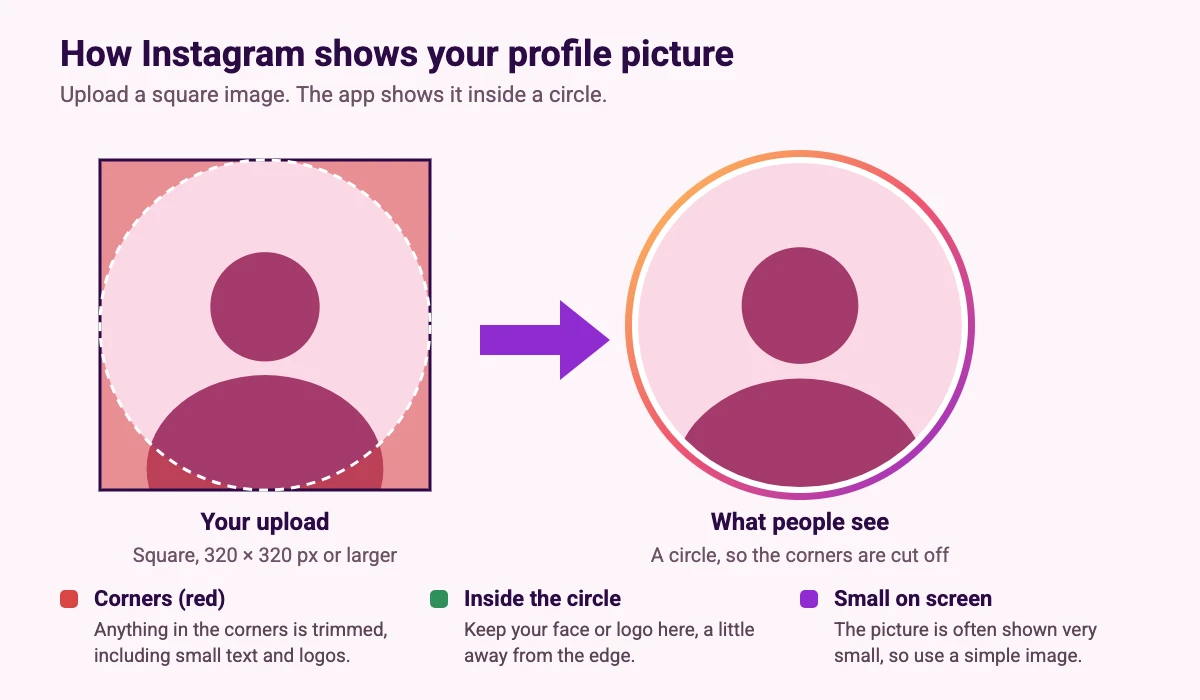
Expert Photography suggests keeping your face or logo near the center, with room above your head and below your chin, and using a circular crop preview if your editor has one. Export the file as a square either way.
How to Keep Your Face and Logo Inside the Circle
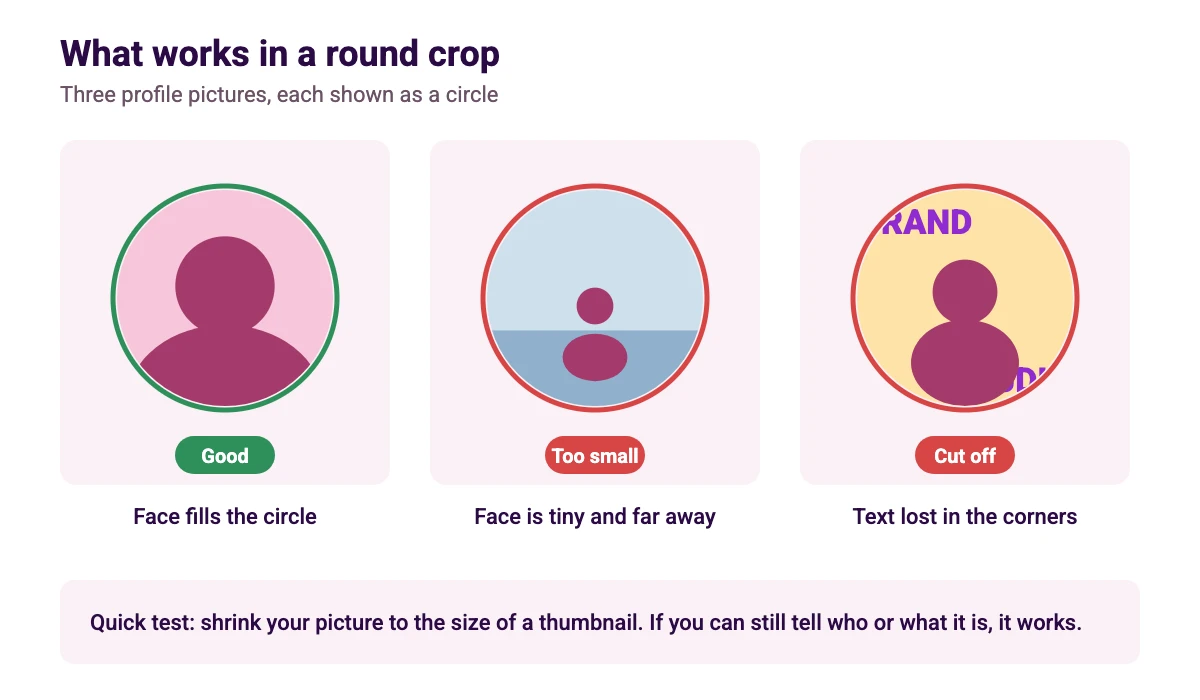
- Center your subject. Put your face or logo in the middle and leave a margin all the way around it.
- Zoom in on the face, not on the whole body. A tiny face in a wide photo is almost impossible to recognize at 110 pixels.
- Keep text short or skip it. Long names and slogans run into the circle edge. A single letter or a simple symbol survives best.
- Use strong contrast. A clear subject against a plain background stays readable when the picture is small.
- Check at a small size. Shrink your design to about the size of a thumbnail on screen. If you can still tell who or what it is, it will work on Instagram.
If you want to fit a whole rectangular photo inside the circle, Expert Photography notes that you can place it on a square canvas, but this makes the subject smaller.
How to Change Your Instagram Profile Picture
- Open your profile. Tap your profile picture or your profile tab in the Instagram app.
- Choose Edit profile. Tap the Edit profile button.
- Pick a new picture. Tap the picture or the Edit picture option and choose a photo from your library or take a new one.
- Adjust the crop. Move and zoom the image so your face or logo sits in the middle of the circle.
- Save. Confirm the change, then open your profile to check how it looks.
Instagram moves menu items around from time to time, so follow the labels you see if they differ from these steps.
How to Make an Instagram Profile Picture in Canva
- Create a square canvas. In Canva, click Create a design, choose Custom size and enter 1080 x 1080 px. Custom sizes work on the free plan, and our guide to Canva Pro pricing shows what the paid plan adds.
- Add a circle guide. Draw a circle that touches the edges of the canvas and use it to check what the crop will keep. Delete it before you download.
- Add your photo or logo. Drop in a photo, or build a simple logo mark. If a photo does not fit the frame, cropping it in Canva fixes that quickly.
- Keep the background simple. A solid color or soft gradient works well. For an illustrated look, try one of the free AI image generators.
- Download as PNG. Then upload the file to Instagram and move it so it sits in the middle of the circle.
If you already have a design in another size, the resize guide explains how to reuse it. New to the tool? Start with our guide to using Canva.
Instagram Profile Picture Tips
Use the same picture everywhere
People recognize a face or a logo they have seen before. Using the same picture on your other accounts helps followers find you, and our brand kit examples show how to keep colors and fonts consistent. If you share a logo across channels, the business card size guide helps you carry it onto print.
Choose a font you can read at a glance
If your picture includes a letter or a short word, pick a bold font. Our Canva fonts list and Canva font pairings are good places to start.
Make the rest of your profile match
Your picture sits above your grid, your highlights and your Reels. See our guides to the Instagram post size, the Instagram story size, the Instagram Reel size and the Instagram Reel cover size so the whole profile looks like one design. If you also run a professional profile, see the LinkedIn banner size.
FAQ
Independent guides recommend a square image of 320 x 320 pixels. Instagram shows it as a circle at roughly 110 x 110 pixels on your profile.
Upload a square image with a 1:1 aspect ratio. Instagram displays it inside a circle, so the corners of the square are cropped away.
The usual causes are a small image stretched to fit, a screenshot or an already compressed photo. Start from a sharp original and upload a square of at least 320 x 320 pixels.
Instagram crops the square into a circle, so anything in the corners is removed. Center your face or logo and leave a margin around it.
You can choose one, but you will need to crop it to a square. To fit the whole photo, place it on a square canvas first, which makes the subject smaller.
A standard JPG or PNG is a safe choice. We did not find an official file size limit on the Instagram help pages we could read, so keep the file reasonably small.
Yes. Create a custom square design, add your photo or logo, keep the subject in the middle and download it as a PNG. Custom sizes are available on the free plan.
Use a clear photo of your face or a simple logo mark with a plain background. Both read well when the picture is shown very small.